What Should You Do If Your OpenAI API Top-Up Does Not Arrive?





If your OpenAI API top-up does not arrive, do not make repeated payments right away. A better order of judgment is to check your Billing balance and payment records, confirm whether the correct Organization / Project is selected, and then determine whether the issue is caused by system update delay, negative balance deduction, bank authorization, payment failure, or risk control. OpenAI’s prepaid billing rules state that credits may take a few minutes to update after purchase. If your previous usage exceeded your balance, the new credits may also be used to offset a negative balance first. This guide is suitable for developers, cross-border users, small teams, and anyone troubleshooting OpenAI API billing issues.
Key Takeaways
- Check OpenAI Billing first, not just your card transaction alert.
- A few minutes of balance delay can be normal after payment.
- If the balance increases less than expected, negative balance deduction may be the reason.
- API credits and ChatGPT Plus subscriptions are billed separately.
- Card type, region, and 3DS verification can all affect payment success.
- Keep the transaction time, amount, and screenshots before contacting support.
First Check: Has Your OpenAI API Top-Up Really Not Arrived?
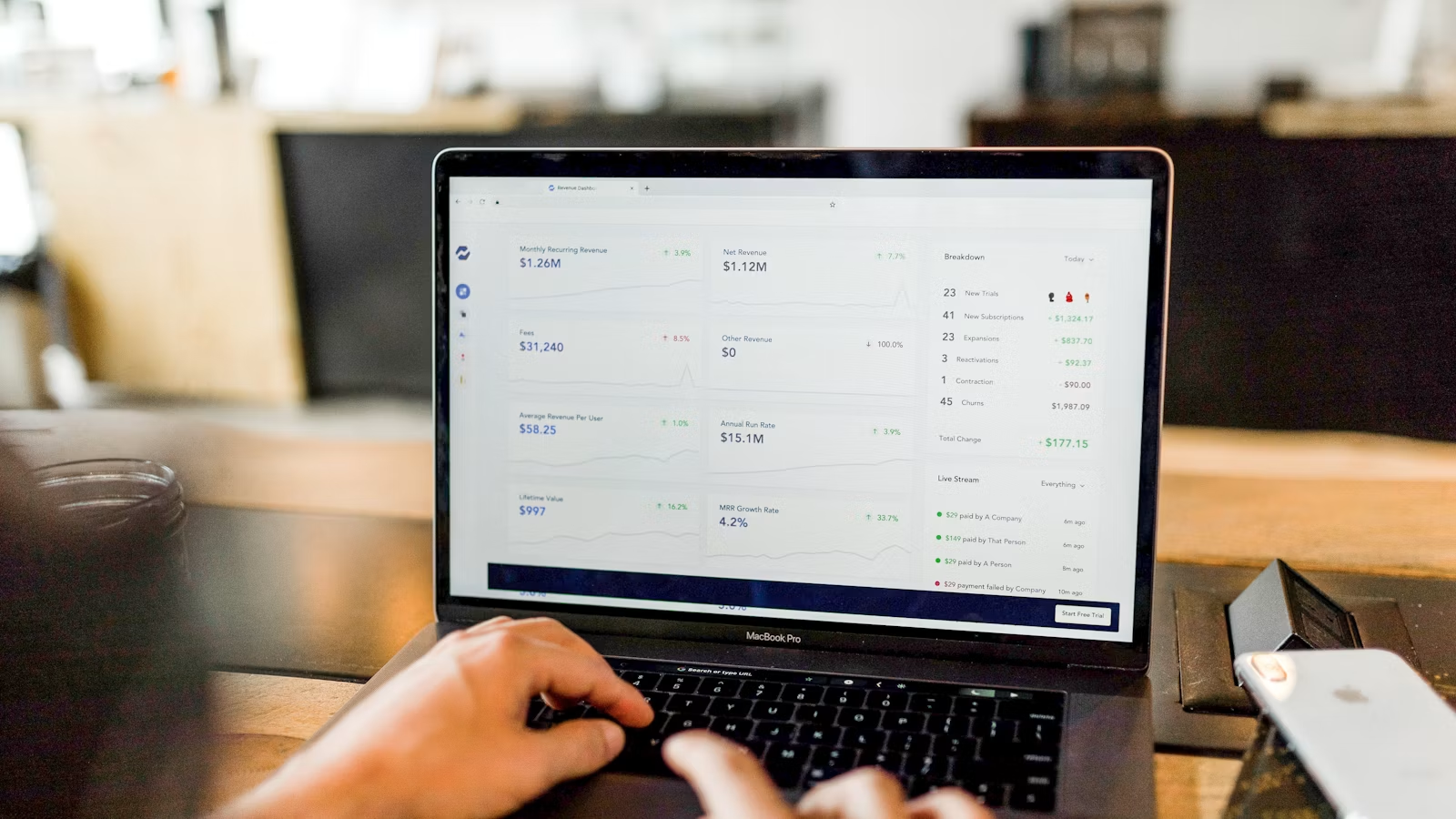
If your OpenAI API top-up appears not to have arrived, the first step is not to top up again, but to confirm whether you are looking at the correct balance. You should check Billing, Payment history, Usage Dashboard, and the currently selected Organization / Project in OpenAI Platform. A bank card alert only shows that an authorization or payment action occurred on the bank side. It does not necessarily mean OpenAI has credited the API credits to the correct organization.
Many users misjudge “not received” because they only check one entry point. For example, you may top up Organization A but use an API key from Organization B. Or you may see usage in the Usage Dashboard but lack permission to view full Billing information. Another possibility is that the payment succeeded, but the page cache has not refreshed yet. OpenAI clearly states that after credits are purchased, it may take a few minutes for the balance to update.
Where Should You Check First?
The most important place is the Billing page. It helps you determine whether API credits were actually added, whether there is a negative balance, and whether a corresponding payment record exists. The Usage Dashboard is better for checking API consumption, not for confirming whether a top-up has arrived. OpenAI’s API Usage Dashboard allows you to view monthly usage and export usage or cost data, but usage reporting and top-up settlement are not the same thing.
You can check in the following order:
| Checkpoint | Main Purpose | Common Mistake |
|---|---|---|
| Billing / Credit balance | Check whether API credits have arrived | Wrong organization may hide the balance |
| Payment history | Check whether OpenAI confirmed the payment | Bank alert does not equal platform confirmation |
| Usage Dashboard | Check API usage consumption | Usage may be delayed or filtered incorrectly |
| Organization selector | Switch between organizations and projects | Multi-organization users often check the wrong one |
| Bank statement | Check authorization, settlement, or reversal | Pending does not always mean final charge |
What Situations Are Often Mistaken for “Not Received”?
There are four common cases. The first is page update delay, where the balance has not refreshed immediately after payment. The second is bank authorization, where the bank shows a deduction but the merchant has not finalized the settlement. The third is negative balance deduction, where the top-up did arrive but was first used to repay previous overuse. The fourth is organization or project mismatch, where the credits are added to one organization while the API key belongs to another.
If you are using a team account, you also need to confirm whether you have sufficient permissions. In OpenAI’s project structure, projects can manage members, API keys, model limits, and budgets by scope. If your permission is limited, you may be able to call the API but not view complete billing information.
Summary: Whether an OpenAI API top-up has truly failed to arrive should be judged mainly by OpenAI Platform Billing and Payment history, not by bank card alerts alone. If the balance does not update within a few minutes, wait first and do not immediately make another payment. Multi-organization, multi-project, and team accounts are especially prone to “wrong organization,” “wrong project,” or “Usage checked instead of Billing” mistakes. The correct approach is to confirm whether the account, organization, project, and payment record all match before moving to deeper troubleshooting.
Why Does the Balance Not Update After a Successful OpenAI API Top-Up?

If your OpenAI API balance does not update after a top-up, the reason is usually not simply “payment failed.” You should break the issue into three layers: whether the bank completed the payment, whether OpenAI confirmed the credits, and whether the credited amount was immediately used to offset existing debt or usage. This is especially important when previous API usage already exceeded your available balance. New credits may first be used to offset a negative credit balance, making it look as if the balance did not increase.
OpenAI’s prepaid billing mechanism works by purchasing credits first and then deducting API usage from those credits. If your usage exceeds your purchased credits, additional charges or a negative balance may occur afterward. OpenAI also states that purchased credits usually expire after one year and are non-refundable, so you should confirm the amount, organization, and purpose before topping up to avoid incorrect or repeated purchases.
Bank Deduction, Payment Authorization, and OpenAI Credit Settlement Are Not the Same
Card transactions often involve three states: pending, authorization, and settled. A bank message may appear at the authorization stage, but the merchant may not have completed final settlement. For you, the key question is not whether the bank sent a payment alert, but whether OpenAI Payment history shows the corresponding record. If OpenAI has no successful payment record, the API balance usually will not increase.
This is common in international payments. Your bank may freeze the amount first and wait for merchant confirmation. If the merchant does not complete settlement, the bank may release the authorization later. Different banks display this differently. Some show “pending,” while others may look like an actual deduction. That is why you should not draw conclusions from a card alert alone.
Negative Balance Deduction Can Make a Top-Up Look Smaller
OpenAI explains that due to the complexity of billing and processing systems, access may not stop immediately after the balance is exhausted. Excess usage may appear as a negative credit balance, which will be deducted from your next credit purchase. For example, if your API balance is -$8 and you top up $10, your available balance may only show $2.
This does not mean the top-up disappeared. It means historical usage was settled first. You need to check both Usage Dashboard and Billing balance to see whether the balance was already negative before the top-up. If multiple team members share one project, or if an API key was leaked and generated abnormal usage, this type of issue becomes more likely.
Auto Recharge and Manual Top-Up Should Be Viewed Separately
OpenAI’s Auto recharge allows you to set a trigger threshold, recharge amount, and monthly recharge limit. Manual credit purchases do not count toward the monthly auto recharge limit. If auto recharge has already reached the monthly limit, the system may stop adding credits automatically until the next month.
| What You See | More Likely Cause | How to Check | Suggested Action |
|---|---|---|---|
| Balance unchanged for a few minutes after payment | System update delay | Refresh Billing and wait briefly | Do not top up again immediately |
| Balance increases less than expected | Negative balance deduction | Check previous balance and usage | Review historical API usage |
| Auto recharge does not trigger | Threshold, limit, or payment failure | Check Auto recharge settings | Adjust threshold or change card |
| Bank shows charge but platform has no record | Authorization not settled | Check Payment history | Wait or contact the bank |
| Project B errors after topping up Project A | Organization / project mismatch | Check API key’s project | Switch key or organization |
Summary: If your OpenAI API top-up appears successful but the balance does not update, the most important step is to separate “payment action” from “usable balance.” A bank charge may only be a pre-authorization. If OpenAI has credited the payment but the balance is lower than expected, negative balance deduction may be the reason. If auto recharge does not work, the issue may be the threshold, monthly limit, or payment method. Do not rely on a single page. Check Payment history, Billing balance, Usage Dashboard, and API key project together.
Payment Method, Region, and Risk Control: Which Rules Can Cause a Top-Up Failure?
If OpenAI does not generate a successful payment record, the top-up issue is more likely related to the payment chain. You should check card details, billing address, available balance, international online payment permission, 3D Secure verification, card issuing region, and OpenAI supported regions. This is especially important for cross-border users. A card that works on other websites may not necessarily work for purchasing OpenAI API credits.
In OpenAI’s explanation of credit card declines, banks may block certain online or international transactions by default. If you see errors such as authentication required, card may be invalid, or 3D Secure failed, you need to complete the bank OTP or app verification. If necessary, try an incognito window, another browser, another device, or another network.
Card Information and 3DS Verification Are the Most Common Failure Points
When topping up, the card number, expiry date, CVC, postal code, and billing address should match the records held by the card issuer. Many failures are not actively rejected by OpenAI, but fail because bank-side verification does not pass. When you see a payment failure, OpenAI may not receive the bank’s full decline reason, so contacting the issuing bank is often faster.
Key checks include:
- Whether the card supports international online and recurring / e-commerce transactions.
- Whether the billing address, postal code, and CVC match bank records.
- Whether the browser blocks the 3DS redirect page or bank verification pop-up.
- Whether VPN, ad blockers, or script blockers affect the payment flow.
- Whether OTP or authorization notification in the bank app is confirmed in time.
Prepaid Cards and Card Issuing Region Can Affect Success Rate
OpenAI clearly states that API credits do not support prepaid cards, and only standard credit or debit cards are supported. This is critical for users relying on virtual cards, gift cards, or prepaid balance cards. A virtual card is not always the same as a prepaid card, but if the card is prepaid in nature, the chance of failing to buy API credits may be higher.
Region rules also matter. OpenAI requires purchases to be made from supported regions, and payment cards should also be issued by banks in supported regions. You can check whether your current region is included in OpenAI’s supported countries and territories. That page also notes that accessing or offering access to OpenAI services outside supported regions may result in account blocking or suspension.
For users who need stable management of AI subscriptions and online payments, card record clarity, payment control, and currency management are also important. For example, when organizing payments for ChatGPT, Claude, GitHub Copilot, MidJourney, and other subscriptions, you can use the BiyaPay EasyCard to separate online subscription payments from everyday bank cards. Before applying, you should also understand the BiyaPay EasyCard fees and decide whether it fits your payment scenario.
| Risk Control Point | Possible Symptom | First Action |
|---|---|---|
| 3DS / SCA failure | Authentication failed | Change browser and complete bank verification |
| Bank blocks international transaction | Card declined | Ask the bank to enable online international payment |
| Billing address mismatch | Payment failed | Use the address recorded by the issuing bank |
| Prepaid card | Cannot buy API credits | Use a standard credit or debit card |
| Unsupported issuing region | Payment cannot complete | Use a card issued in a supported region |
| VPN or pop-up blocker | Verification page does not open | Disable blockers or change network |
Summary: Payment method and risk control issues cannot be solved by repeatedly topping up. You should first confirm whether the card is a standard credit or debit card, whether the issuing region is supported, whether the bank allows international online transactions, and whether 3DS / SCA verification has been completed. If OpenAI has no successful payment record, prioritize bank, browser, and card rule checks. If OpenAI already shows a successful record, return to Billing and balance logic.
If the Balance Has Arrived but the API Still Does Not Work, the Problem May Not Be the Top-Up
If your OpenAI API balance has arrived but API calls still fail, it does not necessarily mean the top-up failed. You need to check the API key, Project, Organization, model permission, usage limits, rate limits, and project budget. A top-up only answers whether credits are available. It does not automatically fix key permission errors, project mismatch, model restrictions, rate limits, or code configuration issues.
A common mistake is blaming every API error on the balance. For example, insufficient_quota may be related to balance, while rate_limit_exceeded is more likely related to request frequency or token limits. Model availability may be a project permission issue. A project budget alert is also not the same as a hard spending cap. In OpenAI’s project rules, project budgets are used for soft thresholds and alerts; API requests may continue even after a monthly budget is exceeded.
Balance Errors and Rate Limit Errors Should Be Separated
If the error points to billing quota or insufficient quota, return to Billing and check credits and negative balance. If the error points to rate limits, look at RPM, TPM, model limits, and project-level Limits. Rate limits usually do not have a direct relationship with the top-up amount. Adding more credits may not solve the issue.
| Error or Symptom | More Likely Issue | Relation to Top-Up | Action |
|---|---|---|---|
| insufficient_quota | Balance or quota not updated | High | Check Billing and negative balance |
| billing quota reached | Credits used up | High | Add credits or review consumption |
| rate_limit_exceeded | RPM / TPM limit | Medium | Check project Limits |
| model_not_found | Model or permission mismatch | Low | Check model access and key |
| Balance exists but API still errors | API key belongs to another project | Medium | Recreate key or switch project |
| Usage and bill do not match | Time range or organization mismatch | Medium | Check by UTC and organization |
Project, Organization, and API Key Work as a Set
OpenAI’s project structure allows you to create and manage API keys for each project, and set permissions for each key. That means the organization you top up, the project you call from, and the API key in your code must match. OpenAI’s API key management rules explain that secret keys can be created under project settings and assigned All, Restricted, or Read Only permissions.
If you are an individual developer, the simplest troubleshooting method is to create a new key under the current project and confirm that your environment variables, code configuration, and SDK parameters all use the new key. If you are on a team account, also confirm whether your organization role is allowed to view usage and billing. OpenAI’s export instructions also remind users to check organization permissions and filters if expected billing or usage data is not visible.
Usage Dashboard Can Also Cause Misjudgment
OpenAI’s usage export supports filters by project, user, API key, model, batch, and service tier. It uses UTC time, so when you reconcile with local time, you may feel that “today’s charge appears under yesterday.” Usage or Cost CSV is suitable for monthly reconciliation, but only if the correct organization, project, and date range are selected.
Summary: If your balance has arrived but the OpenAI API still does not work, separate “top-up issue” from “API call issue.” A top-up only determines whether credits exist. API calls still depend on API key, project permission, model access, rate limits, usage limits, and code configuration. When an error occurs, read the error code first and decide whether it belongs to Billing, Rate Limit, Project Permission, or Model Access. This prevents technical configuration issues from being mistaken for top-up failures.
What Is the Right Order to Handle an OpenAI API Top-Up That Has Not Arrived?
When an OpenAI API top-up does not arrive, the most efficient order is: save evidence, check OpenAI billing, check bank transaction status, confirm card and region rules, and then contact OpenAI support or the issuing bank. Do not make another payment before collecting enough information, and do not start with a chargeback. Repeated payments may create duplicate authorizations, while early disputes can make account and billing handling more complicated.
Start by creating a troubleshooting record. The more complete the record, the faster support can help. This is especially true for cross-border payments, where the bank, payment gateway, and OpenAI may show different states. If you only say “money was deducted but credits did not arrive,” support will have limited information to identify where the issue occurred.
What Evidence Should You Save First?
You should keep the following information:
- OpenAI account email.
- Top-up time, amount, and currency.
- Current Organization / Project name.
- Billing balance screenshot.
- Payment history screenshot.
- Bank transaction screenshot, including pending or settled status.
- API error code and full message.
- For team accounts, the project linked to the API key used.
If you use online subscription or virtual card tools to manage different AI services, keep those card statements as well. For example, when using Biya to manage subscription payments, you can check the BiyaPay EasyCard bill to compare the transaction time, amount, and spending record with OpenAI Billing.
When Should You Contact OpenAI, and When Should You Contact the Bank?
If OpenAI Payment history shows a successful record but the balance is abnormal, the deduction is unclear, or the organization display is inconsistent, contact OpenAI first. If the bank shows pending but OpenAI has no successful record, usually wait for the bank authorization to be released or contact the issuing bank. If the page shows 3DS failure, card decline, or blocked international transaction, the issuing bank should be the first contact.
| Situation | First Contact | Reason |
|---|---|---|
| OpenAI has a successful payment record but balance is abnormal | OpenAI support | Platform billing needs review |
| Bank shows pending but OpenAI has no record | Bank or wait for settlement | It may only be authorization |
| 3DS failed or card declined | Issuing bank | Bank has the decline reason |
| Wrong organization or permission issue | Organization Owner | Project and role need adjustment |
| Unauthorized charge | OpenAI + bank | Risk needs to be blocked on both sides |
Unauthorized Charges Should Be Handled Separately
If you confirm that you did not buy the API credits, OpenAI provides a path for handling unauthorized API credit purchase charges, usually through the chat window with transaction details such as date, amount, and card information. OpenAI also recommends contacting your bank immediately after discovering unauthorized charges to reduce further risk.
If you suspect account or API key misuse, change your password, sign out of all devices, and rotate your keys immediately. In OpenAI’s guidance on suspicious activity, API users who suspect key exposure should rotate API keys immediately and provide the support team with the registered email, abnormal behavior description, excessive charge amount, and screenshots.
Summary: When an OpenAI API top-up does not arrive, the handling order matters more than reacting quickly. Save evidence first, then check whether OpenAI has a payment record. If OpenAI has a record but the balance is abnormal, contact OpenAI. If the bank shows pending and the platform has no record, check the bank status first. If the card is declined or 3DS fails, contact the issuing bank. For unauthorized transactions, handle both platform and bank security steps. The earlier you organize transaction details, the less back-and-forth you will face.
How Can You Reduce OpenAI API Top-Up and Billing Issues?
To reduce OpenAI API top-up and billing issues, the key is not to top up a larger amount at once. A better approach is to maintain a stable payment method, clear project structure, reasonable auto recharge thresholds, exportable usage records, and secure API key management. For individual developers, the priority is avoiding card failure and key leakage. For teams, the priority is project structure, permissions, budgets, and reconciliation workflow.
OpenAI’s prepaid model helps manage budget, but it does not automatically prevent every case of excess consumption. You still need to set auto recharge, monthly limits, project budget alerts, and export usage regularly. Otherwise, when multiple scripts, members, or projects call the API at the same time, you may encounter “balance suddenly went to zero,” “new credits were used immediately,” or “nobody knows which project caused the charge.”
Set Auto Recharge and Budget Alerts
If your API usage is part of a stable business workflow, you can set an auto recharge threshold and monthly recharge limit. When the balance drops below the threshold, credits can be added automatically, reducing service interruption risk. However, the monthly limit should match real usage. If it is too high, cost control weakens; if it is too low, payment failures may happen frequently.
Project budgets should also be used together with auto recharge. Although budgets are not hard caps, they help you receive alerts in time. For small teams, it is useful to split projects by environment: development, testing, and production can use separate keys and budgets, making abnormal usage easier to trace.
Export Usage and Cost Data Regularly
Exporting Usage or Cost CSV once a month is a good habit. OpenAI supports exports by line item, project, user, API key, model, and other dimensions, allowing you to build your own reconciliation sheet. When balance abnormalities occur, you do not need to search records from scratch. You can directly see which day, project, or key consumed unusually high amounts.
If you manage several AI service subscriptions at the same time, your payment tool should also provide clear records. Before opening or topping up a card, you can check how to top up the BiyaPay EasyCard and separate AI service payments, daily spending, and business reimbursement for easier billing review later.
Protect API Keys to Avoid Abnormal Balance Consumption
OpenAI recommends that every team member use a unique API key, avoid sharing keys, and never expose keys in browsers, mobile apps, or public repositories. Once an API key is leaked, it may cause abnormal calls, balance consumption, service interruption, and data risk.
You can apply the following practices:
| Preventive Action | Problem Solved | Suitable For |
|---|---|---|
| Create separate keys for each project | Locate abnormal consumption | Individuals and teams |
| Store keys in environment variables | Avoid code leakage | Developers |
| Export Cost CSV regularly | Monthly reconciliation | Teams and finance users |
| Set auto recharge limits | Reduce interruption risk | Stable API users |
| Set project budget alerts | Detect abnormal usage early | Multi-project teams |
| Rotate keys immediately after abnormalities | Stop further consumption | All API users |
Summary: An OpenAI API top-up that does not arrive is only the surface issue. The deeper problem is often that payment, permissions, projects, usage, and security management have not formed a closed loop. A stable setup means using a supported payment method, keeping Organization / Project / API key relationships clear, setting auto recharge and budget alerts, exporting usage / cost data regularly, and protecting API keys from exposure. When a balance issue appears later, you can locate the cause much faster.
If you often pay for OpenAI API, ChatGPT, Claude, GitHub Copilot, MidJourney, and other AI services, scattered billing can make troubleshooting more difficult. Separating AI service payments from everyday bank cards helps reduce confusion over which card was charged, which subscription renewed, and whether the payment was credited. The BiyaPay EasyCard can support global online subscriptions, AI service payments, billing records, and payment workflow management across multiple online scenarios. You can decide whether it fits your needs based on subscription frequency, currency requirements, and reconciliation habits, while also checking card fees, top-up methods, and billing records. Specific payment results should still follow merchant rules, billing details, and local compliance requirements.
FAQ
How long does it take for an OpenAI API top-up to arrive?
An OpenAI API top-up may take a few minutes to appear, so a short delay is not necessarily abnormal. First refresh Billing and confirm that the correct Organization / Project is selected. If the balance still does not change after a longer period, check Payment history, bank transaction status, and whether a negative balance was deducted.
Can I top up if my OpenAI API balance is negative?
You can usually top up when your OpenAI API balance is negative, but new credits may first be used to offset that negative balance. As a result, the available balance may be lower than the amount you purchased. Check both Usage Dashboard and Billing balance to confirm whether past overuse caused the deduction.
Can ChatGPT Plus offset OpenAI API charges?
ChatGPT Plus usually cannot offset OpenAI API charges. ChatGPT subscriptions and OpenAI API usage are generally separate billing systems. API calls, prepaid credits, usage, and payment records should be checked through OpenAI Platform Billing.
Will a failed OpenAI API top-up be refunded automatically?
A failed OpenAI API top-up does not always appear as a refund. Sometimes it is only a bank authorization that will be released later. If OpenAI has no successful payment record, check the bank pending status first. If the platform confirms the charge but the balance is abnormal, submit transaction details to OpenAI support.
Can I use a virtual card to top up OpenAI API?
Whether a virtual card can be used to top up OpenAI API depends on whether it is a standard credit or debit card. OpenAI clearly states that API credits do not support prepaid cards. The card also needs to meet supported region, issuing region, billing address, and bank verification rules.
Should I file a chargeback if my OpenAI API top-up does not arrive?
You should not start with a chargeback when an OpenAI API top-up does not arrive. First confirm whether the issue is system delay, bank authorization, negative balance deduction, or wrong organization selection. Only consider the bank dispute process after unauthorized charges or unresolved abnormal billing are confirmed.
*This article is provided for general information purposes and does not constitute legal, tax or other professional advice from BiyaPay or its subsidiaries and its affiliates, and it is not intended as a substitute for obtaining advice from a financial advisor or any other professional.
We make no representations, warranties or warranties, express or implied, as to the accuracy, completeness or timeliness of the contents of this publication.
Related Blogs of

What Are Storage Chip Stocks? A Breakdown of DRAM, NAND, HBM, and HDD-Related Names


Wise vs Revolut vs PayPal vs Bank Currency Exchange: What Are the Differences?


What Is the Relationship Between SpaceX, Starlink, and Tesla? Elon Musk’s Corporate Map and Market Linkages


How Can Ordinary Investors Buy SpaceX After Its Listing? U.S. Brokerage Accounts, Order Timing, and Risk Notes
Choose Country or Region to Read Local Blog
 Australia
 Austria
 Belgium
 Canada
 Cyprus
 Czech Republic
 Denmark
 Estonia
 Finland
 France
 Germany
 Greece
 Hong Kong
 India
India Indonesia
 Ireland
 Italy
Italy Japan
Japan Latvia
 Lithuania
 Luxembourg
 Malaysia
 Malta
Malta Morocco
 Nepal
Nepal Netherlands
 New Zealand
 Norway
 Pakistan
 Philippines
 Poland
 Portugal
 Romania
 Singapore
 Slovakia
 Slovenia
 South Africa
 South Korea
 Spain
Spain Sweden
 Thailand
 The United States
 Turkey
 United Arab Emirates
 United Kingdom
 Vietnam
Contact Us




BIYA GLOBAL LLC is registered with the Financial Crimes Enforcement Network (FinCEN), an agency under the U.S. Department of the Treasury, as a Money Services Business (MSB), with registration number 31000218637349, and regulated by the Financial Crimes Enforcement Network (FinCEN).
BIYA GLOBAL LIMITED is a registered Financial Service Provider (FSP) in New Zealand, with registration number FSP1007221, and is also a registered member of the Financial Services Complaints Limited (FSCL), an independent dispute resolution scheme in New Zealand.