Where is the Euro Sign? A 2025 Guide for All Keyboards




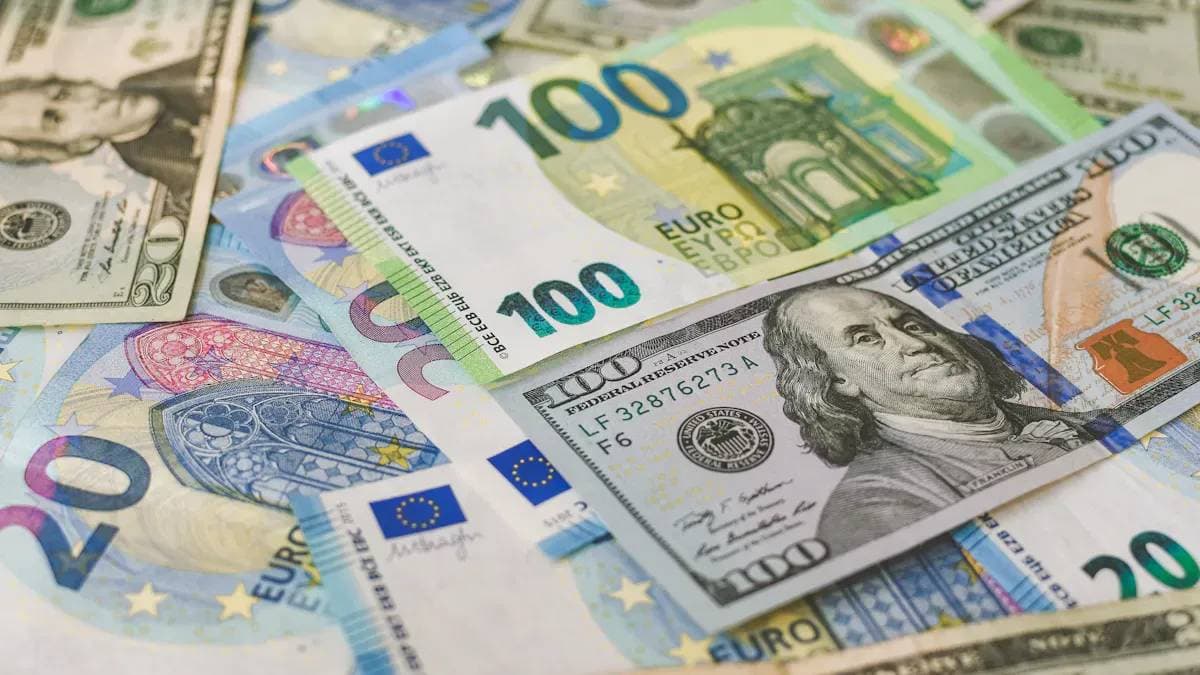
Image Source: pexels
The euro symbol (€) is a key part of global finance, with over 20 countries using the currency. Knowing how to type euro sign is a valuable skill.
You can easily type the euro sign with the right keyboard shortcut. This guide shows you how to type the euro symbol. Here are the most common euro symbol keyboard shortcuts.
Quick Keyboard Shortcuts to Type the Euro Symbol
- Windows PC: Use
Ctrl+Alt+4on a U.S. keyboard orAltGr+4on a U.K. keyboard.- Mac Keyboard: Use
Option+Shift+2for a U.S. keyboard orOption+2for a U.K. keyboard.- Mobile: Press and hold the dollar sign (
$) to find the euro symbol.
Learning how to type this character on a Mac keyboard is simple.
If you deal with cross-border payments, overseas pricing, or EU-related invoices, the bigger risk usually isn’t “finding €”—it’s typing the amount correctly but overlooking FX spreads and fees. A practical habit is to run a quick EUR-to-your-base-currency check before you finalize numbers. You can do that in seconds with the currency converter, then carry that ballpark rate into quotes, contracts, and budgeting.
If you also track markets (eurozone names or EU-exposed stocks), you can connect the workflow: “type the symbol → sanity-check the conversion → verify the market context.” While you’re working with € figures, you can open the BiyaPay stock page to quickly review relevant tickers. And for a broader view of cross-market coverage, the BiyaPay official site is a useful reference (including support for USDT-based access to U.S. stocks, Hong Kong stocks, and futures, plus zero-fee Maker trading for digital-asset spot and contracts), helping you move from “typing correctly” to “calculating and executing confidently.”
Key Takeaways
- Use specific keyboard shortcuts to type the euro symbol. Windows users can try
Ctrl + Alt + 4orAltGr + 4. Mac users can useOption + Shift + 2orOption + 2. - Mobile devices let you find the euro symbol by pressing and holding the dollar sign (
$). - If shortcuts do not work, you can copy and paste the euro symbol. You can also use the ‘Insert Symbol’ tool in word processors or your computer’s ‘Character Map’ or ‘Character Viewer’.
How to Type the Euro Sign on Keyboards
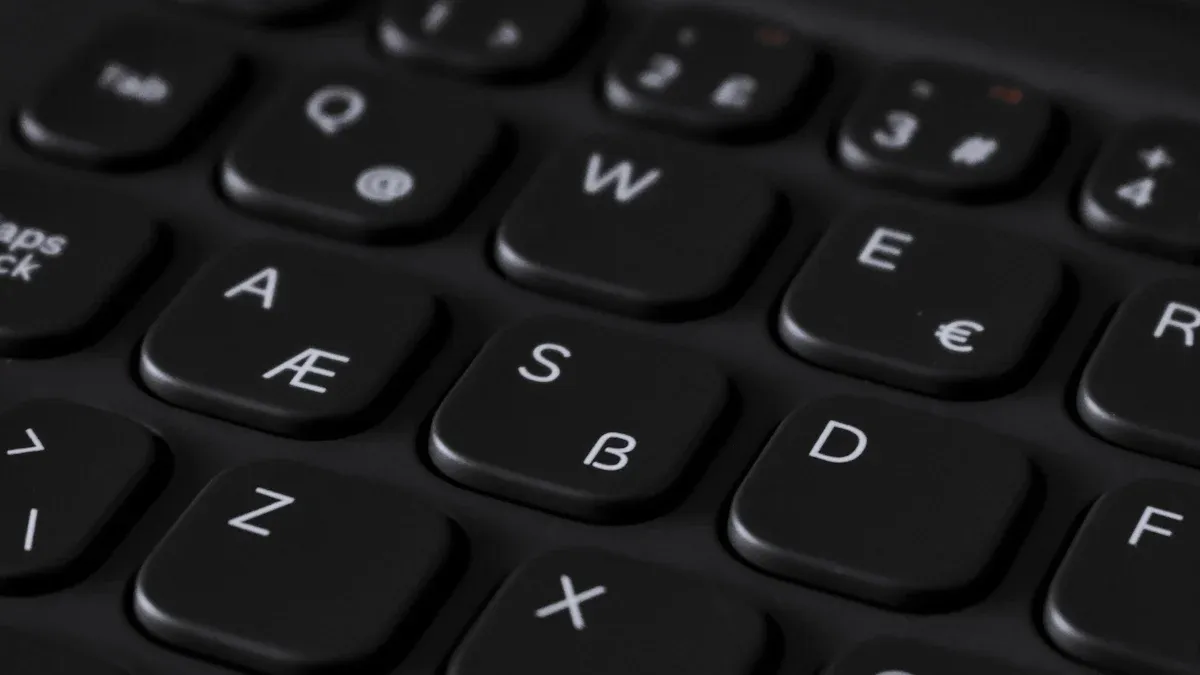
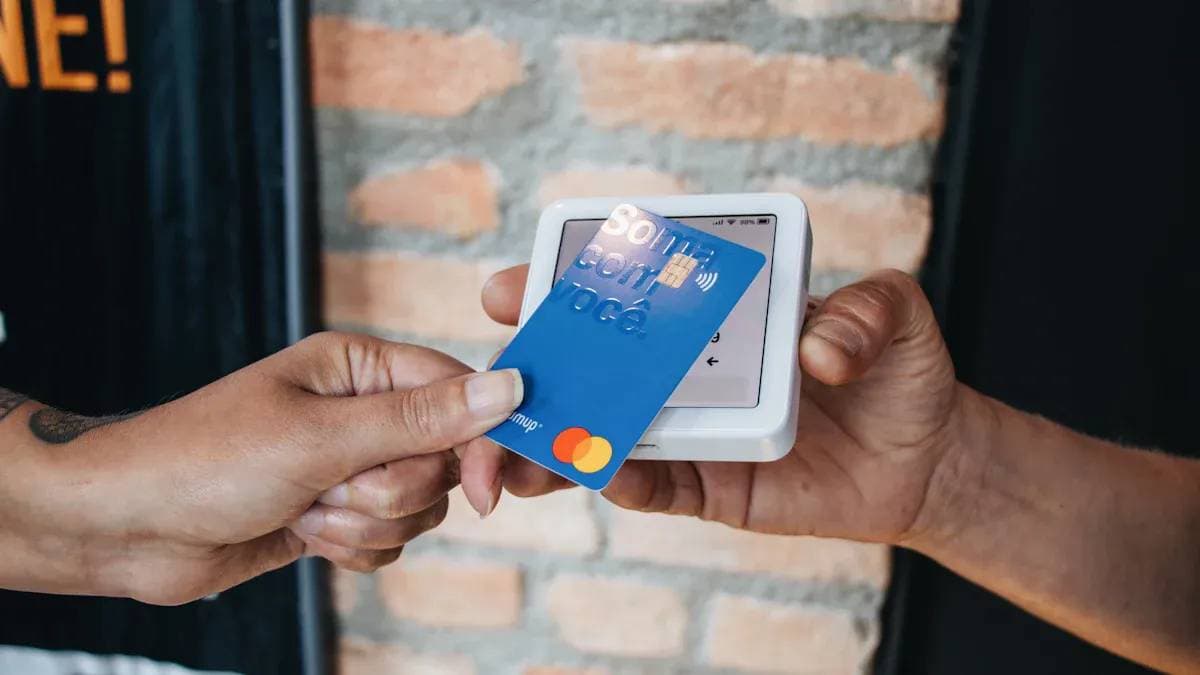
Image Source: pexels
Learning how to type the euro sign is simple once you know the correct method for your device. The specific keys you need to press depend on your operating system (like Windows or macOS) and your physical keyboard layout (like U.S. or U.K.).
Why are the shortcuts different? When the euro symbol (€) was introduced in the late 1990s, different tech companies like Apple and Microsoft assigned it to various code positions. This created early inconsistencies. While the Unicode standard soon gave the euro symbol a single, universal code, it took time for operating systems to adopt it, leading to the varied shortcuts we still use today.
How to Type Euro on a Windows PC
On a Windows PC, you have a few reliable options to type the euro symbol. The best method for you will depend on whether your keyboard has a numeric keypad and which regional layout you use.
1. Use the Ctrl + Alt Shortcut This is a common method, especially on a U.S. keyboard.
- Press and hold
Ctrl+Alt, then press the4key.
2. Use theAltGrKey Many international and U.K. keyboard layouts include anAltGrkey, which is designed to access special characters. If you have a U.K. keyboard, this is the primary way to type the euro sign. - Press and hold
AltGr, then press the4key.
What is the
AltGrkey? TheAltGr(Alternate Graphic) key, usually found to the right of the spacebar, gives you access to a third set of characters on your keyboard. Unlike the standardAltkey used for system commands,AltGris specifically for typing extra symbols and accented letters, making it essential for multilingual use.
3. Use the Numeric Keypad (Alt Code) This universal method works on any Windows PC with a separate numeric keypad (the block of number keys on the right). This is a great way to get the euro symbol using alt codes.
- Make sure
Num Lockis turned on. A light on your keyboard will usually indicate this. - Press and hold the
ALTkey (the one on the left of the spacebar). - While holding
ALT, type0128on the numeric keypad. - Release the
ALTkey, and the euro symbol (€) will appear.
Type the Euro Sign on a Mac
Typing the euro sign on a Mac keyboard is straightforward, but the shortcut changes slightly depending on your keyboard’s regional layout. Here is how to type the euro symbol on a Mac.
The main difference is between the U.S. keyboard and the U.K. keyboard layouts. You can use the following keyboard shortcuts to type the euro sign.
| Keyboard Layout | Shortcut to Type Euro Sign |
|---|---|
| U.S. Keyboard | Option + Shift + 2 |
| U.K. Keyboard | Option + 2 |
Note on the Option Key ⌨️ On your Mac keyboard, the
Optionkey may also be labeled with the wordAltor the symbol⌥. All three refer to the same key.
This is the standard method for getting the euro symbol for Macs.
Typing the Euro Symbol on a Chromebook
For Chromebook users, the easiest way to type the euro symbol is to use the “US International” keyboard layout, which expands the characters you can access.
Here is how to type euro on a Chromebook:
- Switch Your Keyboard Layout: Go to your Chromebook’s
Settings>Advanced>Languages and inputs. SelectInputsand add the “US International” keyboard layout. You can switch between layouts using the status area in the corner of your screen. - Type the Symbol: With the US International layout active, press and hold the
Right Altkey (theAltkey on the right side of the spacebar) and press the5key.
Many European keyboards, such as the Italian and U.K. keyboard layouts, include more direct ways to access the euro symbol, often with AltGr + E or AltGr + 4.
Other Ways to Get the Euro Symbol
Image Source: pexels
Keyboard shortcuts are fast, but they are not the only option. You can use several other reliable methods if a shortcut isn’t working or you simply prefer a different approach. These techniques work on almost any device.
Copy and Paste to Type Euro Sign
The simplest alternative is to copy and paste the euro symbol. You can grab it from a reliable webpage and place it directly into your document, email, or financial app like Biyapay. Many sites like eurosymbol.eu and hotsymbol.com offer a one-click button to copy the symbol.
- Step 1: Find the euro symbol (€) on a trusted site.
- Step 2: Highlight the symbol and copy it (Ctrl + C on Windows, Cmd + C on Mac).
- Step 3: Click where you want the symbol and paste it (Ctrl + V on Windows, Cmd + V on Mac).
A Quick Tip on Pasting When you copy text, you also copy hidden formatting. To avoid issues, you can paste using the “Keep Text Only” option. This ensures the euro symbol matches your document’s existing style.
Use the Insert Symbol Tool
Most word processors have a built-in tool for inserting special characters. This is a great way how to type the euro sign in Word or Google Docs.
In Microsoft Word:
- Go to the
Inserttab and selectSymbol>More Symbols. - Set the font to
(normal text)and the subset toCurrency Symbols. - Find and double-click the euro symbol to insert it.
In Google Docs:
- Open the
Insertmenu and chooseSpecial characters. - Type “Euro” into the search bar or draw the euro symbol in the drawing box.
- Click the symbol from the results to add it to your document.
Find with Character Map and Character Viewer
Your operating system includes a library of every available character. You can use these tools to find and type the euro symbol.
- On Windows: Open the Character Map app by searching for it in the Start menu. You can search for the euro symbol (Unicode: U+20AC), then click
SelectandCopy. This is how to type the euro symbol without a keyboard shortcut. - On macOS: Open the Character Viewer by pressing the
Fnkey. Search for “Euro” to find the euro symbol. Double-click it to insert it into your text. This is how to type the euro sign on a Mac.
Learning how to type the euro sign with these tools gives you a foolproof backup method.
You now know how to type the euro symbol on any device. Whether you use a Windows PC, Mac keyboard, or Chromebook, a simple shortcut is available. This guide showed you how to type the euro sign using your keyboard or other built-in tools.
Common Mistakes to Avoid ❌ Many users try incorrect shortcuts. Combinations like
Ctrl + Alt + 5orAltGr + 5will not produce the euro symbol. On a French AZERTY Mac keyboard,Alt Gr + ecan also fail, making direct shortcuts a better choice.
For quick access, this table summarizes the best methods for each platform.
| Platform | Primary Method to Type Euro Sign |
|---|---|
| Windows PC | Ctrl + Alt + 4 (U.S. keyboard) or AltGr + 4 (U.K. keyboard) |
| Mac Keyboard | Option + Shift + 2 (U.S. keyboard) or Option + 2 (U.K. keyboard) |
| Mobile | Press and hold the dollar sign ($) |
| Universal | Copy and paste the euro symbol: € |
Learning how to type the euro symbol is easy once you find the right trick for your computer.
FAQ
Why isn’t the euro symbol printed on my keyboard?
Most keyboards, especially in the U.S., prioritize symbols for their primary region. You can still type the euro symbol using a simple software shortcut designed for your operating system.
What if the Alt code 0128 doesn’t work?
The Alt code method requires a separate numeric keypad. You must also turn on
Num Lock. This method will not work using the number keys above your letter keys.
*This article is provided for general information purposes and does not constitute legal, tax or other professional advice from BiyaPay or its subsidiaries and its affiliates, and it is not intended as a substitute for obtaining advice from a financial advisor or any other professional.
We make no representations, warranties or warranties, express or implied, as to the accuracy, completeness or timeliness of the contents of this publication.
Related Blogs of

Enterprise Overseas Payroll Compliance and Tax Planning: How to Use Multi-Asset Payroll Platforms to Reduce Cross-Border Employment Costs?

How Do European International Students Pay the Final Installment for a Used Car? Digital Payment Methods to Avoid SEPA Transfer Delays Caused by Weekend Bank Closures

Patreon/OnlyFans and Other Overseas Creator Platforms Payout: Ultimate Tricks to Bypass Domestic Bank Forex Review for Withdrawal

OpenAI Card Frequently Declined (Card Declined)? Virtual Card Tested Solutions

Choose Country or Region to Read Local Blog
 Australia
 Austria
 Belgium
 Canada
 Cyprus
 Czech Republic
 Denmark
 Estonia
 Finland
 France
 Germany
 Greece
 Hong Kong
 India
India Indonesia
 Ireland
 Italy
Italy Japan
Japan Latvia
 Lithuania
 Luxembourg
 Malaysia
 Malta
Malta Morocco
 Nepal
Nepal Netherlands
 New Zealand
 Norway
 Pakistan
 Philippines
 Poland
 Portugal
 Romania
 Singapore
 Slovakia
 Slovenia
 South Africa
 South Korea
 Spain
Spain Sweden
 Thailand
 The United States
 Turkey
 United Arab Emirates
 United Kingdom
 Vietnam
Contact Us




BIYA GLOBAL LLC is registered with the Financial Crimes Enforcement Network (FinCEN), an agency under the U.S. Department of the Treasury, as a Money Services Business (MSB), with registration number 31000218637349, and regulated by the Financial Crimes Enforcement Network (FinCEN).
BIYA GLOBAL LIMITED is a registered Financial Service Provider (FSP) in New Zealand, with registration number FSP1007221, and is also a registered member of the Financial Services Complaints Limited (FSCL), an independent dispute resolution scheme in New Zealand.