
How to Pay for ChatGPT Plus: Web, App, Card Binding, and Subscription Renewal Guide




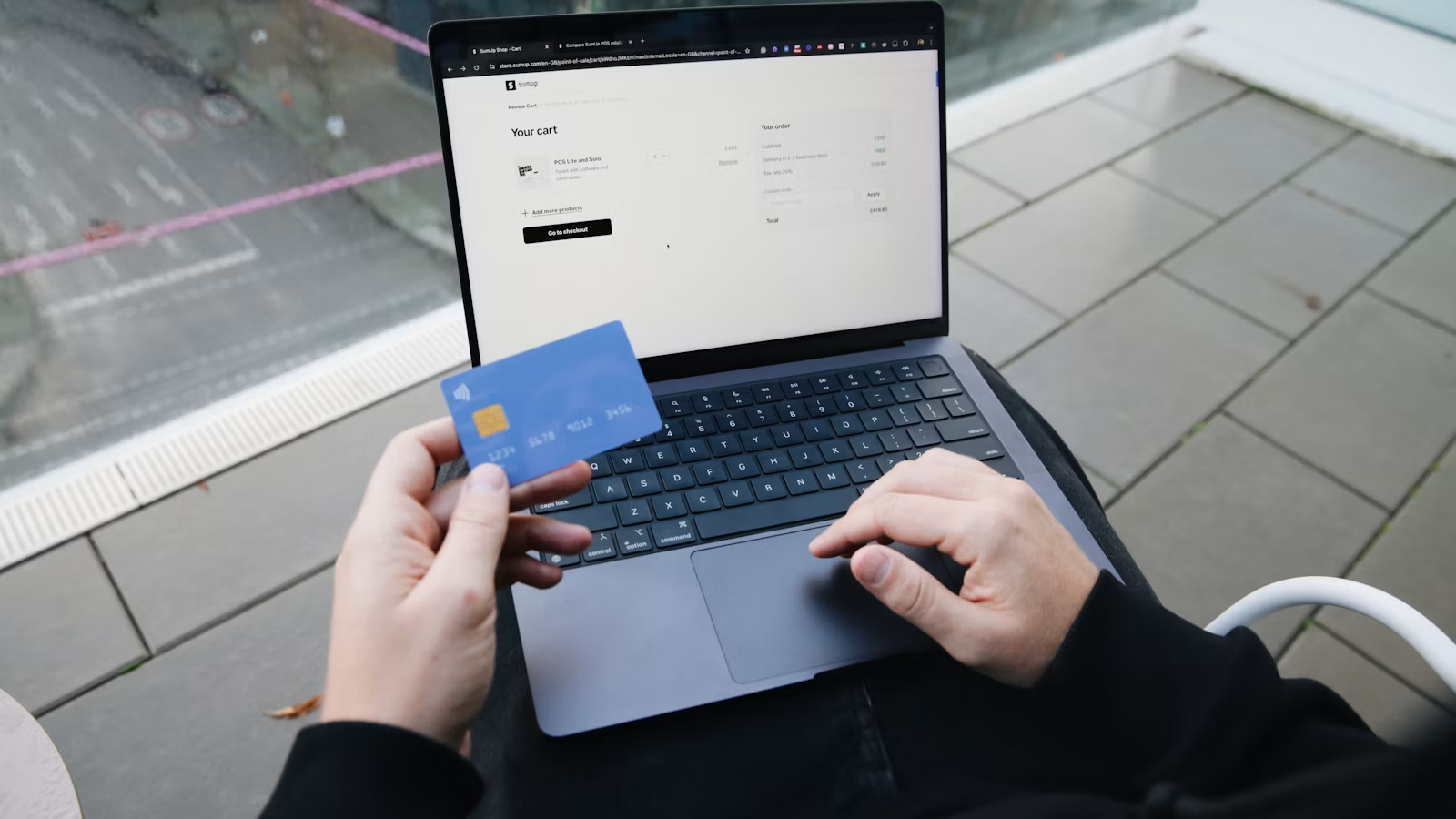
How you pay for ChatGPT Plus depends on where you subscribe. If you purchase it through chatgpt.com on the web, the subscription is usually managed in your ChatGPT account and billing settings. If you purchase it through the iPhone, iPad, or Android app, the subscription is usually managed by Apple App Store or Google Play. Before paying, the most important thing is not just checking the price, but confirming your login account, subscription platform, payment method, currency, and renewal management entry. This helps reduce problems such as being charged but still seeing the Free plan, duplicate subscriptions, missing invoices, or failed cancellation.
Key Takeaways
- ChatGPT Plus can be subscribed to on the web, iOS, or Android.
- Web subscriptions are usually managed in ChatGPT account billing.
- App subscriptions are generally managed by Apple or Google Play.
- Cancel the original subscription before switching platforms to avoid duplicate charges.
- For payment failure, first check your card, billing address, and bank verification.
- ChatGPT subscriptions and OpenAI API billing are separate systems.
What Should You Confirm Before Paying for ChatGPT Plus?

Before paying for ChatGPT Plus, you should confirm three things: you are buying a ChatGPT personal subscription, not OpenAI API access; you are logged in to the ChatGPT account you plan to use long term; and you know whether the subscription is being purchased through the web, Apple App Store, or Google Play. If these three points are unclear, you may later run into issues such as “I was charged but Plus did not activate,” “it works on my phone but not on my computer,” or “I cannot find where to cancel.”
First, distinguish between plans and products. The Free, Go, Plus, Pro, and Business plans shown on ChatGPT pricing are mainly for ChatGPT web and app users. OpenAI API, by contrast, is a usage-based service for developers calling models through the API. Buying ChatGPT Plus does not automatically give you API credits, and adding a payment method or balance to the API platform does not mean you have subscribed to ChatGPT Plus.
| Item to Confirm | Why It Matters | Suggested Action |
|---|---|---|
| Account email | Plus benefits are tied to the purchasing account | Record the email or login method before paying |
| Subscription platform | Determines where to cancel, renew, and find invoices | Remember whether you subscribed via web, iOS, or Android |
| Plan name | Avoid buying Go, Pro, or Business by mistake | Confirm the payment page shows Plus |
| Currency and price | Displayed pricing may vary by region | Use the final amount shown on the payment page |
| Payment method | Affects payment success and renewal stability | Use a card that supports online subscriptions |
| Existing subscription | Helps avoid duplicate web and app charges | Check Apple, Google, and web billing before paying |
Second, confirm that the account is the same. Many payment issues are not caused by failed transactions, but by a mismatch between the purchasing account and the account currently logged in. For example, you may have used Google login before and later switched to email/password login; or you may have used Apple login on iPhone with Hide My Email enabled, which may be recognized as a different account. OpenAI also reminds users in its ChatGPT Plus guidance to confirm the email or single sign-on method used when purchasing before managing subscriptions or billing.
You should also confirm whether your region and card-issuing country support the relevant service. Payment failure may be caused by bank risk controls, regional restrictions, cards not supporting online subscriptions, mismatched billing addresses, or incomplete 3D Secure or Strong Customer Authentication verification. The OpenAI list of supported countries and territories can be used as a reference for availability, but whether you can subscribe ultimately depends on the ChatGPT payment page, account status, and payment processor result.
Before paying, you can check in this order:
- Log in to ChatGPT and confirm the email shown in the account or profile area.
- Open the upgrade entry and confirm the plan is ChatGPT Plus.
- Check the price, currency, taxes, and billing cycle.
- Confirm that your payment card supports international or local online subscriptions.
- Check whether Apple ID, Google Play, or web billing already has an active subscription.
- After payment, keep the receipt, charge email, or invoice record.
Summary: Before paying for ChatGPT Plus, the most important things to confirm are your account, plan, and subscription platform. The account determines where Plus benefits are applied; the plan determines whether you are actually buying Plus or another plan; and the platform determines where you later cancel, renew, view invoices, and handle refunds. Pricing and currency should be based on the payment page. Checking Apple, Google Play, and web billing before paying can greatly reduce the risk of duplicate charges and unsynchronized subscription benefits.
How Do You Pay for ChatGPT Plus on the Web?

Web payment is suitable for users who often use ChatGPT on a computer and want to manage billing and invoices centrally through chatgpt.com. The basic process is: log in to ChatGPT, open the upgrade entry, choose Plus, enter payment information, and confirm the subscription. Later, if you need to change your card, download invoices, or cancel renewal, you usually return to ChatGPT account or billing settings rather than looking inside a mobile app store.
You can follow these steps:
- Open chatgpt.com and log in to the account you plan to use long term.
- Click the profile menu, avatar, or upgrade button.
- Choose Upgrade plan, Upgrade your plan, or a similar entry.
- Select ChatGPT Plus from the plan list.
- Enter your credit card or debit card information on the payment page.
- Check the amount, currency, tax, billing cycle, and account.
- Confirm payment and wait for the account status to update to Plus.
For web payment, common supported methods include major credit cards and debit cards. OpenAI distinguishes between ChatGPT web subscriptions and API Platform billing in ChatGPT and Platform billing settings, so do not confuse the ChatGPT Plus payment entry with the Billing page for OpenAI API. One is for ChatGPT subscriptions, while the other is for developer API usage.
| Web Entry | Main Purpose | Common Location |
|---|---|---|
| Upgrade plan | Upgrade from Free to Plus | ChatGPT sidebar or profile menu |
| Settings | View account, plan, and preferences | Profile menu |
| Account | Check email, plan, and subscription status | Inside Settings |
| Billing / Payment | Manage payment methods and invoices | Account or billing entry |
| Manage plan | Cancel, view, or adjust subscription | Subscription management page |
If you want to change your bank card, you generally need to enter the payment management section under account settings. OpenAI’s guidance on removing a payment method notes that adding, updating, or removing payment methods may require necessary account verification. If there is an active subscription, unsettled invoice, or failed payment, payment method management may be restricted. Whether an old card can be removed depends on what your current account page shows.
After completing web payment, check two places immediately: first, whether the ChatGPT interface shows Plus benefits; second, whether you received a payment record by email or in the billing system. Self-service subscription users can access past invoices through the relevant ChatGPT invoice entry, usually via Settings > Account > Payment > Manage. However, if the subscription was purchased through Apple or Google, receipts are usually found in the corresponding app store account.
If web payment fails, do not repeatedly submit the same card. A safer order is to first check the card number, expiration date, CVC, billing address, and postal code; then confirm that the card has sufficient balance or credit limit; and then check whether your bank app has triggered 3D Secure verification. OpenAI’s explanation of credit card declines also lists bank rejection, incorrect billing address, international online transaction restrictions, and failed 3DS/SCA verification as common causes.
Summary: The advantage of paying for ChatGPT Plus on the web is that billing management is relatively centralized, making it suitable for users who want to handle subscriptions, payment methods, and invoices on a computer. During the process, pay attention to three pages: the upgrade page for confirming the plan, the payment page for confirming amount and currency, and the account billing page for confirming subscription activation. If payment fails, do not only switch browsers or repeatedly retry; first check card details, billing address, bank risk controls, and regional support before changing payment methods.
How Do You Pay for ChatGPT Plus in the App?
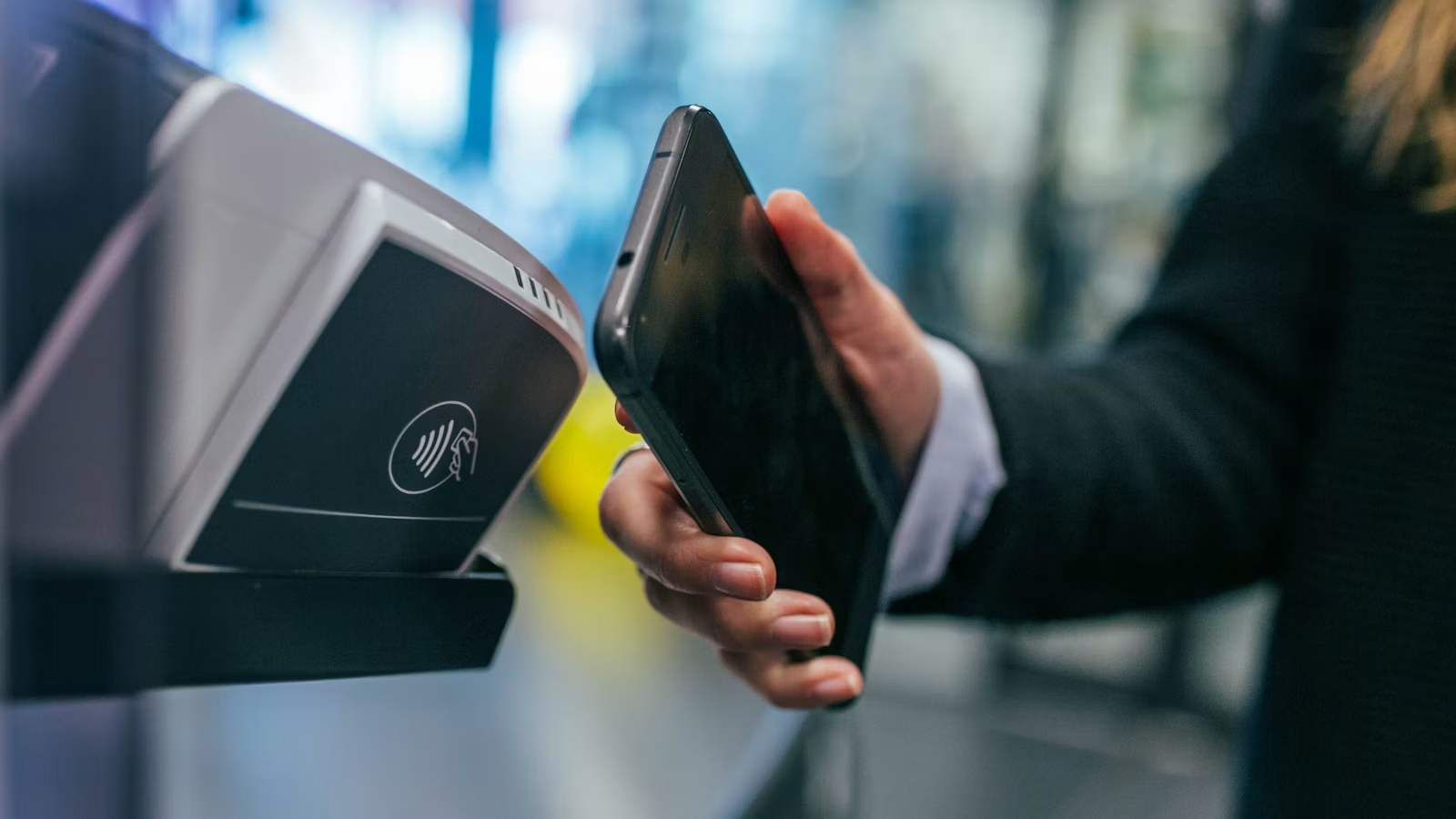
The key difference with app payment is that although you purchase Plus inside the ChatGPT app, the billing and subscription management are usually handled by Apple App Store or Google Play. iPhone and iPad users should check the subscription records under their Apple ID, while Android users should check Google Play subscriptions. Later, if you need to cancel renewal, view receipts, or handle certain refund issues, you must return to the relevant app store.
iPhone or iPad users can usually see a Get Plus, Upgrade, or subscription entry inside the ChatGPT iOS app. OpenAI’s ChatGPT iOS app upgrade guidance says users can tap the Get icon or relevant upgrade entry in the iOS app and then confirm the purchase through Apple’s subscription payment page. Before confirming, check that your Apple ID, ChatGPT login account, and plan name are all correct.
Android users usually complete the subscription through Google Play. You need to confirm that the Google account on your phone is the one you want to use for managing the ChatGPT subscription. If there are multiple Google accounts on the phone, pay special attention before purchasing, because cancellation, receipts, and renewal records will all belong to the Google account used at the time of purchase.
| Subscription Entry | Billing Party | Cancellation Entry | Invoice or Receipt Entry | Suitable Scenario |
|---|---|---|---|---|
| chatgpt.com web | ChatGPT / OpenAI billing system | ChatGPT account settings | ChatGPT Billing | Frequent computer use |
| iOS App | Apple App Store | iPhone Apple ID subscriptions | Apple purchase history | Frequent iPhone / iPad use |
| Android App | Google Play | Google Play subscriptions | Google Play order history | Frequent Android use |
App subscriptions also involve an easily overlooked binding relationship: they are usually tied both to the app store account and to the ChatGPT account logged in at the time of purchase. OpenAI’s explanation of a subscription associated with another account states that mobile subscriptions are associated with the Apple ID or Google Play account, as well as the ChatGPT account used during purchase. In other words, you cannot simply transfer one app subscription to another ChatGPT account.
If you paid in the app but the web version still shows the Free plan, do not immediately purchase again. First confirm that the web version is logged in to the same ChatGPT account, then check whether there is a Restore purchases option in the mobile app. OpenAI’s guidance on restoring an Apple App Store subscription says iOS users can go to Settings > Account > Restore purchases in the ChatGPT app to sync subscription status.
App payment is suitable for users who mainly use ChatGPT on mobile devices, but it can also create a more fragmented management path. For example, if you subscribed on iPhone but try to cancel through ChatGPT web billing, or if you subscribed through Google Play but look for the receipt under Apple ID, you will naturally fail to find the record. After payment, it is best to screenshot or record the subscription source.
Summary: Paying for ChatGPT Plus in the app does not simply mean “buying it on your phone.” It means completing the subscription through Apple or Google’s subscription system. The benefit is convenient mobile confirmation; the drawback is that the management entry is not in the same place. iOS users should check Apple ID subscriptions, and Android users should check Google Play subscriptions. If you are charged but Plus does not activate, cannot find the receipt, or cannot cancel renewal, the first step is to return to the original purchasing platform.
How Should Renewal, Charges, Card Changes, and Currency Be Managed?
ChatGPT Plus is usually a subscription product and renews according to the billing cycle after activation. You need to pay attention to four issues: when the charge occurs, what to do if payment fails, whether you can change cards, and whether you can change currency. The key rule is “whoever charges manages it”: web subscriptions are handled through ChatGPT billing, iOS subscriptions through Apple, and Android subscriptions through Google Play.
Auto-renewal is not complicated, but it is easy to overlook. After you activate Plus, the system will attempt renewal around the next billing cycle, with the exact timing shown by the subscription platform. If you are sure you no longer need it, cancel in advance. OpenAI’s cancel ChatGPT subscription guidance says web subscriptions can be canceled through ChatGPT settings and billing-related entries, while mobile subscriptions must be handled through the iOS or Android subscription system.
| Scenario | Where to Handle It | Note |
|---|---|---|
| Change card for web subscription | ChatGPT account billing entry | Confirm current account and subscription status first |
| Change iOS payment method | Apple ID payment settings | Not related to ChatGPT web billing |
| Change Android payment method | Google Play payment settings | Confirm the Google account is correct |
| Renewal failure | Check both payment platform and bank | Check balance, risk controls, and 3DS verification |
| Change currency | Usually requires canceling and resubscribing | Subject to current supported currencies and payment page |
| Check past charges | Original subscription platform billing records | Web, Apple, and Google are separate |
Common causes of renewal failure include expired cards, insufficient balance or credit limit, bank blocks on online subscriptions, mismatched billing addresses, browser cache affecting the payment flow, or unsupported region or issuing bank. In ChatGPT Plus renewal transaction failure, OpenAI suggests clearing browser cache, contacting the bank to confirm restrictions, and checking country or region support. Mobile subscriptions should also check whether Apple or Google payment methods are working properly.
Changing currency is more complicated than changing cards. OpenAI’s multi-currency billing guidance says existing active subscriptions continue to be billed in the current currency. If you want to switch to a newly supported currency, you usually need to cancel the subscription and resubscribe after the current billing cycle ends. When changing currency, pay special attention to the end date of the current cycle and do not assume that changing region or card will immediately change the billing currency.
If you often subscribe to overseas software, AI tools, or other digital services, cost evaluation should not only look at the “monthly price.” You also need to consider the actual billing currency, card exchange rate, cross-border fees, taxes, app store localized pricing, and whether duplicate subscriptions exist. Similarly, if you also follow public market trading, you should separate commissions, platform fees, and external fees. For example, Biya charges US$0 commission for U.S. stock trading, while platform fees, external institution fees, and other fees are subject to the fee schedule and order page. Trading, subscriptions, and currency exchange are different cost scenarios and should not be mixed together.
You can troubleshoot abnormal charges in this order:
- First confirm whether the charge came from ChatGPT, Apple, or Google.
- Check whether the charged account matches your current ChatGPT login account.
- Confirm whether the card is expired, has insufficient limit, or was blocked by the bank.
- Check whether 3DS, OTP, or bank app verification is required.
- Check Apple, Google, and web billing for duplicate subscriptions.
- Keep the charge time, amount, receipt number, and account email.
Summary: The key to managing ChatGPT Plus renewal is not memorizing one fixed button, but identifying the original billing platform. Web subscriptions are handled through ChatGPT billing, iOS subscriptions through Apple, and Android subscriptions through Google Play. Changing cards is usually done on the original platform; changing currency often requires canceling and resubscribing. If renewal fails, check payment method, bank verification, regional support, and account consistency.
How Do You Cancel Renewal, Request a Refund, and Avoid Duplicate Charges?
To cancel ChatGPT Plus renewal, you must return to the platform where the subscription was originally opened. If you subscribed on the web, cancel through ChatGPT web. If you subscribed on iOS, cancel through Apple ID subscriptions. If you subscribed on Android, cancel through Google Play subscriptions. Do not treat “uninstalling the app,” “logging out,” or “deleting chat history” as cancellation, because these actions usually do not stop app store renewal.
For web subscriptions, you can follow this path: log in to ChatGPT, open the profile menu, go to Settings, find the subscription management entry under Billing or Account, and then choose to cancel the plan. Button names may vary slightly across interface versions, but the core logic is to enter the subscription management page of the current account. After cancellation, you can usually continue using Plus until the end of the current paid period, with the exact expiration time shown on the account page.
iOS users can open Settings on iPhone or iPad, tap the Apple ID name, enter Subscriptions, find ChatGPT, and select Cancel Subscription. OpenAI’s Apple subscription cancellation guidance also emphasizes that ChatGPT subscriptions purchased through Apple App Store must be canceled in iOS subscriptions, not only through ChatGPT web.
Android users need to check subscriptions in Google Play Store. OpenAI’s Android app subscription cancellation guidance says Google subscriptions can be canceled in the Google Play Store app or Google Play website, and the same Google account used to subscribe to ChatGPT must be used. Uninstalling the ChatGPT Android app does not cancel the subscription.
| Purchase Source | Cancellation Entry | Refund Direction | Common Mistake |
|---|---|---|---|
| chatgpt.com | ChatGPT Settings / Billing | Request through ChatGPT help entry | Looking under Apple or Google by mistake |
| Apple App Store | Apple ID > Subscriptions | Usually request through Apple | Treating app uninstall as cancellation |
| Google Play | Google Play > Subscriptions | Follow Google / OpenAI guidance | Using the wrong Google account |
| Unknown source | Check all three platforms | Identify the billing party first | Buying another subscription immediately |
Duplicate charges usually occur in two scenarios. First, you already subscribed on iOS or Android and then subscribed again on the web. Second, you purchased under one ChatGPT account and then logged into another account and purchased again. OpenAI’s avoid duplicate charges guidance clearly notes that if you have subscriptions on multiple platforms, you may be charged separately. If you want to switch platforms, cancel the original subscription first and resubscribe after the current cycle ends.
Refunds depend on subscription source and eligibility. For web subscriptions and Google Play subscriptions, you can usually log in to the corresponding ChatGPT account and submit a refund request through the help center chat entry. Apple App Store subscriptions generally need to go through Apple’s refund process. OpenAI’s guidance on ChatGPT subscription refunds says accidental purchases generally need to be reported within the required time window and are subject to eligibility review. Whether a refund is granted depends on platform rules and review results.
Summary: The core rule for canceling ChatGPT Plus renewal is: cancel where you bought it. Web, Apple, and Google Play are three different paths and cannot replace one another. To avoid duplicate charges, check all three platforms for active subscriptions before paying. If you want to switch platforms, cancel the old subscription first and wait until the billing period ends. Refund and cancellation are not the same: cancellation prevents future charges, while refund is a request concerning an already completed charge.
What Should You Do If You Were Charged but Still See Free, Cannot Restore Plus, or Have an Account Mismatch?
If you were charged but still see the Free plan, the most common reason is not that Plus was not purchased, but that the ChatGPT account currently logged in is not the purchasing account, or the mobile subscription has not synced to the current app. Do not rush to pay again. First check the receipt, email, Apple ID, Google account, and ChatGPT login method, then try restoring purchases or contact support.
You can troubleshoot in this order:
- Check the charge email or receipt and confirm whether the charge came from web, Apple, or Google.
- Confirm whether the current ChatGPT login email matches the purchasing account.
- If using Apple login, check whether Hide My Email was enabled.
- If using Google login, confirm it is not another Gmail account.
- Try Restore purchases in the mobile app.
- Log out of all devices and log back in using the purchasing account.
- If it still does not work, contact support with the receipt, charge time, amount, and last four digits of the card.
| Problem | Possible Cause | Priority Action |
|---|---|---|
| Charged but still Free | Logged into the wrong account | Log in with the purchasing account |
| Plus works on iPhone but not web | Web is logged into another account | Check email and login method |
| App says subscription belongs to another account | Mobile subscription is tied to an old ChatGPT account | Recover the original account or contact support |
| Google Play shows subscription but app does not | Google account or ChatGPT account mismatch | Switch account and restore purchase |
| Want to transfer Plus to a new account | Subscriptions usually cannot be transferred | Cancel old subscription and repurchase |
For cross-device use, the key is the ChatGPT account, not the device itself. OpenAI’s cross-device ChatGPT subscription access states that as long as you log in to the same OpenAI account that purchased the subscription, you can access subscription benefits on other devices. However, subscriptions purchased through iOS or Android still need to be managed through Apple or Google Play.
Account mismatch issues are especially common with Apple login. You may think you are using the same email, but Apple’s Hide My Email may have generated a relay email. Google, Microsoft, and email/password login may also be recognized as different login methods. Therefore, when checking, do not only look at nickname or avatar; check the email shown on the account page and the subscription information in the receipt.
If you have confirmed that payment succeeded but Plus still does not activate after a long time, contact OpenAI Support. Provide specific information, including the ChatGPT account email, subscription platform, charge date, amount, receipt number, last four digits of the payment card, phone system, app version, and error screenshots. The more complete the information, the easier it is to locate which account or platform the subscription is tied to.
Summary: If you were charged but still see Free, the worst move is to immediately purchase again. The correct approach is to first identify the charge source, then check whether the purchasing account and current login account are the same. Mobile subscriptions are usually tied to both the Apple ID or Google Play account and the ChatGPT account used during purchase, so restoring purchases, switching accounts, and checking receipts are all important. Only after confirming account and platform information should you contact support with complete payment details.
When Subscribing to AI Tools, How Should You Manage Payment Stability and Costs Together?
ChatGPT Plus payment is only one example of overseas digital subscriptions. If you use AI tools over the long term, you also need to manage payment methods, billing currency, exchange rates, taxes, invoices, and renewal reminders. If you also follow U.S. stocks, Hong Kong stocks, or digital asset trading, subscription fees and trading fees should be calculated separately so that software monthly fees and market trading costs are not mixed into one judgment.
A practical method is to create a subscription cost sheet. Record the tool name, subscription platform, billing currency, payment method, next renewal date, whether an invoice is needed, whether refunds are possible, and the cancellation entry. ChatGPT Plus, Claude Pro, cloud storage, developer tools, and design tools can all be placed in the same sheet. This way, when card payment fails or pricing changes, you can quickly identify which platform, card, and billing cycle is involved.
| Management Item | What to Record | Why It Helps |
|---|---|---|
| Subscription platform | Web, Apple, Google Play | Determines cancellation and invoice entry |
| Billing currency | USD, SGD, EUR, etc. | Helps calculate exchange-rate cost |
| Payment method | Card, app store balance, etc. | Helps troubleshoot failed charges |
| Next renewal date | Specific date | Helps avoid forgetting to cancel |
| Invoice entry | ChatGPT, Apple, Google | Useful for reimbursement and records |
| Refund rules | Platform rules and time window | Helps respond quickly after accidental purchase |
If you also use AI tools for stock research, company information organization, or trading decision support, cost awareness should extend to the trading side as well. U.S. stock trading costs usually do not only include commissions, but may also include platform fees, external institution fees, trading activity fees, and settlement fees. Biya charges US$0 commission for U.S. stock trading, with a platform fee of US$0.005 per share, a minimum of US$0.99 per order, and a maximum of 1% of transaction value; external institution fees and trading activity fees total US$0.00396 per share. Relevant fees are subject to the fee schedule and order page.
If you want to check basic information before researching AI companies, technology stocks, or popular U.S. stocks, you can use the U.S. stock lookup tool to view stock lists and basic entries. If related services are available in your region, you can also download the app to learn about account, asset, and trading-related features. Service availability depends on your location, identity verification results, platform rules, and applicable laws and regulations.
It is especially important to distinguish two types of costs: subscription fees are recurring expenses paid for software services, while trading fees are costs generated when buying or selling market assets. The former focuses on renewal, currency, invoices, and refunds; the latter focuses on order amount, executed quantity, commissions, platform fees, and third-party fees. Both types of costs require transparent records, but neither should be judged simply as “cheap” or “expensive.”
Summary: The value of managing ChatGPT Plus payments is not only successfully activating the plan, but also building a sustainable cost-management habit. For subscription tools, record platform, currency, charge date, and cancellation entry. For trading services, separate commissions, platform fees, and external fees. For users who frequently use overseas software, AI tools, and financial services, clearly recording billing sources, payment paths, and fee structures is more reliable than looking for payment methods only when a problem occurs.
FAQ
What should I pay attention to when paying for ChatGPT Plus on the web?
Before paying for ChatGPT Plus on the web, confirm your login account, plan name, payment currency, and whether you already have an app subscription. After web purchase, subscription, payment method, and invoices are usually managed in ChatGPT account or billing settings. Do not confuse this with OpenAI API billing.
What is the difference between ChatGPT Plus app subscription and web subscription?
The main difference between ChatGPT Plus app subscription and web subscription is the billing party and management entry. Web subscriptions are usually managed through ChatGPT billing, iOS subscriptions through Apple, and Android subscriptions through Google Play. Cancellation and receipt lookup should also return to the original platform.
Why does ChatGPT Plus still show Free after payment?
If ChatGPT Plus still shows Free after payment, the common reason is that the current login account is not the purchasing account, or the app subscription has not synced yet. First check the receipt, email, Apple ID, or Google account, then try restoring purchases to avoid duplicate subscriptions.
Can ChatGPT Plus be moved to another payment platform?
ChatGPT Plus usually cannot be directly migrated from one payment platform to another. A safer approach is to cancel the subscription on the original platform first, wait until the current cycle ends, and then purchase again from the new platform to reduce the risk of duplicate charges.
Can I still use ChatGPT Plus after canceling renewal?
After canceling ChatGPT Plus renewal, you can usually continue using it until the end of the current paid billing cycle. The exact expiration time should be based on the subscription page shown in ChatGPT, Apple App Store, or Google Play. Canceling renewal does not necessarily mean receiving a refund.
Are ChatGPT Plus and OpenAI API fees charged together?
ChatGPT Plus and OpenAI API fees are not part of the same billing system. Plus is a personal ChatGPT subscription, while API is billed through the developer platform based on usage or credits. Payment entry, invoices, usage records, and cancellation methods should be checked separately.
*This article is provided for general information purposes and does not constitute legal, tax or other professional advice from BiyaPay or its subsidiaries and its affiliates, and it is not intended as a substitute for obtaining advice from a financial advisor or any other professional.
We make no representations, warranties or warranties, express or implied, as to the accuracy, completeness or timeliness of the contents of this publication.
Related Blogs of

Online Bank-to-Bank Transfers: Account Linking, Steps, and Limits


Wire Transfer Requirements: Sender and Beneficiary Details Checklist


Choosing a Stock Trading App: Beginner Checklist

International Wire Transfer Time: What Affects Delivery?

Choose Country or Region to Read Local Blog
 Australia
 Austria
 Belgium
 Canada
 Cyprus
 Czech Republic
 Denmark
 Estonia
 Finland
 France
 Germany
 Greece
 Hong Kong
 India
India Indonesia
 Ireland
 Italy
Italy Japan
Japan Latvia
 Lithuania
 Luxembourg
 Malaysia
 Malta
Malta Morocco
 Nepal
Nepal Netherlands
 New Zealand
 Norway
 Pakistan
 Philippines
 Poland
 Portugal
 Romania
 Singapore
 Slovakia
 Slovenia
 South Africa
 South Korea
 Spain
Spain Sweden
 Thailand
 United States
 Turkey
 United Arab Emirates
 United Kingdom
 Vietnam