All the Keyboard Shortcuts for the British Pound Sign (£)




Image Source: unsplash
You need to know how to type the British pound sign. This guide shows you the fastest keyboard shortcut. You can insert a British pound sign easily with the right key combination. The method to insert the pound sign depends on your computer and keyboard layout.
On a Mac keyboard, the pound sign option is Option + 3. For Windows, hold Alt and type 0163 on your numeric keypad. If you have a UK Mac keyboard, the pound sign on keyboard is Shift + 3.
This quick tip helps you type the pound sign without searching.
If you are typing £ for more than formatting—such as quoting prices, writing invoices, or checking cross-border costs—you often end up verifying the real exchange rate and the effective conversion cost. In that workflow, the symbol is only the first step; the practical question is what the amount means in another currency. You can use the BiyaPay website and its built-in exchange rate converter & comparison tool to check live GBP-related rates and compare conversions on a single page, which is handy when you need quick validation while drafting numbers.
If you also need a smoother bridge from “checking” to “handling” funds, BiyaPay functions as a multi-asset trading wallet covering cross-border payments, investing, trading, and fund management, supporting flexible conversion across multiple fiat currencies and digital assets. For moving funds internationally, its remittance service can be used as the transfer entry point; and for verifying overseas quotes, the stock lookup page can help you confirm prices and basic stock info so the steps from symbol → amount → reference data stay consistent.
Key Takeaways
- Use ‘Option + 3’ on a US Mac keyboard to type the pound sign. For a UK Mac keyboard, press ‘Shift + 3’.
- On Windows, hold ‘Alt’ and type ‘0163’ using the numeric keypad to get the pound sign.
- If shortcuts are not available, you can copy the pound sign from a webpage or use symbol insertion tools in programs like Word or Google Docs.
How to Type the British Pound Sign on PC and Mac
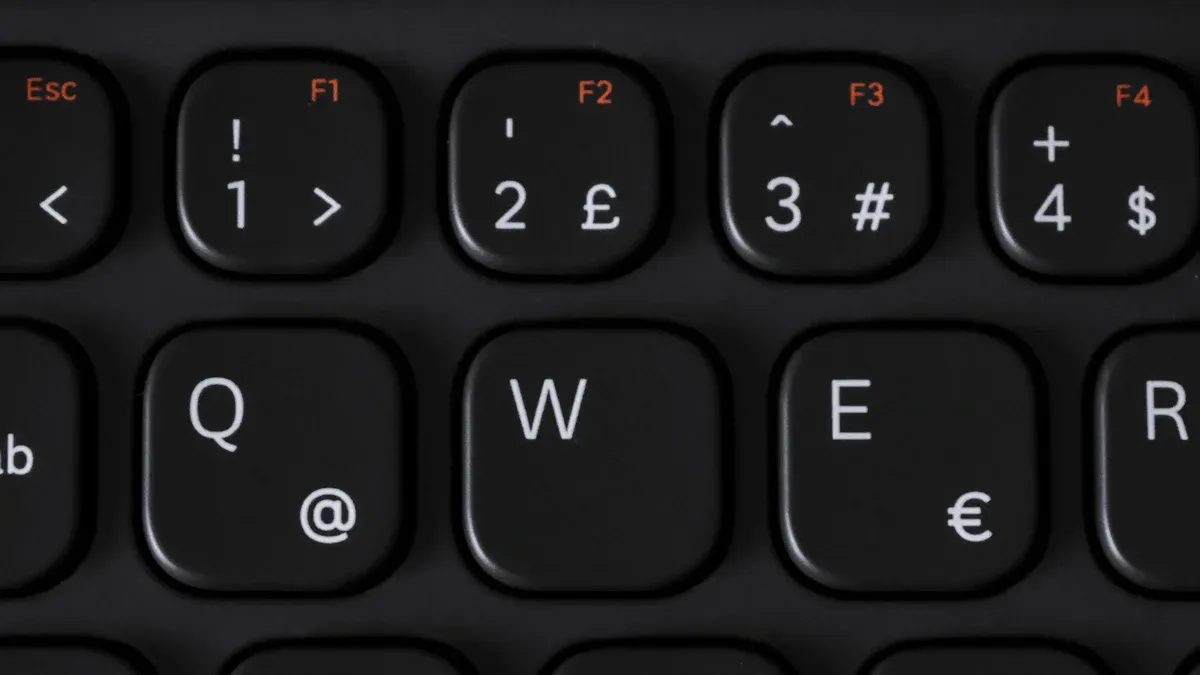
Image Source: pexels
Learning how to type the British pound sign is simple once you know the correct method for your specific computer. Whether you use a Mac or a PC, a few key combinations are all you need. This guide breaks down the steps for each platform, ensuring you can find and use the £ symbol with confidence.
Insert the Pound Sign on a Mac
You can easily insert the pound sign on a Mac. The exact shortcut depends on your keyboard’s regional layout.
- On a US Mac keyboard: Hold the Option key and press the 3 key. This combination
Option + 3produces the £ symbol. - On a UK Mac keyboard: Hold the Shift key and press the 3 key. The pound sign is printed directly on the key.
Troubleshooting Tip: Sometimes, your mac keyboard settings can cause confusion. You might see a £ on your key but get a hash symbol (#) when you type. This often happens if your input source is incorrect. To fix this, go to
System Settings > Keyboard > Text Input > Edit. Here, you should remove other input sources and ensure “British” is selected, not “UK English” or “Unicode Hex Input,” which can cause conflicts.
If you prefer a visual method or forget the shortcut, you can use the Character Viewer.
- Enable the viewer by going to
System Settings > Keyboard, clickingEditnext to Input Sources, and turning onShow Input menu in menu bar. - Click the new icon in your menu bar and select
Show Emoji & Symbols. - Type “pound” into the search bar to find the British pound sign (£) and double-click it to insert.
How to Get a British Pound Symbol on Windows
For Windows users, the most reliable method involves using Alt codes with the numeric keypad on your pc keyboard.
- Hold the Alt key and type 0163 on the numeric keypad.
- Alternatively, you can hold Alt and type 156 on the numeric keypad.
You might wonder about the difference between these codes. The code 0163 comes from the modern Windows (ANSI) character set, while 156 is from an older OEM character set. Both work on modern Windows systems.
| Alt Code | Character Set | Description |
|---|---|---|
| 0163 | CP1252 (ANSI) | The standard Windows code for the pound sign. |
| 156 | CP437 (OEM) | An older code retained for compatibility. |
What if your laptop has no numeric keypad? Many laptops lack a dedicated numpad, but you still have options for typing the pound sign.
- On-Screen Keyboard: Press Windows key + Ctrl + O to open the On-Screen Keyboard. Click Options, check Turn on numeric key pad, and use the virtual numpad to type the Alt code.
- Character Map: This built-in utility lets you find and copy any symbol.
- Open the Start Menu and search for “Character Map.”
- Find the pound sign (£) in the grid. You can see its Alt code (
0163) in the bottom corner. - Click Select and then Copy to place it on your clipboard.
UK vs. US Keyboard Differences
The reason for different shortcuts is the physical and software-level distinction between UK and US keyboards. Knowing how to type the British pound sign often comes down to knowing which keyboard layout you have. An operating system identifies a US keyboard by its ANSI standard layout and a UK keyboard by its ISO standard layout.
The most obvious difference is the location of the British pound sign. A UK keyboard has a dedicated £ symbol above the 3 key. A US mac keyboard does not. This also affects other symbols.
| Symbol | UK Keyboard Layout | US Keyboard Layout |
|---|---|---|
| @ and " | " is on Shift + 2, @ is on Shift + ’ | @ is on Shift + 2, " is on Shift + ’ |
| # (Hash) | Has its own key next to Enter | Located on Shift + 3 |
| \ (Backslash) | Next to the left Shift key | Above the Enter key |
| £ (Pound) | Located on Shift + 3 | No dedicated key; use a shortcut |
You can switch between keyboard layouts in your system settings. On Windows, you can use the Alt + Shift keyboard shortcut to cycle through installed languages. On a mac keyboard, you can change it under System Settings > Keyboard > Text Input.
A Note on Formatting: According to official style guides, you should always place the British pound sign before the number without a space (e.g., £50). When writing for international audiences, using “pound sterling” can help distinguish it from other currencies also called pounds.
With these methods, you can insert a British pound sign on any device. Whether you use a quick shortcut or a symbol utility, you now know how to get a British pound symbol whenever you need it.
Other Ways to Insert the Pound Sign (£)
Image Source: unsplash
Keyboard shortcuts are fast, but they are not the only way to type the pound sign. You can use other simple methods on your mobile devices and within software applications. These alternatives are useful when you are on the go or using a program with built-in tools.
Shortcuts for Mobile Devices
You can easily insert the pound sign on a mobile device. The steps are slightly different for iOS and Android, but the concept is similar.
- On an iPhone (iOS): Open your keyboard and tap the
123key to switch to the number layout. Then, tap and hold the dollar sign ($) key. A small menu will pop up with other currency symbols. Slide your finger to the pound sign (£) to select it. - On an Android device: The process is nearly identical. Go to the symbol keyboard by tapping the
?123key. Long-press the dollar sign ($) to reveal a list of currencies, including the pound sign. Some keyboards, like Gboard, may also show the £ symbol directly on the secondary symbol page.
Copy and Paste Method
When you need a pound sign quickly, the copy-and-paste method is foolproof. You can copy the symbol from any webpage or document. Here is the pound sterling symbol ready for you to copy:
£
Simply highlight the symbol above and copy it to your clipboard. You can then paste it wherever you need it. For web developers, using the HTML entity £ or the Unicode value U+00A3 ensures the British pound sign displays correctly across all browsers.
Using Symbol Inserters
Most word processors give you a way to insert the pound sign through their menus. This method works on any computer, including a Mac keyboard or Windows PC, regardless of your layout.
- To get the pound sign in Word:
- Go to the Insert tab.
- Click Symbol, then More Symbols.
- Find the £ symbol in the grid (it’s in the “Latin-1 Supplement” subset).
- Click Insert.
- In Google Docs:
- Click Insert from the top menu.
- Select Special characters.
- You can either search for “pound” or draw the symbol in the box to find it.
These tools are excellent alternatives when you forget a shortcut or need to find a less common character.
You now have several reliable ways to type the pound sign. For a quick recap, use Option + 3 on a US Mac keyboard or Shift + 3 on a UK keyboard. If you are on a Windows PC, hold Alt and type 0163 on the numeric keypad. With these shortcuts, inserting the British pound sign into your documents is simple.
FAQ
Why do I get a hash (#) instead of a pound (£)?
Your computer’s input language is likely set to “US” instead of “UK”. You can change this in your system’s keyboard settings to match the UK layout.
A UK keyboard layout maps Shift + 3 to the £ symbol. A US layout maps it to the # symbol.
What is the difference between Alt + 0163 and Alt + 156?
Both codes produce the pound sign (£) on Windows. The code Alt + 0163 is the modern standard. The code Alt + 156 is an older version kept for compatibility.
Is there an easier way than an Alt code on a laptop?
Yes. You can use the built-in Character Map on Windows. Open it from the Start Menu, find the £ symbol, and then copy and paste it into your document.
*This article is provided for general information purposes and does not constitute legal, tax or other professional advice from BiyaPay or its subsidiaries and its affiliates, and it is not intended as a substitute for obtaining advice from a financial advisor or any other professional.
We make no representations, warranties or warranties, express or implied, as to the accuracy, completeness or timeliness of the contents of this publication.
Related Blogs of

How to Read Pure Storage and NetApp Earnings? ARR, Cloud Revenue, Gross Margin, and Cash Flow Metrics


How Does NAND Price Increase Affect SanDisk? Enterprise SSDs, Consumer Storage, and Margin Leverage


How Should You View Shanghai Fudan’s Non-Volatile Memory Business? Application Scenarios, Competition, and Risks


Why Can’t HBM Exist Without Advanced Packaging? The Role of TSV, CoWoS, and Packaging Equipment

Choose Country or Region to Read Local Blog
 Australia
 Austria
 Belgium
 Canada
 Cyprus
 Czech Republic
 Denmark
 Estonia
 Finland
 France
 Germany
 Greece
 Hong Kong
 India
India Indonesia
 Ireland
 Italy
Italy Japan
Japan Latvia
 Lithuania
 Luxembourg
 Malaysia
 Malta
Malta Morocco
 Nepal
Nepal Netherlands
 New Zealand
 Norway
 Pakistan
 Philippines
 Poland
 Portugal
 Romania
 Singapore
 Slovakia
 Slovenia
 South Africa
 South Korea
 Spain
Spain Sweden
 Thailand
 The United States
 Turkey
 United Arab Emirates
 United Kingdom
 Vietnam
Contact Us




BIYA GLOBAL LLC is registered with the Financial Crimes Enforcement Network (FinCEN), an agency under the U.S. Department of the Treasury, as a Money Services Business (MSB), with registration number 31000218637349, and regulated by the Financial Crimes Enforcement Network (FinCEN).
BIYA GLOBAL LIMITED is a registered Financial Service Provider (FSP) in New Zealand, with registration number FSP1007221, and is also a registered member of the Financial Services Complaints Limited (FSCL), an independent dispute resolution scheme in New Zealand.