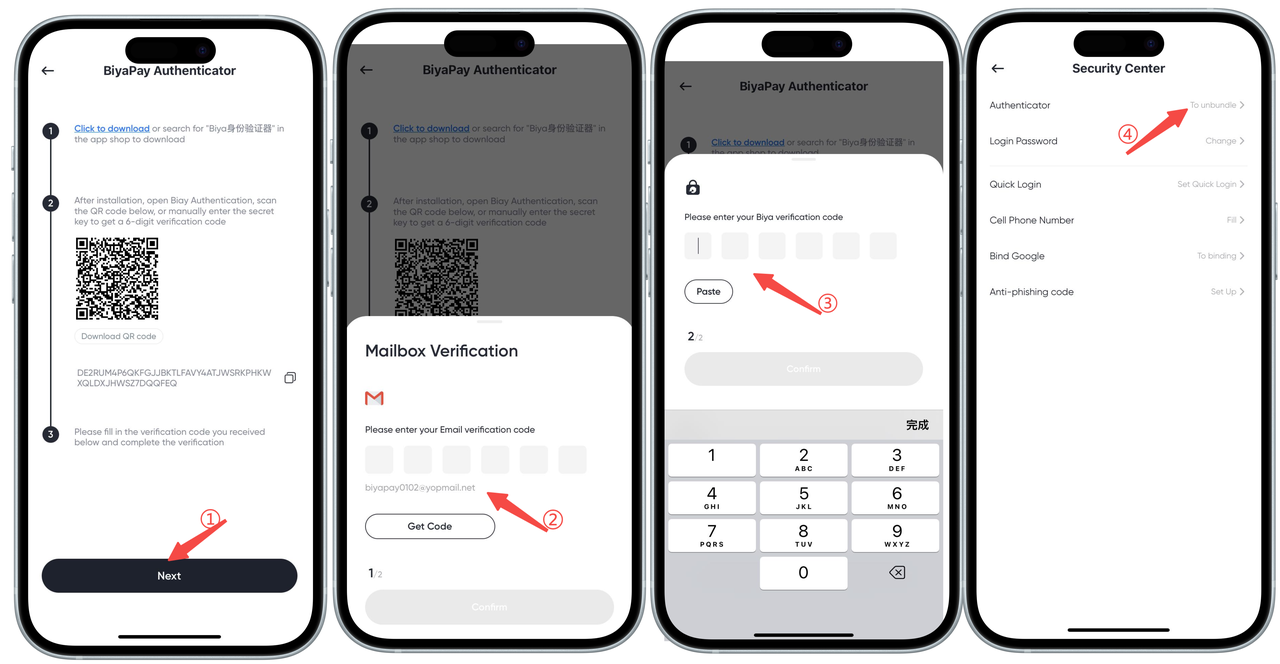

How to Bind Secondary Verification on the App Side:
Binding secondary verification requires three steps. First, download the Biya Authenticator, then obtain the verification code, and finally bind the authenticator to complete the process.
Step One: Download Biya Authenticator
First Download Method
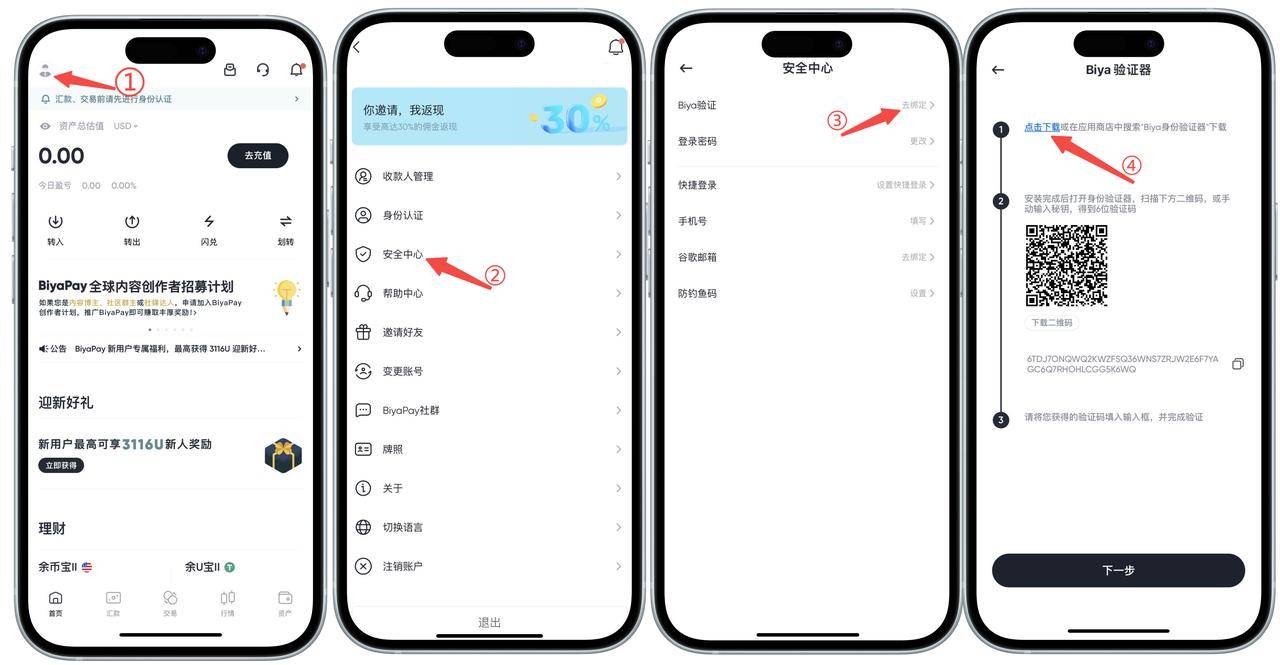
- Click the avatar in the upper left corner to find and enter the Security Center;
- Click Biya to verify and bind;
- Click Download. Note: iOS: Go directly to the App Store to download (no overseas ID required); Android: An installation package will be downloaded directly, and you can install it after the download is complete.
Second Download Method: Link Download
Download link: Click the link: https://id-authenticator.biyapay.io/?language=cn to enter the download page: For iOS, click App Store download, which will redirect you directly to the App Store, then click to get it; for Android, click the installation package download, and the phone will automatically download the installation package, then click to install.
Step 2: Get the Verification Code
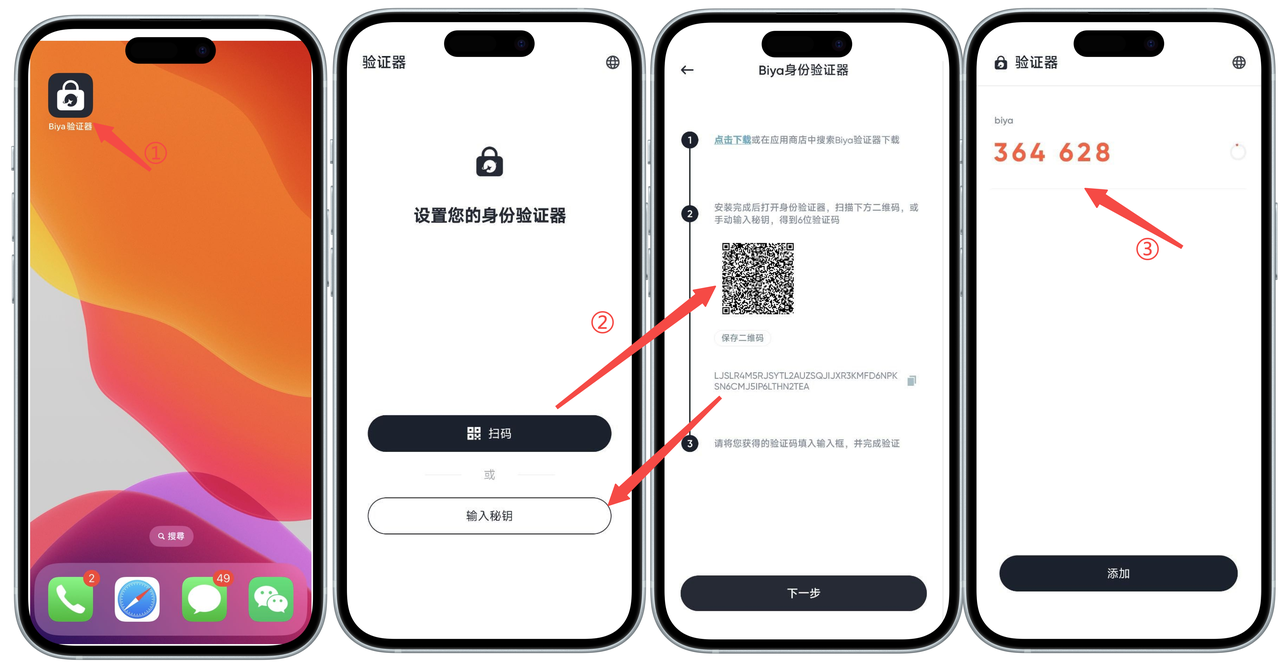
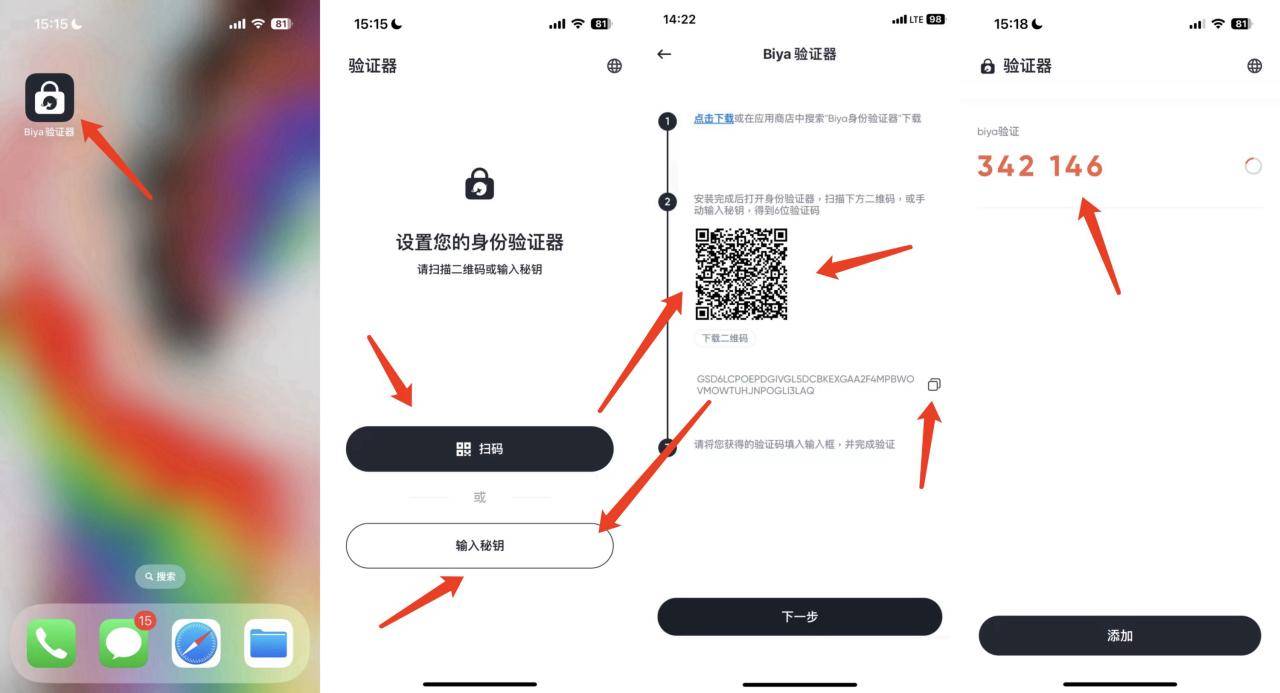
- Open the Biya Authenticator on your mobile phone;
- Open the authenticator page of BiyaPay Security Center and scan the QR code with the Biya Authenticator (or copy the key and enter it into the authenticator);
- Obtain the Biya verification code.
Step 3: Bind the Authenticator
- Open the authenticator page of BiyaPay Security Center and click Next;
- Obtain the email verification code, enter the email verification code, and click Confirm;
- Enter the Biya verification code you just obtained and click Confirm;
- Binding is successful and the binding of the Biya Authenticator is complete.