

BiyaPay
Published on Updated on



Highlighted device indicates that it is currently online;
Grey device means the device is offline or logged out.
You can view logged-in devices in the "Security Center" and manually log out of a specific device as needed to ensure account security.
The following is the detailed process for multi-terminal login:
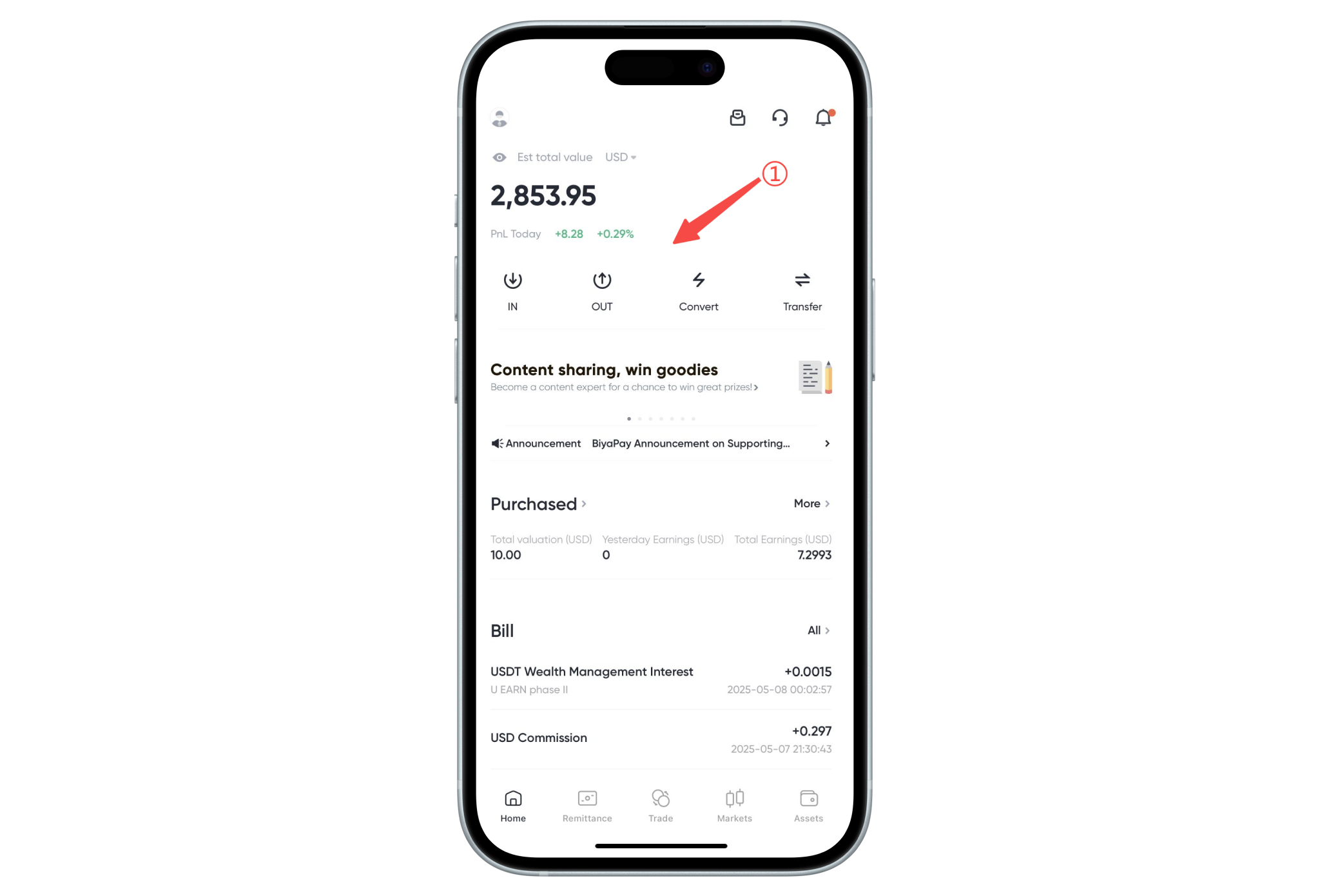
1. Open the app or webpage on any logged-in device (as an authorized device);
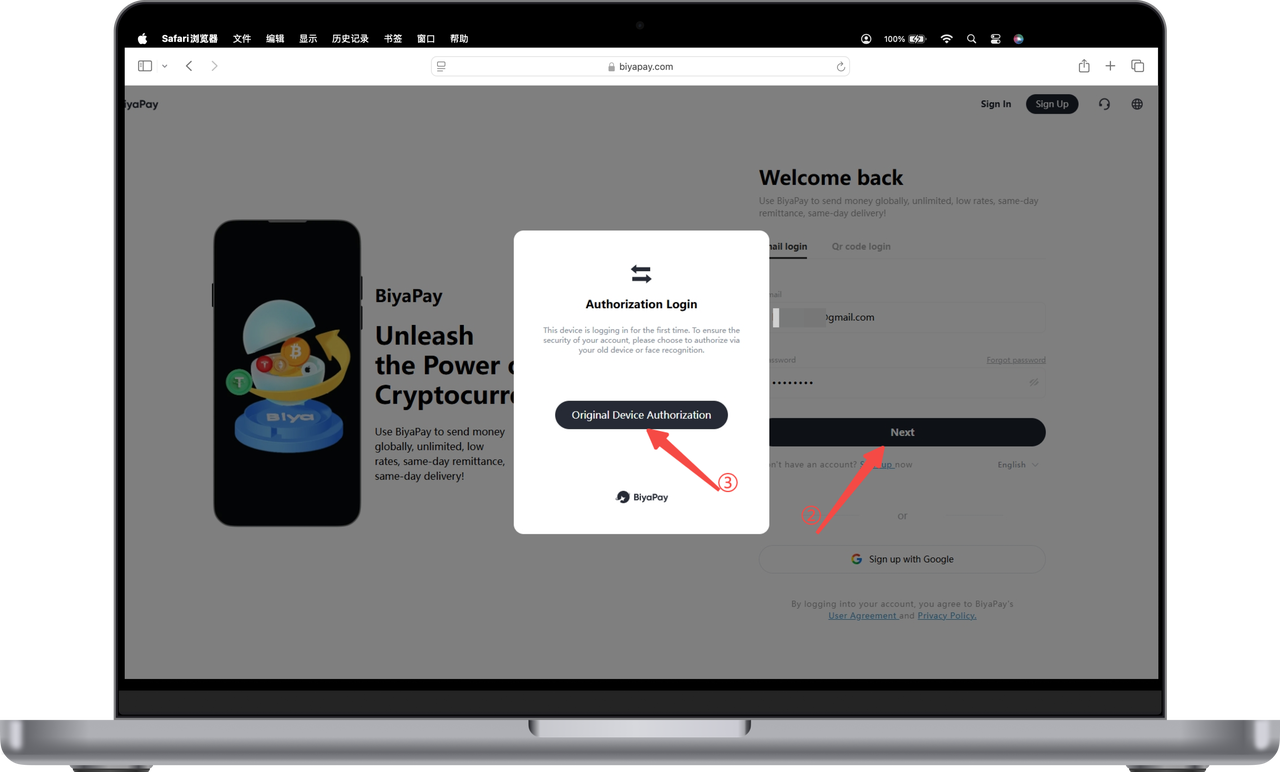
- Enter the email address and password on the new device, click [Next], enter the authorization login page, and click [Old Device Authorization];
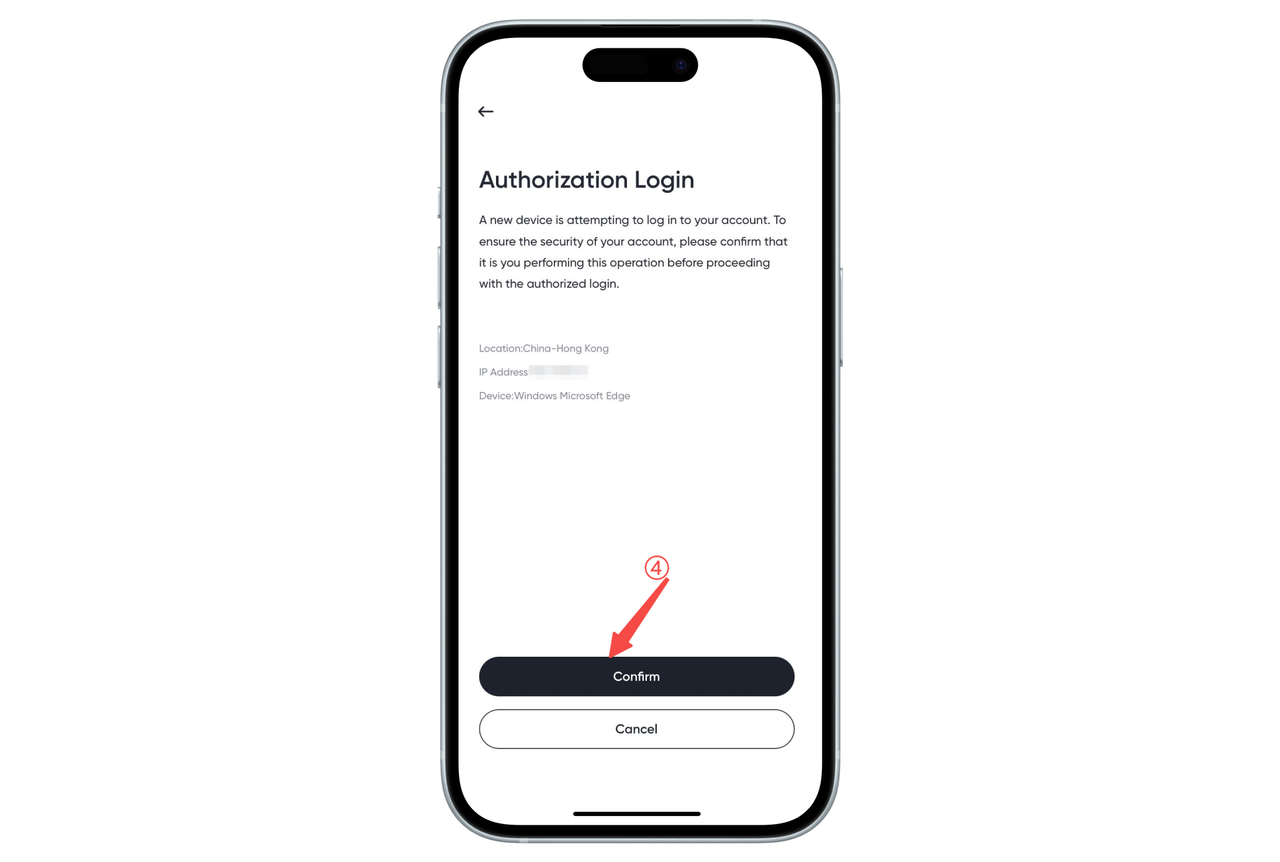
- At this point, the logged-in old device will automatically pop up the authorization request page, click [Confirm] to authorize;
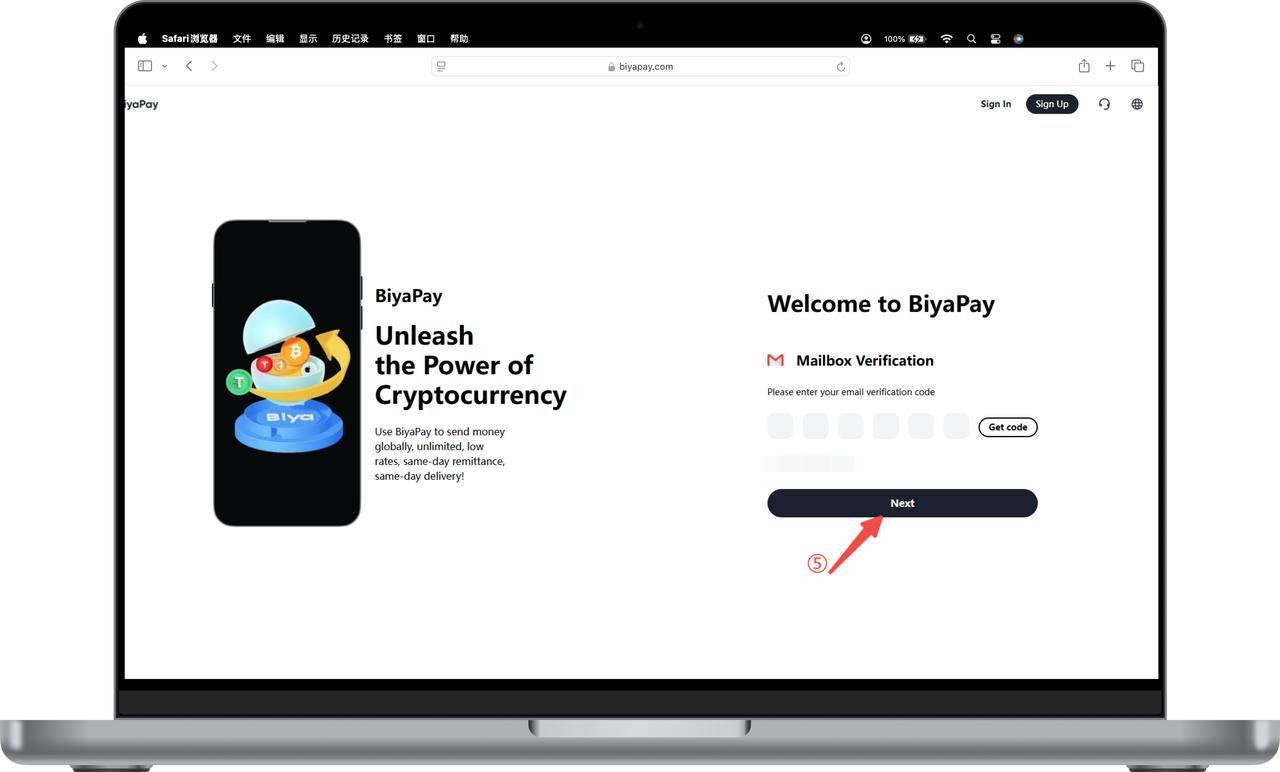
- Return to the new device, click [Get Verification Code], enter the verification code received by email, and you can log in successfully.
✅ Warm Tips:
- BiyaPay supports up to 5 devices logged in simultaneously;
- If you notice any abnormal device logins, you can manage them in the "Security Center" and log out manually.
2. Account and Security (Complete)