How to bind secondary verification?




How to Bind Secondary Verification on the App Side:
Binding secondary verification requires three steps. First, download the Biya Authenticator, then obtain the verification code, and finally bind the authenticator to complete the process.
Step One: Download Biya Authenticator
First Download Method
- Click the avatar in the upper left corner to find and enter the Security Center;
- Click Biya to verify and bind;
- Click Download. Note: iOS: Go directly to the App Store to download (no overseas ID required); Android: An installation package will be downloaded directly, and you can install it after the download is complete.
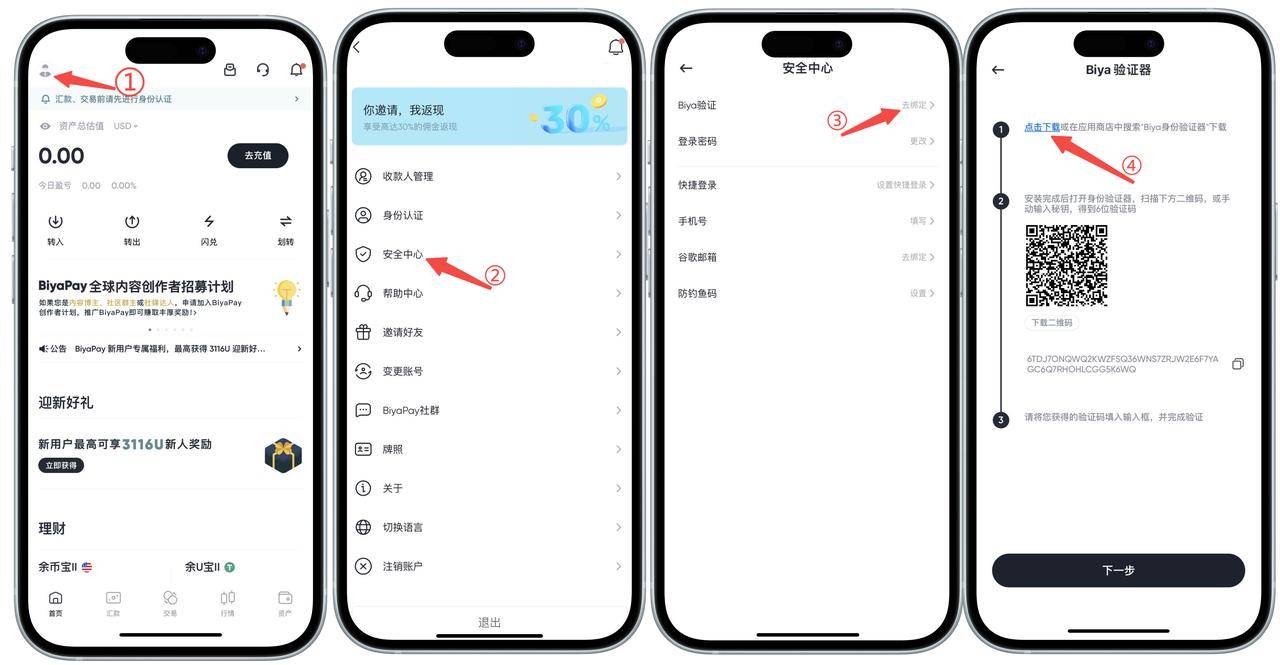
Second Download Method: Link Download
Download link: Click the link: https://id-authenticator.biyapay.io/?language=cn to enter the download page: For iOS, click App Store download, which will redirect you directly to the App Store, then click to get it; for Android, click the installation package download, and the phone will automatically download the installation package, then click to install.
Step 2: Get the Verification Code
- Open the Biya Authenticator on your mobile phone;
- Open the authenticator page of BiyaPay Security Center and scan the QR code with the Biya Authenticator (or copy the key and enter it into the authenticator);
- Obtain the Biya verification code.
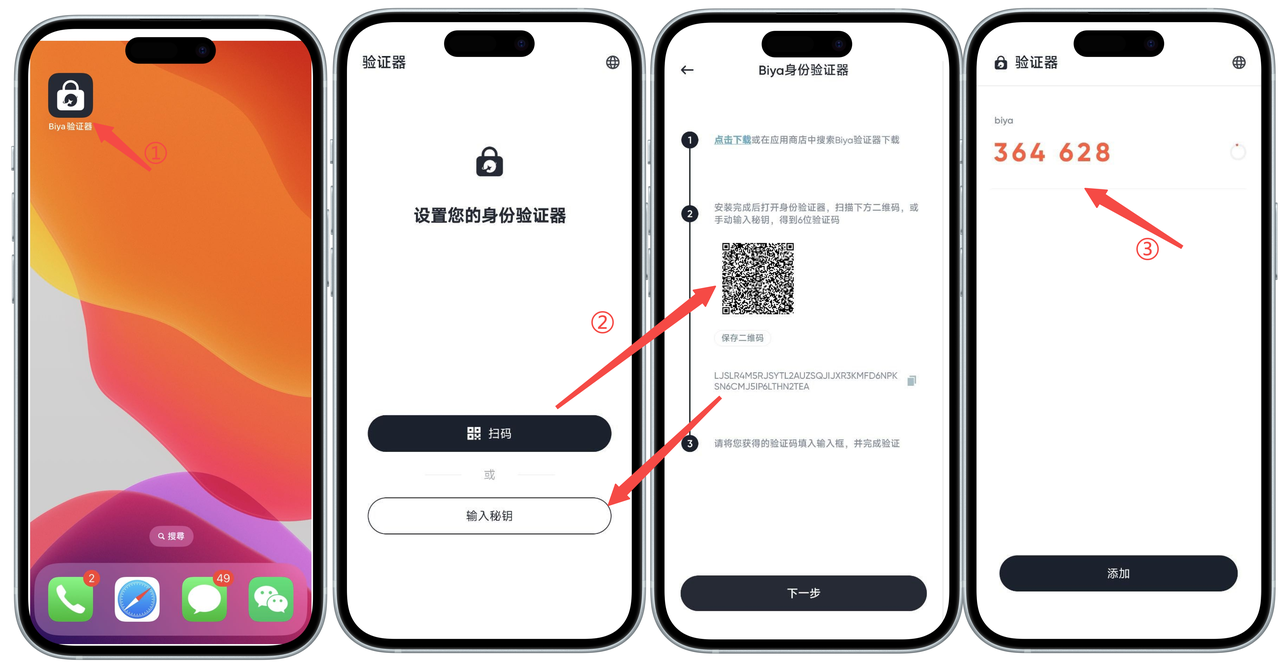
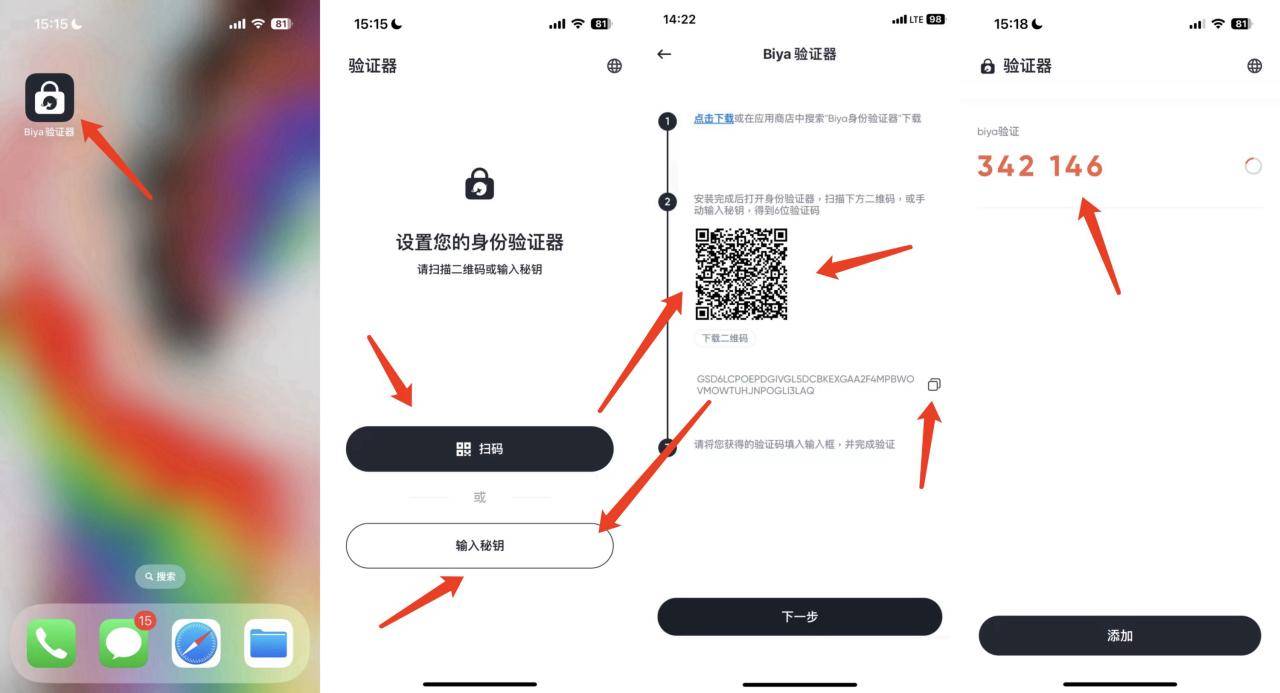
Step 3: Bind the Authenticator
- Open the authenticator page of BiyaPay Security Center and click Next;
- Obtain the email verification code, enter the email verification code, and click Confirm;
- Enter the Biya verification code you just obtained and click Confirm;
- Binding is successful and the binding of the Biya Authenticator is complete.
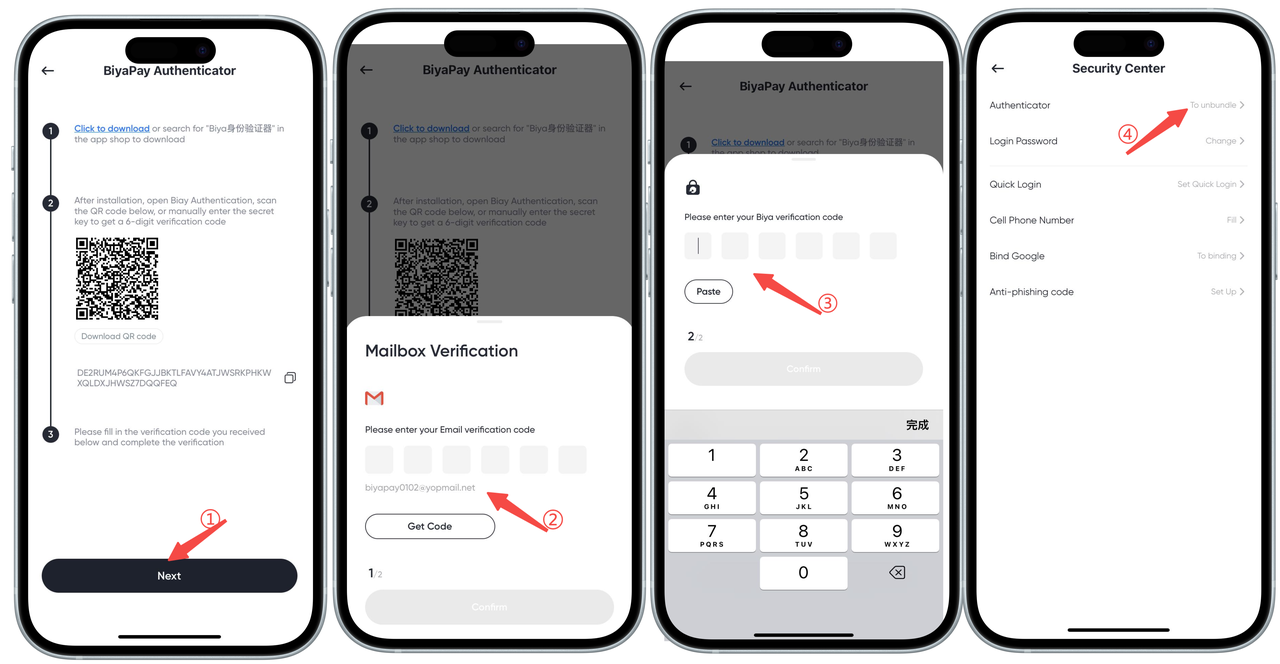

Contact Us




BIYA GLOBAL LLC is a licensed entity registered with the U.S. Securities and Exchange Commission (SEC No.: 802-127417); a certified member of the Financial Industry Regulatory Authority (FINRA) (Central Registration Depository CRD No.: 325027); regulated by the Financial Industry Regulatory Authority (FINRA) and the U.S. Securities and Exchange Commission (SEC).
BIYA GLOBAL LLC is registered with the Financial Crimes Enforcement Network (FinCEN), an agency under the U.S. Department of the Treasury, as a Money Services Business (MSB), with registration number 31000218637349, and regulated by the Financial Crimes Enforcement Network (FinCEN).
BIYA GLOBAL LIMITED is a registered Financial Service Provider (FSP) in New Zealand, with registration number FSP1007221, and is also a registered member of the Financial Services Complaints Limited (FSCL), an independent dispute resolution scheme in New Zealand.