Equipment status distinction

BiyaPay
Published on 2026-02-03 Updated on 2026-02-03



Highlighted device indicates that it is currently online;
Grey device means the device is offline or logged out.
You can view logged-in devices in the "Security Center" and manually log out of a specific device as needed to ensure account security.
The following is the detailed process for multi-terminal login:
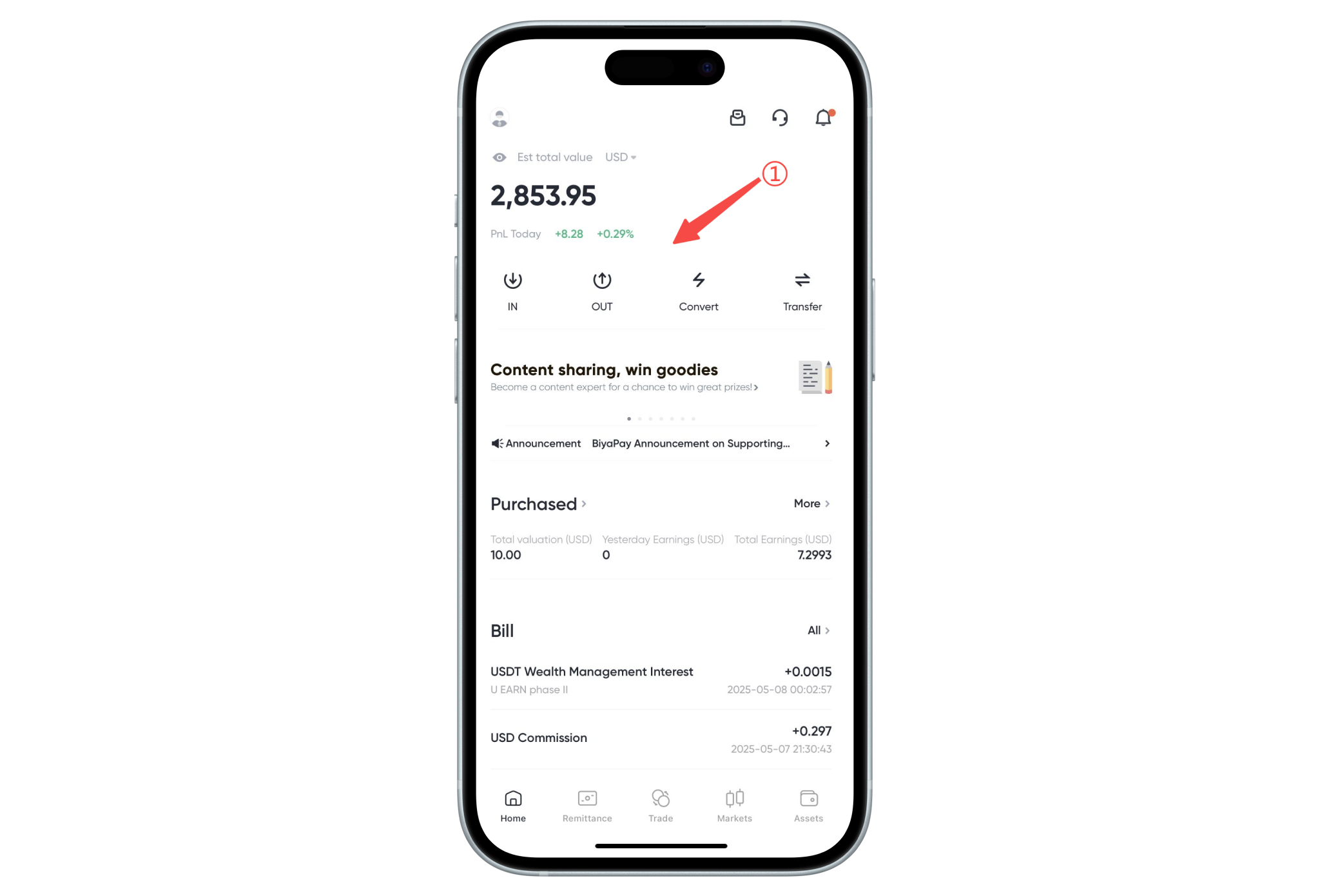
1. Open the app or webpage on any logged-in device (as an authorized device);
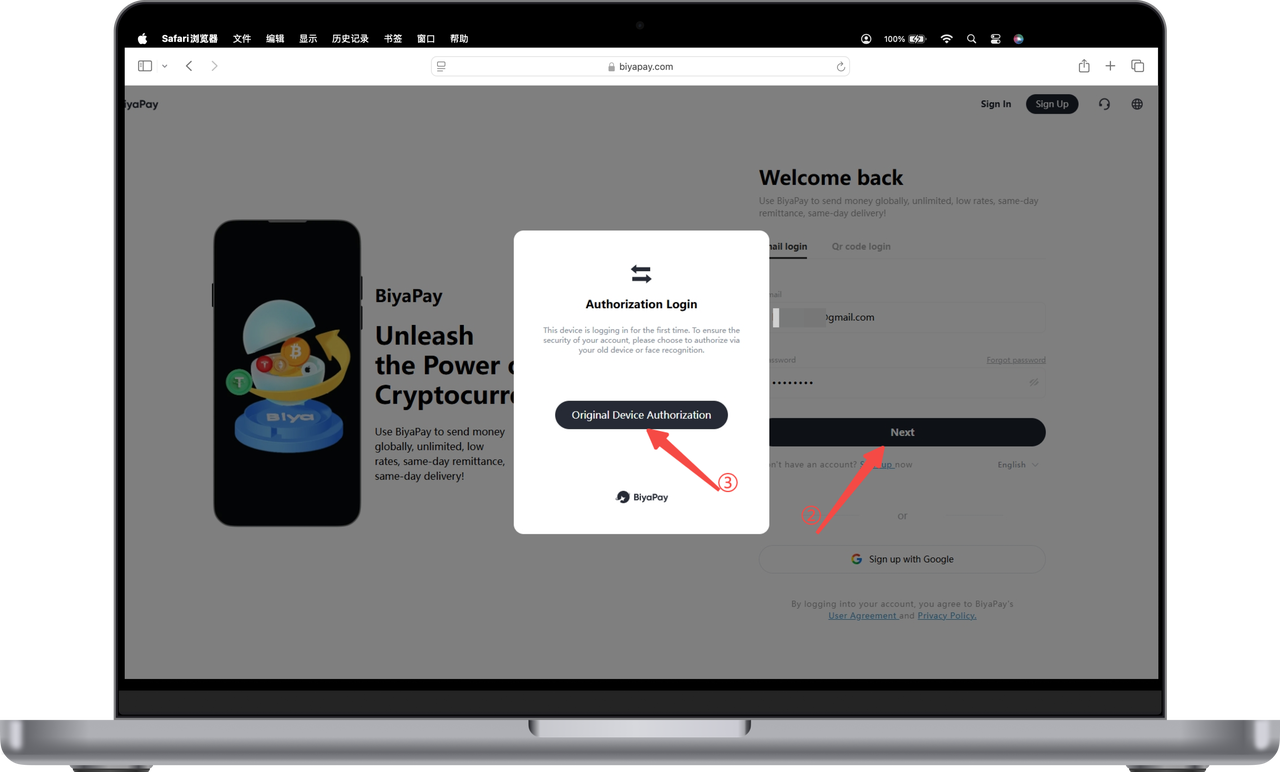
- Enter the email address and password on the new device, click [Next], enter the authorization login page, and click [Old Device Authorization];
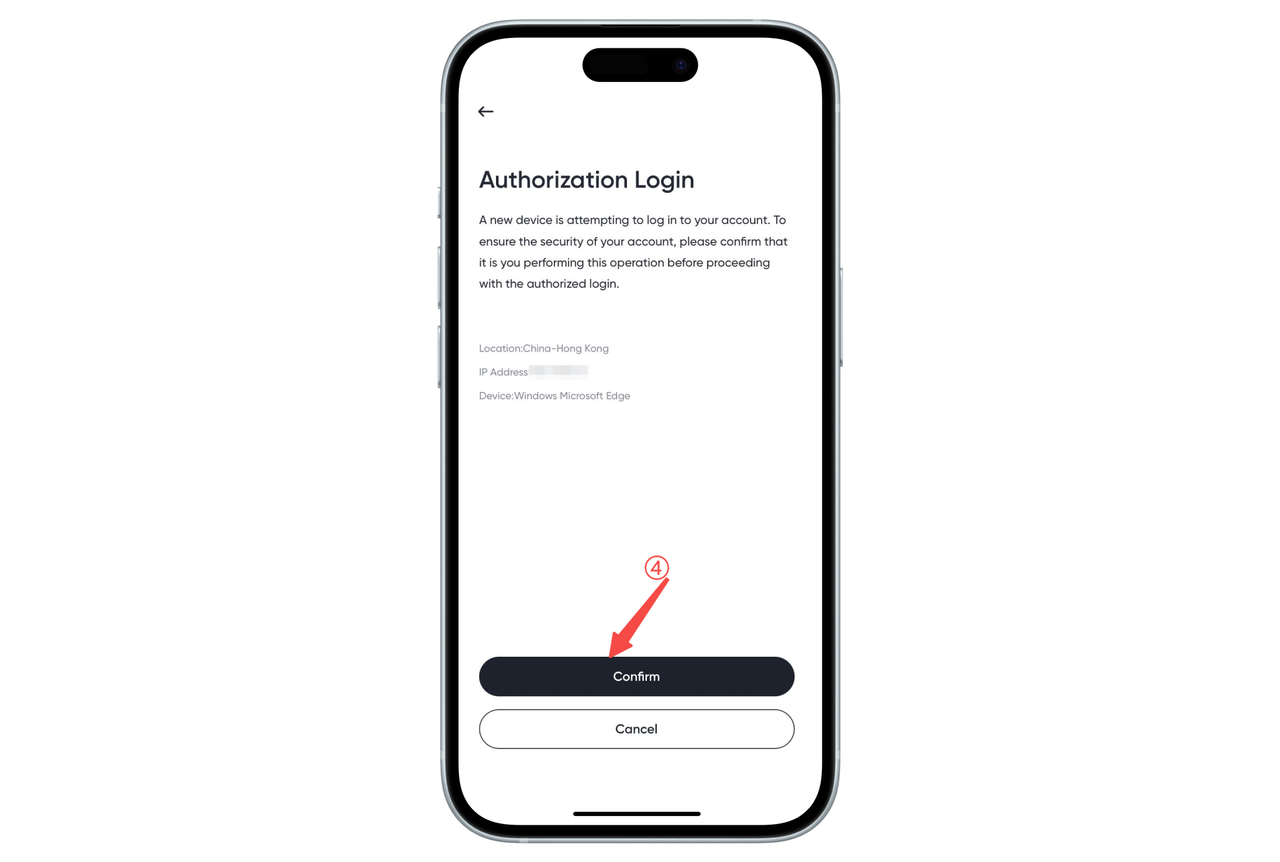
- At this point, the logged-in old device will automatically pop up the authorization request page, click [Confirm] to authorize;
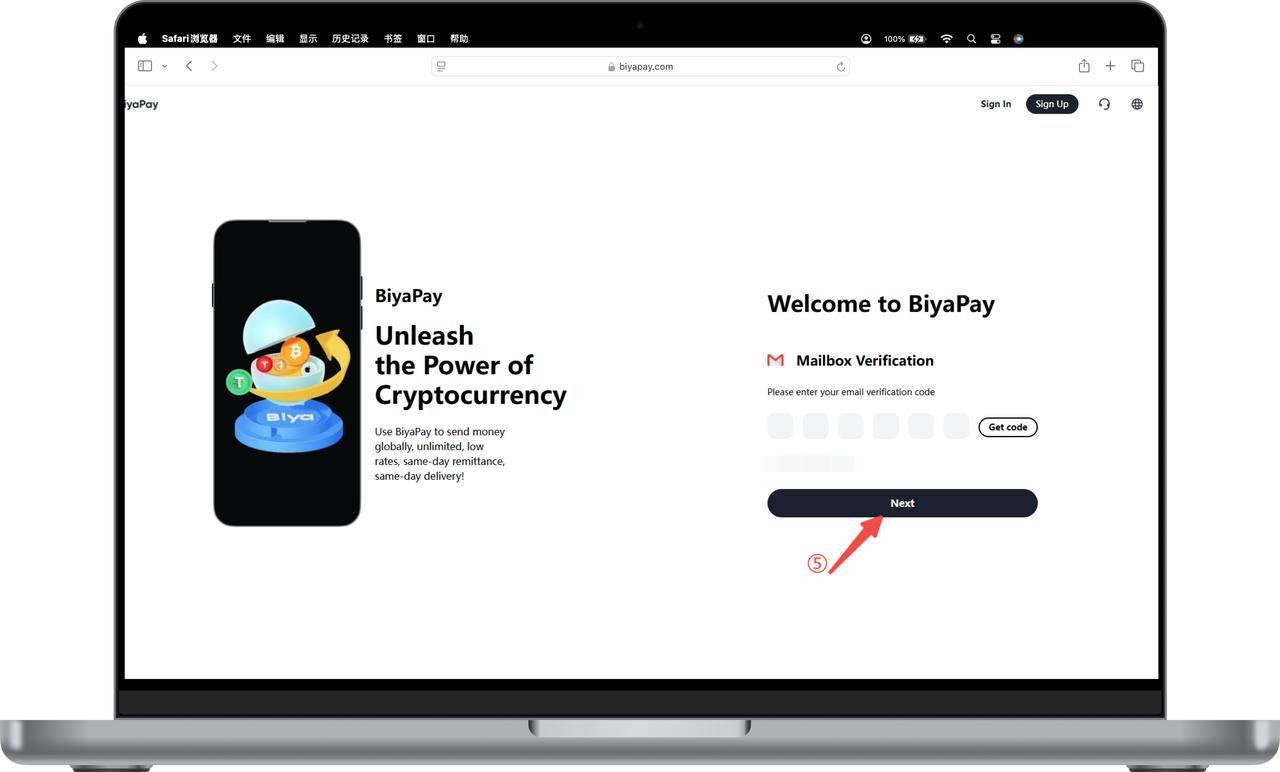
- Return to the new device, click [Get Verification Code], enter the verification code received by email, and you can log in successfully.
✅ Warm Tips:
- BiyaPay supports up to 5 devices logged in simultaneously;
- If you notice any abnormal device logins, you can manage them in the "Security Center" and log out manually.
2. Account and Security (Complete)

BiyaPay makes crypto more popular!
Contact Us
Mail: service@biyapay.com
Customer Service Telegram: https://t.me/biyapay001
Telegram Community: https://t.me/biyapay_ch
Digital Asset Community: https://t.me/BiyaPay666
Community




Regulation Subject
BIYA GLOBAL LLC
BIYA GLOBAL LLC is a licensed entity registered with the U.S. Securities and Exchange Commission (SEC No.: 802-127417); a certified member of the Financial Industry Regulatory Authority (FINRA) (Central Registration Depository CRD No.: 325027); regulated by the Financial Industry Regulatory Authority (FINRA) and the U.S. Securities and Exchange Commission (SEC).
BIYA GLOBAL LLC is a licensed entity registered with the U.S. Securities and Exchange Commission (SEC No.: 802-127417); a certified member of the Financial Industry Regulatory Authority (FINRA) (Central Registration Depository CRD No.: 325027); regulated by the Financial Industry Regulatory Authority (FINRA) and the U.S. Securities and Exchange Commission (SEC).
BIYA GLOBAL LLC
BIYA GLOBAL LLC is registered with the Financial Crimes Enforcement Network (FinCEN), an agency under the U.S. Department of the Treasury, as a Money Services Business (MSB), with registration number 31000218637349, and regulated by the Financial Crimes Enforcement Network (FinCEN).
BIYA GLOBAL LLC is registered with the Financial Crimes Enforcement Network (FinCEN), an agency under the U.S. Department of the Treasury, as a Money Services Business (MSB), with registration number 31000218637349, and regulated by the Financial Crimes Enforcement Network (FinCEN).
BIYA GLOBAL LIMITED
BIYA GLOBAL LIMITED is a registered Financial Service Provider (FSP) in New Zealand, with registration number FSP1007221, and is also a registered member of the Financial Services Complaints Limited (FSCL), an independent dispute resolution scheme in New Zealand.
BIYA GLOBAL LIMITED is a registered Financial Service Provider (FSP) in New Zealand, with registration number FSP1007221, and is also a registered member of the Financial Services Complaints Limited (FSCL), an independent dispute resolution scheme in New Zealand.
©2019 - 2026 BIYA GLOBAL LIMITED