
Can You Use a Virtual Card for ChatGPT? Subscription Payments and Card Declines





Whether you can use a virtual card for a ChatGPT subscription depends on the card type, where it was issued, where you subscribe, and which transactions the issuer allows. Web subscriptions accept credit and debit cards, but the “virtual” label or a card network logo alone won't tell you whether a specific card will work. OpenAI explicitly excludes prepaid cards from API credit purchases; that restriction does not establish a blanket ban on prepaid cards for ChatGPT subscriptions. If a payment has already failed, identify whether the problem occurred when adding the card, making the first payment, or renewing. That tells you whether to check the order, contact the issuer, or update your payment method.
Key Takeaways
- “Virtual” describes the card's format. Credit, debit, and prepaid cards need separate checks.
- The original purchase channel manages the subscription, regardless of which device you use now.
- Adding a card, making the first payment, and renewing automatically are separate steps.
- When a payment fails, distinguish an authentication failure from a declined authorization or a pending hold.
- After changing cards, check whether any outstanding bill was paid and whether the original subscription resumed.
Which Virtual Cards Can You Use for a ChatGPT Web Subscription?
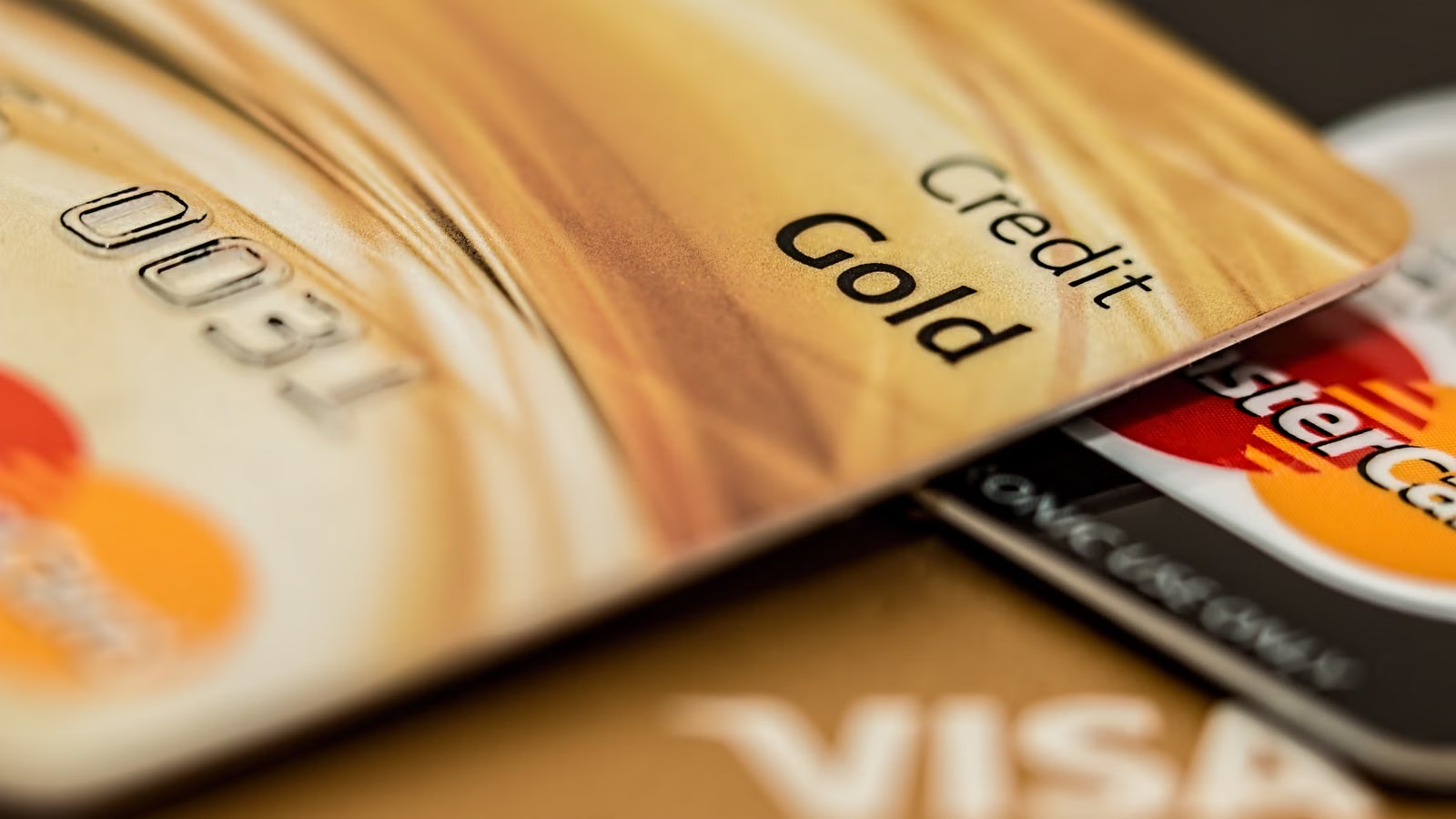
Payment methods for ChatGPT web subscriptions include credit and debit cards. You can evaluate virtual credit and debit cards under their respective card categories, but the published guidance doesn't list the compatibility of every virtual card. Start by checking how the issuer classifies your card, then confirm where it was issued and whether it supports online transactions and automatic renewals.
| Card Type | What the Published Rules Confirm | What You Still Need to Check |
|---|---|---|
| Virtual credit card | Credit cards are a published payment option for web subscriptions. | Issuing region, available credit, and whether online and recurring transactions are allowed. |
| Virtual debit card | Debit cards are a published payment option for web subscriptions. | Available balance in the linked account, spending limits, and recurring payment permissions. |
| Virtual prepaid card | Prepaid cards cannot be used to buy API credits. That rule doesn't establish a blanket policy for personal ChatGPT subscriptions. | Whether the specific card is accepted through the purchase channel for the initial subscription and subsequent renewals. |
“Virtual” means the card is provided digitally. All three types can have a card number, an expiration date, and a security code, but a credit card typically draws on a credit line, a debit card usually draws from a linked account, and a prepaid card spends funds loaded in advance. A Visa or Mastercard logo identifies the payment network, not the category assigned by the issuer. If the product is simply labeled “virtual Visa card,” check the card details or cardholder terms for a credit, debit, or prepaid designation. Ask the provider if you can't find it.
Virtual cards aren't necessarily disposable. Some are reusable; others expire or generate a new number after a purchase. For a monthly subscription, check that the number remains valid and that the merchant can charge it again. Two virtual debit cards may work differently: one may support renewals, while the other may only be usable for a one-time payment.
A personal ChatGPT subscription and API credits are separate purchases. A web subscription pays for a ChatGPT plan, while credits purchased through the developer platform pay for API usage. OpenAI's prepaid card restriction specifically addresses the latter. If you see a message or guide saying prepaid cards aren't supported, check which checkout it refers to before applying it to your order.
How Does Billing Differ on the Web, the App Store, and Google Play?
The platform where you originally subscribed manages the billing. Buying on chatgpt.com in a mobile browser is still a web purchase. An in-app purchase on iOS or Android is billed through the Apple App Store or Google Play, respectively. A virtual card can therefore be declined on the web but still be added to an app store account. These are different checkout systems, and adding a card doesn't mean the store has processed a ChatGPT subscription payment.
- Web purchases: Check the payment methods, currency, and final amount shown at checkout on chatgpt.com. For an existing subscription, sign in to the original ChatGPT account and check the plan and payment history under Billing in Settings.
- App Store purchases: Use the Apple Account used for the purchase to check the payment method and purchase history. Look for ChatGPT in that account's subscription list. Signing in to ChatGPT on the web does not move your Apple billing there.
- Google Play purchases: Check the order and subscription in the Google Account used for the purchase. If you have multiple Google Accounts on your phone, check the receipt to identify the right one.
“Card added to the store account” and “ChatGPT subscription active” are different outcomes. The former means the store could save the card as a payment method. The latter requires a successful order linked to the correct ChatGPT account. If all you see is a saved card, check the checkout result or receipt. If the store shows a successful payment but ChatGPT doesn't show the plan, confirm which ChatGPT account you're signed in to, then follow up using the original order rather than replacing the card or buying again.
For example, if you subscribed on the web from a computer and later started using ChatGPT on an iPhone, your renewal is still billed on the web. A card in your Apple Account won't automatically replace the one saved for the web subscription. If you bought the subscription in the iPhone app and received an Apple receipt, update the Apple payment method instead of the card in ChatGPT's web billing settings. If you're unsure where to manage the plan, check the original receipt rather than guessing from the device or screen you're using.
What Should You Check Before Using a Virtual Card for a Subscription?
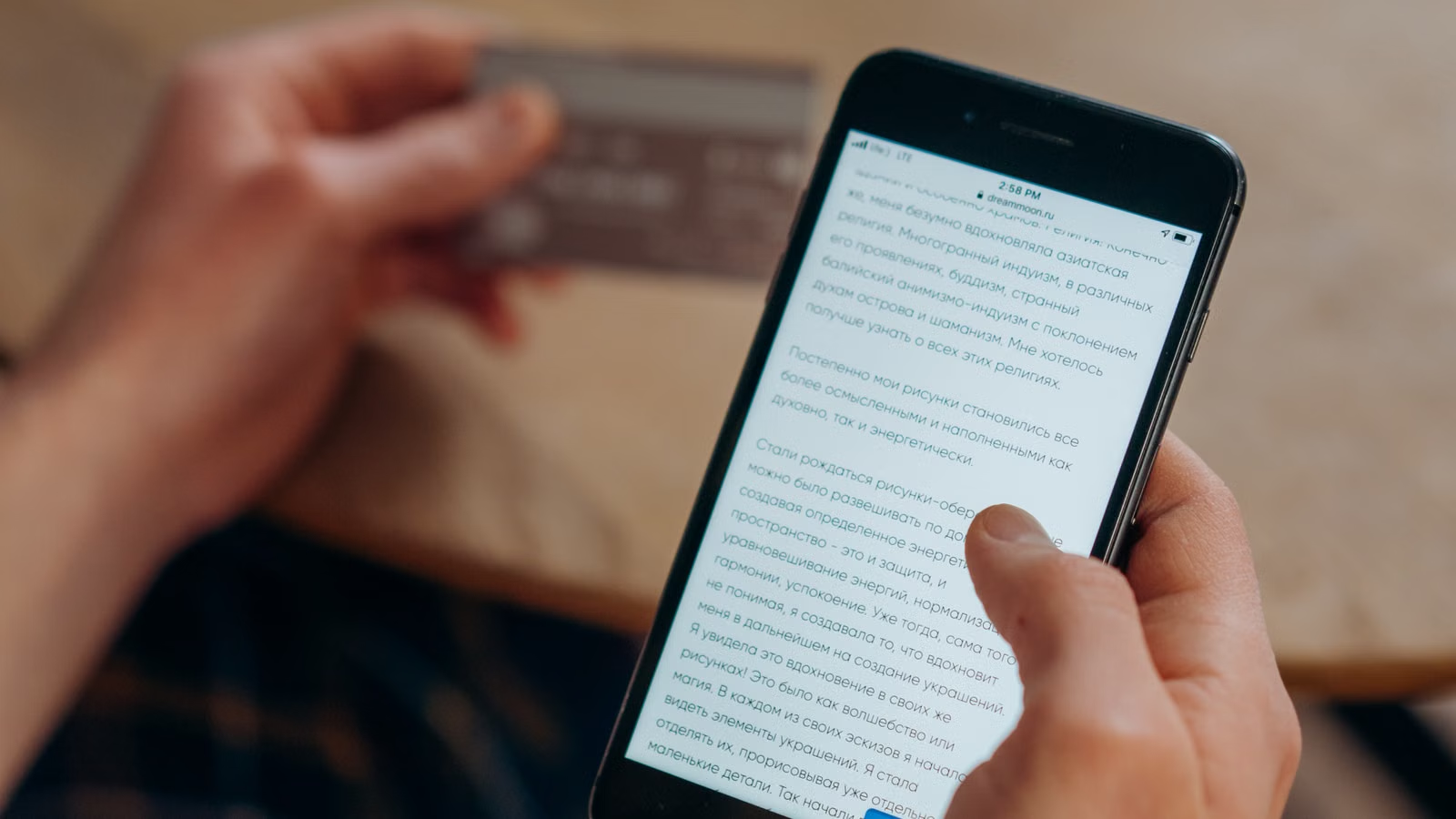
First check whether the card is eligible, then whether it can cover the charge. For web purchases, OpenAI requires the purchase to take place in a supported country or region and the card to be issued by a bank in a supported region. These are separate checks: being in a supported location doesn't tell you whether the issuing bank qualifies. A card denominated in US dollars, carrying an international network logo, or working on other sites doesn't tell you where it was issued.
Once you've checked the region, review the card details or ask the issuer:
- Is the card number valid, and is the card active or frozen? Do the billing address and postal code match the issuer's records?
- Does the card allow online purchases? If the transaction is treated as cross-border, is that type of payment enabled?
- Can a merchant charge the card on a recurring schedule? Will the card number expire after the first transaction?
- Will the available balance or credit cover the checkout total after accounting for per-transaction limits and other pending holds?
- If checkout requires 3D Secure (3DS), can you complete it through the bank app or another registered verification method?
If you have enough funds but the payment still fails, identify which other condition is blocking it. For example, adding funds won't help if the linked account has enough money but the card's per-transaction limit for online payments is below the checkout amount. Or the card may let you enter its number to make an online purchase but block a merchant from initiating a monthly renewal. Even if the first payment goes through, the next one may be declined. When asking the issuer, be specific: “Can I use this card to start an online subscription and pay for recurring renewals?” is more useful than asking whether it works online.
If you already use Biya EasyCard, apply the same checklist to your card's current terms. This guide to virtual Visa card subscriptions and declined payments explains the difference between saving a card and using it for subsequent charges. Public information doesn't confirm whether a specific EasyCard will work for a first ChatGPT payment or a renewal. Check the applicable rules for your card and purchase channel.
Where Should You Start If the First Virtual Card Payment Fails?
Identify the last step that completed successfully. An error while adding a card, incomplete authentication, an issuer decline, and a pending payment can all look similar at checkout, but they call for different actions. Before switching cards or retrying, compare the checkout message, the card transaction record, and your subscription status.
| What You See | What to Check First | Who to Contact Next |
|---|---|---|
| An error appears while adding the card, and the issuer sees no authorization attempt. | The card number, expiration date, billing postal code, and whether you're adding the card in the right purchase channel. | If the details are correct and the error persists, contact support for that purchase channel. The error alone doesn't establish that the bank declined the transaction. |
| Checkout opens 3DS, but authentication doesn't complete. | Whether the issuer sent a notification and whether the verification window was blocked or closed. | If verification keeps failing, ask the issuer about the verification method and the card's permissions. |
| The issuer finds the authorization attempt and confirms it was declined. | The amount requested, available balance or credit, and any restrictions on online or cross-border payments. | Ask the issuer why it declined this transaction before deciding whether to use another payment method. |
| The card shows a pending transaction, but ChatGPT hasn't activated the plan. | Whether the original purchase channel has a matching order or receipt, and whether the amount is only an authorization hold. | Check the order with the purchase channel first. Ask the issuer about the authorization if needed before retrying. |
Consider the last case: checkout reports a failure, but your available balance drops and the card transaction is marked “pending.” This may be a temporary hold, not a posted charge. Look for a corresponding order and receipt through the original purchase channel. If you can't find one, note the amount and time and ask the issuer whether the record is an authorization hold or a posted transaction. If the charge has posted but the subscription hasn't activated, give the purchase channel those details so it can check which account or order received the payment.
Conversely, if checkout stopped before you saw a verification prompt and the issuer sees no attempt, checking the balance alone is unlikely to explain the failure. Find out whether the error occurred while adding the card or submitting the order, and check whether the browser blocked a required authentication redirect. Retry once you've addressed the issue. If the same error persists, tell support which step failed.
When contacting support, share the exact error message, amount, currency, local time and time zone, and any order number or redacted screenshot. Don't send the full card number, security code, or one-time verification code. Enter verification details only on the applicable payment or issuer authentication screen.
Why Can a Renewal Fail After the First Payment Succeeds?
A successful first payment means the card worked at that time. The next charge depends on the card's current status, available funds, and issuer rules. For example, you might use a virtual debit card for the first month and then receive a replacement card number, or other transactions might tie up the available balance when renewal comes due. When you get a renewal notice, check whether the issuer's records indicate an invalid card, insufficient funds, or a verification requirement, or whether there was no matching authorization attempt at all.
If you need to replace the card, update the payment method through the original purchase channel, then check:
- Whether the new card was saved and is set to pay for the subscription or outstanding bill.
- Whether the failed renewal charge was retried or paid. If the bill remains unpaid, follow the instructions from the original purchase channel.
- Whether the subscription has resumed and whether the next billing date has updated.
These three statuses don't always change at the same time. For example, the web billing page might show the new card while the previous renewal invoice remains unpaid. Check whether the invoice offers a way to pay it or ask support whether the platform will retry the charge. If the invoice has been paid, confirm that it belongs to the right account and billing period.
Switching purchase channels can lead to overlapping charges. OpenAI's guidance on duplicate subscription charges across platforms explains that a failed Apple renewal doesn't necessarily cancel the subscription. Suppose your ChatGPT plan appears inactive and you subscribe again on the web. If you later update your Apple payment method, Apple may recover the original subscription, leaving you with two charges for overlapping periods. To keep the existing plan, resolve the payment with the original platform. To switch platforms, cancel with the original platform, confirm it won't renew, and wait for the subscription to end before buying a new one.
If you use Biya EasyCard for several subscriptions, you can check EasyCard billing records and match card purchases to merchant receipts by date, amount, and currency. If a pending authorization and a posted charge appear on the same day, these details help you determine which entries may belong to the same order and which need separate follow-up. If your card or its limits change before renewal, return to the original purchase channel to check the payment method and next charge. Service availability depends on your location, identity verification results, platform rules, and applicable laws and regulations.
Frequently Asked Questions
Can You Subscribe to ChatGPT with a Single-Use Virtual Card?
Don't rely on a single-use virtual card for automatic renewals. Even if the first payment goes through, check whether the number expires after the transaction and whether the issuer allows recurring charges. If the card is limited to one purchase, you can't count on the original number for the next renewal. Saving it as a payment method doesn't change how the card works.
Why Can My Virtual Card Pay for Other App Store Purchases but Not ChatGPT?
A successful one-time purchase doesn't mean the same card can pay for a subscription. Check whether Apple checkout said the payment method was unavailable, requested verification, or left the order incomplete. Then ask the issuer whether it allows recurring charges of that type. Use the receipt or exact error to troubleshoot before buying another subscription on the web.
Does Not Receiving a 3D Secure Code Mean ChatGPT Doesn't Accept My Virtual Card?
Not necessarily. Some transactions don't prompt for a code, and additional verification may happen in your bank app rather than by text. First check whether checkout asked for authentication. If you're stuck at that step, look for an issuer notification or contact the issuer. The absence of a text message alone doesn't tell you whether the card is accepted.
What If My ChatGPT Receipt and the Posted Virtual Card Charge Show Different Amounts?
Use the merchant receipt to confirm what the subscription cost and the posted card transaction to see what you actually paid. Compare the currencies and line items, including whether the receipt already includes tax and whether the issuer lists a separate currency conversion fee. Don't count a pending authorization and the posted charge as two expenses.
Can I Switch My ChatGPT Renewal from a Virtual Card to a Physical Card?
You can try updating the payment method to an eligible physical credit or debit card through the original purchase channel. You don't need to start a new subscription on another platform just to change cards. Once the card is saved, check whether it is set to pay for the subscription. If an earlier renewal failed, confirm separately whether the outstanding bill was paid.
*이 문서는 일반 정보 제공 목적으로만 제공되며, BiyaPay 또는 그 자회사 및 계열사의 법률, 세무 또는 기타 전문적 조언을 구성하지 않으며, 재무 자문가나 기타 전문가의 조언을 받는 것을 대체할 의도도 없습니다.
당사는 본 간행물의 내용의 정확성, 완전성 또는 적시성에 관하여 명시적이든 묵시적이든 어떠한 진술이나 보증도 하지 않습니다.
의 관련 블로그

Investing in Commodities: Physical Assets, Funds, Futures, and Stocks Compared

Safest Ways to Send Money Internationally: Provider Checks, Scam Prevention, and Transfer Recovery



 호주
 오스트리아
 벨기에
 캐나다
 키프로스
 체코 공화국
 덴마크
 에스토니아
 핀란드
 프랑스
 독일
 그리스
 홍콩
 인도
 인도네시아
 아일랜드
 이탈리아
 일본
 라트비아
 리투아니아
 룩셈부르크
 말레이시아
 몰타
 모로코
 네팔
 네덜란드
 뉴질랜드
 노르웨이
 파키스탄
 필리핀
 폴란드
 포르투갈
 루마니아
 싱가포르
 슬로바키아
 슬로베니아
 남아프리카
 한국
 스페인
 스웨덴
 태국
 미국
 터키
 아랍에미리트
 영국
 베트남