Enhancing Your Apple Pay Experience: Setup and Payment Process Guide



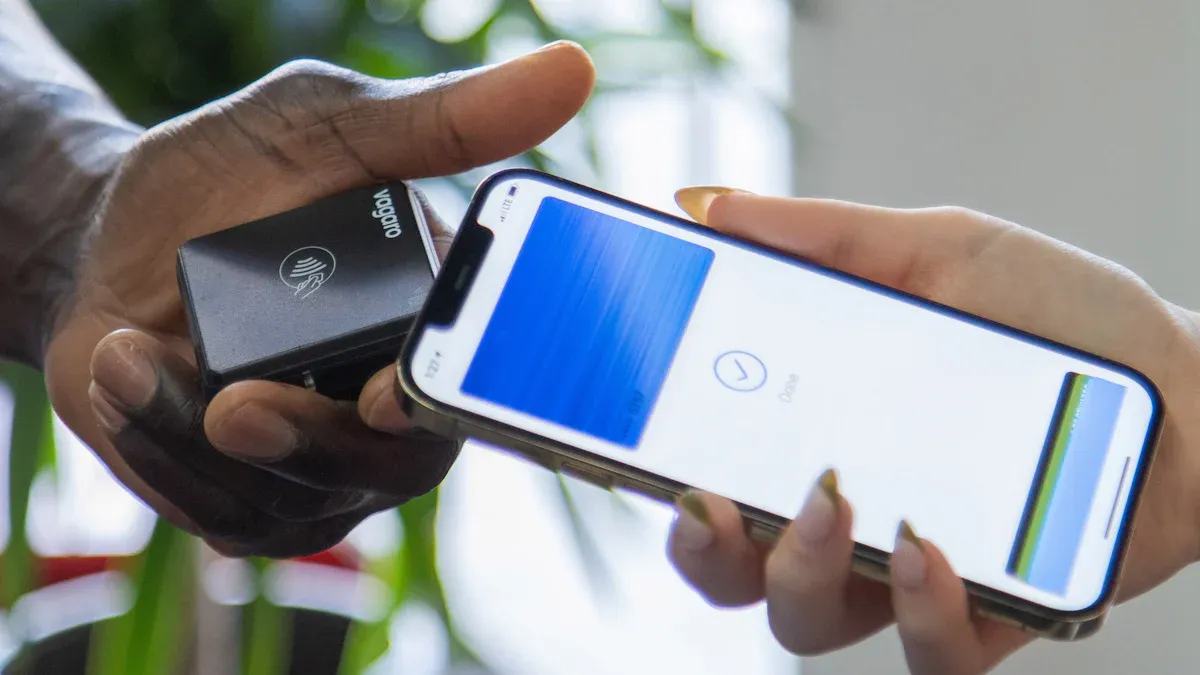
Image Source: unsplash
Want to enhance your payment experience? Apple Pay offers contactless payments that are secure and time-saving. NFC technology lets you complete transactions with a simple tap of your device. Touch ID and Face ID add an extra layer of protection for every payment. The system automatically generates random numbers and QR codes to safeguard your transaction privacy. A new-generation security chip keeps your data secure within the device. You can use your phone directly at ATMs, reducing reliance on physical cards. Apple Pay makes payments simple, secure, and trustworthy.
Key Points
- Apple Pay lets you make secure payments using your phone or watch without carrying physical cards.
- Face ID or Touch ID verification protects your account and prevents data breaches.
- Supports multiple devices and scenarios, enabling quick online and offline shopping or transfers.
- Adding a bank card is straightforward; use a UnionPay card issued by a Chinese or Hong Kong bank, ensuring accurate information.
- Issues can be resolved quickly via device settings or bank customer service, ensuring smooth payments.
Core Features and Benefits
Convenience and Security
You can enjoy a seamless payment experience with Apple Pay. No need to register a new account or repeatedly enter passwords. Each payment requires Face ID or Touch ID verification, protecting your account security. The system generates a unique dynamic code for every transaction, ensuring merchants cannot access your bank card details. You can use it confidently even in public settings. If your device is lost, you can remotely lock or erase payment information using the Find My feature.
Supported Devices
You can use Apple Pay on multiple devices. The following device models and system versions are supported:
- iPhone 6 and later models, requiring the latest iOS version.
- iPad and Mac users can use it for online shopping and in-app purchases.
- Apple Watch, as an extension of the iPhone, makes payments even more convenient.
You can choose the payment method best suited to your device. Apple Watch allows easy payments during exercise or outings.
Usage Scenarios
You can use Apple Pay in many scenarios. In physical stores, simply hold your device near a POS terminal to pay. You can also select Apple Pay for online shopping to complete checkouts quickly. It’s supported for in-app purchases of goods or services. You can even send money to friends via iMessage. Whether at a supermarket, restaurant, or shopping from home, Apple Pay delivers an efficient and secure payment experience.
Apple Pay Setup Process
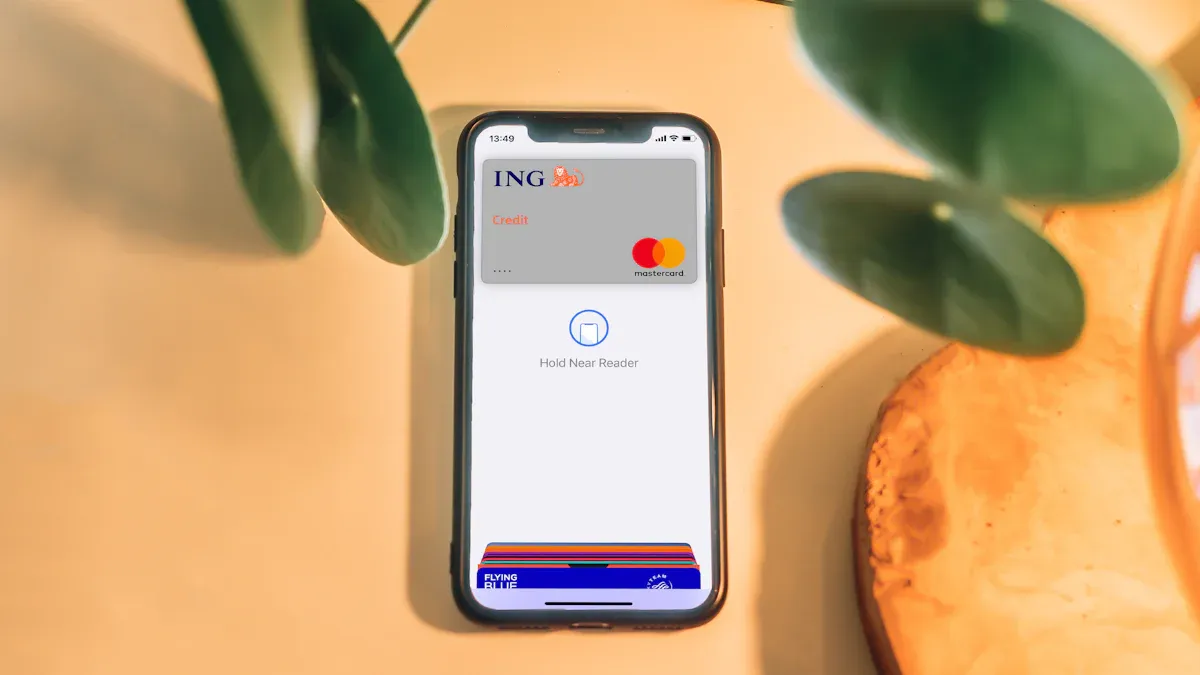
Image Source: unsplash
Device and System Requirements
To use Apple Pay smoothly, ensure your device and system meet the requirements. iPhone 6 and later models support Apple Pay. You need to update to the latest iOS version. Apple Watch users require Series 1 or later, paired with an iPhone. Certain iPad and Mac models also support Apple Pay, mainly for online and in-app payments. Check your device model and system version in Settings. If your device is outdated, consider upgrading or replacing it for a better payment experience.
Adding a Bank Card
You can add a bank card to Apple Pay with simple steps. Open the Wallet app and tap the “+” icon in the top right. You can scan your card automatically or manually enter the card number and details. The system will guide you through identity verification.
In China, Apple Pay supports UnionPay cards issued by many major banks, including credit and debit cards. Supported banks include:
- Industrial and Commercial Bank of China
- China Construction Bank
- Bank of China
- Agricultural Bank of China
- Bank of Communications
- China Post Savings Bank
- China Merchants Bank
Some regional banks also support Apple Pay, such as Hainan Rural Credit Cooperative, Tianjin Binhai Rural Commercial Bank, WeBank, and Xiamen Bank. You can only add UnionPay cards issued by Chinese banks. Apple Pay does not support Visa, Mastercard, or other international cards. If you try adding a Hong Kong or foreign bank card, the system may indicate it’s unsupported.
After adding a card, some banks set single-transaction or daily payment limits, typically $1,000 (USD), subject to bank policies and real-time exchange rates. Check detailed limits in your bank’s app or via customer service.
Tip: When adding a bank card, use a card registered in your name and ensure the phone number matches the one linked to your bank to complete SMS verification smoothly.
Setup Troubleshooting
You may encounter common issues when setting up Apple Pay.
If you see a “Cannot Add Card” error, check the following:
- Whether the card is a UnionPay card issued by a Chinese bank
- If your device is running the latest system version
- Whether your Apple ID is set to China
- If the phone number matches the one registered with your bank
If you don’t receive the verification SMS, it may be due to poor signal or an unlinked phone number. Try restarting your device or contacting bank customer service. If the card is unsupported, consider switching to a supported bank or card type.
If verification fails, re-add the card or remove it from the Wallet app and try again. Some banks require additional verification via their app or in-person. Follow the prompts or consult bank staff.
Reminder: If you repeatedly fail to add a card, confirm whether the bank supports Apple Pay, then contact Apple or bank customer service for assistance.
Payment Process
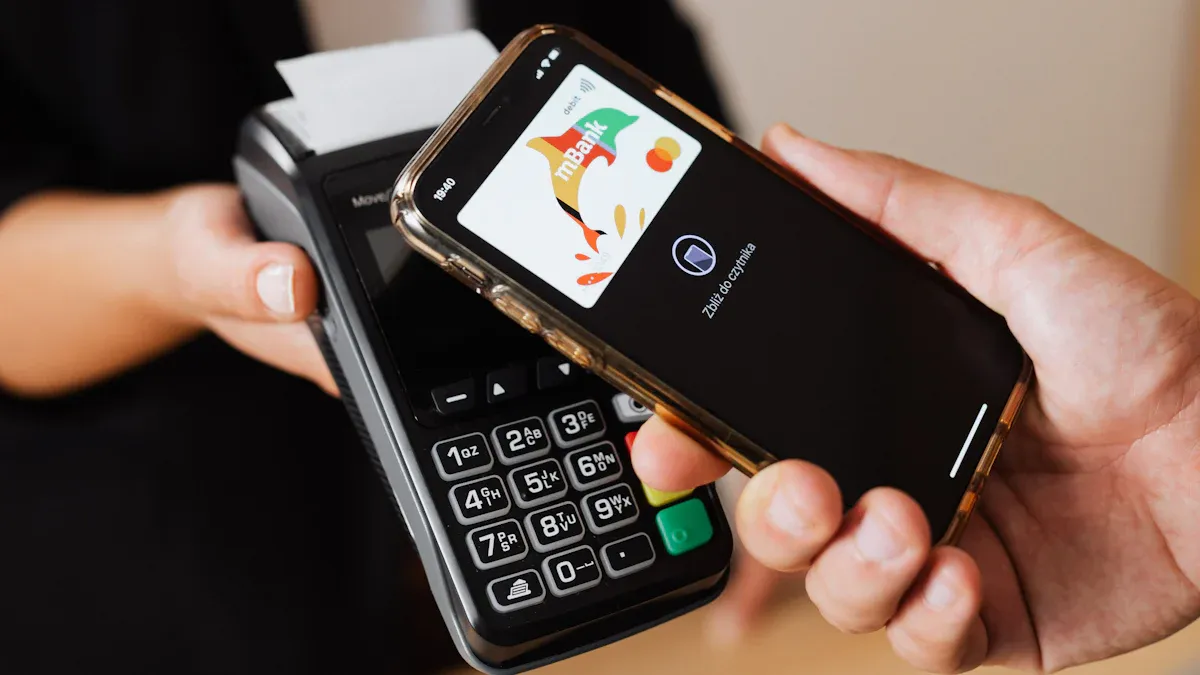
Image Source: pexels
iPhone Payments
When using Apple Pay in physical stores, hold your iPhone near a POS terminal with the UnionPay QuickPass logo. The payment interface will appear automatically. Verify with Face ID, Touch ID, or your passcode. iPhone X and later models support Face ID, while iPhone 8 and earlier use Touch ID. Double-press the side button to bring up the payment interface.
You don’t need an internet connection for in-store payments. The system generates a one-time dynamic payment token locally, protecting your card details. To use a non-default card, tap the card in the payment interface to switch.
After payment, the merchant’s terminal will display a prompt, typically indicating “Payment Successful” or “Payment Failed”. You can check the payment status in the order details.
Tip: In China, prioritize UnionPay cards for Apple Pay. Some Hong Kong bank-issued UnionPay cards may work, but confirm compatibility.
Apple Watch Payments
When exercising or unable to use your phone, you can pay with your Apple Watch. Double-press the side button and hold the watch near the POS terminal. The payment interface will appear automatically. Since you’ve authenticated when wearing the watch, no additional passcode is needed.
Apple Watch supports switching between multiple cards. Swipe in the payment interface to select a different card. After payment, the watch vibrates and displays the result. Check transaction records in the Wallet app.
No network is required, as Apple Watch supports offline payments. Each payment uses a unique dynamic token for security.
Mac and iPad Payments
When shopping on a Mac or iPad, select Apple Pay to complete checkout. In Safari or supported apps, click the “Apple Pay” button, and the payment interface will appear.
If your Mac has Touch ID, verify with your fingerprint. If not, the system will push verification to your iPhone or Apple Watch, where you can use Face ID, Touch ID, or a passcode.
You can select a different card in the payment interface. After payment, the merchant’s terminal updates the order status and displays the result. Check details in the Wallet app or order page.
Note: For Mac and iPad payments, ensure devices are signed into the same Apple ID and have Bluetooth enabled for pairing with your iPhone or Apple Watch.
Online and In-App Payments
For online shopping or in-app purchases, select Apple Pay at checkout. Click the “Apple Pay” button, and the payment interface will appear. Verify with Face ID, Touch ID, or a passcode.
Switch cards in the payment interface for the desired payment method. After payment, the merchant’s terminal displays a prompt, typically “Payment Successful” or “Payment Failed,” customized by the merchant.
You can send money to friends via iMessage. Click the “Apple Pay” icon in the chat, enter the amount (in USD, converted based on real-time exchange rates), and confirm with Face ID or Touch ID. The recipient receives an instant transfer notification.
The payment process is secure and efficient. Apple Pay generates encrypted tokens for each transaction, preventing merchants from accessing your card details. View all transaction records in the Wallet app for easy financial management.
Reminder: Regularly check bank card limits and exchange rate information to ensure smooth transactions.
Supported Scenarios and Optimization
Supported Banks and Merchants
You can use Apple Pay with UnionPay cards issued by many Chinese banks. Beyond major banks like Industrial and Commercial Bank of China and China Construction Bank, some Hong Kong banks, such as HSBC Hong Kong and Hang Seng Bank, also support UnionPay cards. In daily use, merchants with the UnionPay QuickPass logo, including supermarkets, convenience stores, restaurant chains, department stores, and some vending machines, accept Apple Pay. Simply hold your device near the POS terminal for quick payments.
Tip: Some overseas merchants with UnionPay support may accept Apple Pay, subject to their actual compatibility.
Transit and Campus Cards
You can use Apple Pay to manage transit and campus cards. Supported transit card scenarios include:
- You can open a virtual transit card in Shanghai for buses, subways, and ferries.
- Fudan University’s 2-in-1 virtual campus card supports campus spending and Shanghai public transit.
- Through the “China T-Union” platform, you can use transit cards in supported cities nationwide.
- Download the “Shanghai Transit Card Official” app, compatible with iOS 14.5 and later.
- The setup process includes real-name authentication, selecting a co-branded card, activating, and topping up the account.
- Enable NFC and set the virtual card as default in Wallet & Apple Pay for tap-and-go transit access.
In campus settings, virtual campus cards enable dining, library, and other transactions, offering convenience.
Experience Optimization Tips
Enhance your Apple Pay experience with these tips:
- Regularly check bank card limits and monitor USD-to-RMB exchange rate changes to avoid payment failures due to limits or rates.
- Rest assured about privacy. Apple Pay uses cookies and web beacons to protect data and prevent fraud. Administrative, technical, and physical measures secure personal data, shared only with partners under legal and controlled conditions. Disable personalized ads and app tracking in privacy settings for added protection.
- When adding bank or transit cards, use real-name information and ensure your phone number matches the bank or campus system for smooth verification.
- If a payment fails, try switching networks, restarting your device, or using a different card to improve success rates.
Reminder: Enable the Find My feature to remotely lock or erase payment information if your device is lost, ensuring fund security.
You now understand the full Apple Pay process. You can enjoy convenience and security across devices and scenarios. Optimize settings based on your needs for an efficient payment experience. Stay updated on new Apple Pay features to enhance daily payment efficiency.
FAQ
How do I add a Hong Kong bank’s UnionPay card to Apple Pay?
In the Wallet app, select Add Card. Choose a UnionPay card issued by a Hong Kong bank and follow the prompts to verify. The system will display USD amounts based on real-time exchange rates.
Tip: Some Hong Kong banks require enabling UnionPay functionality via their app or in-person.
Does Apple Pay have payment limits?
Banks set single-transaction and daily limits for Apple Pay, typically $1,000 (USD), subject to exchange rate fluctuations. Check specific limits in your bank’s app.
How do I secure my funds if my device is lost?
Use the Find My feature to remotely lock or erase payment information on your device, preventing unauthorized use. Contact your bank immediately to freeze related accounts.
Why does card verification fail?
Verification may fail if you enter incorrect information or the phone number doesn’t match the bank’s records. Check card details and ensure the phone number is correct. Contact bank customer service if issues persist.
What types of cards does Apple Pay support?
You can add UnionPay credit or debit cards issued by Chinese or Hong Kong banks. Visa and Mastercard are not supported. Check bank announcements for the latest support details.
Apple Pay offers a seamless and secure payment experience, but your financial needs may extend beyond local transactions. As the world becomes more interconnected, you might face challenges with cross-border payments, such as non-transparent exchange rates, high fees, and slow transfer times when handling international income. You need a platform that provides a seamless and secure global fund management service, similar to what you get with Apple Pay.
BiyaPay is designed to address these challenges head-on. Our platform offers real-time exchange rate inquiries and supports conversions between various fiat and digital currencies, ensuring you get the best possible rates. With a quick and easy registration, you can benefit from our ultra-low transaction fees, starting at just 0.5%, and transfer funds quickly to most countries and regions worldwide, with transfers often completed on the same day. BiyaPay aims to deliver a trusted and seamless experience, making your global financial management as simple and efficient as using your phone to pay.
*This article is provided for general information purposes and does not constitute legal, tax or other professional advice from BiyaPay or its subsidiaries and its affiliates, and it is not intended as a substitute for obtaining advice from a financial advisor or any other professional.
We make no representations, warranties or warranties, express or implied, as to the accuracy, completeness or timeliness of the contents of this publication.
Related Blogs of

Want to Predict A-Share Market Moves? Understanding These 5 Macro Signals Is Enough


Stop Relying Only on the Shanghai Composite: How the Shenzhen Component and ChiNext Indices Reveal New A-Share Opportunities

Beginner’s Guide: What to Do When a Stock Hits Limit-Down? Can You Still Trade?


Another Major Drop! Why Is the A-Share Index Falling Non-Stop – Where Exactly Is the Problem?

Choose Country or Region to Read Local Blog
 Australia
 Austria
 Belgium
 Canada
 Cyprus
 Czech Republic
 Denmark
 Estonia
 Finland
 France
 Germany
 Greece
 Hong Kong
 India
India Indonesia
 Ireland
 Italy
Italy Japan
Japan Latvia
 Lithuania
 Luxembourg
 Malaysia
 Malta
Malta Morocco
 Nepal
Nepal Netherlands
 New Zealand
 Norway
 Pakistan
 Philippines
 Poland
 Portugal
 Romania
 Singapore
 Slovakia
 Slovenia
 South Africa
 South Korea
 Spain
Spain Sweden
 Thailand
 The United States
 Turkey
 United Arab Emirates
 United Kingdom
 Vietnam
Contact Us




BIYA GLOBAL LLC is a licensed entity registered with the U.S. Securities and Exchange Commission (SEC No.: 802-127417); a certified member of the Financial Industry Regulatory Authority (FINRA) (Central Registration Depository CRD No.: 325027); regulated by the Financial Industry Regulatory Authority (FINRA) and the U.S. Securities and Exchange Commission (SEC).
BIYA GLOBAL LLC is registered with the Financial Crimes Enforcement Network (FinCEN), an agency under the U.S. Department of the Treasury, as a Money Services Business (MSB), with registration number 31000218637349, and regulated by the Financial Crimes Enforcement Network (FinCEN).
BIYA GLOBAL LIMITED is a registered Financial Service Provider (FSP) in New Zealand, with registration number FSP1007221, and is also a registered member of the Financial Services Complaints Limited (FSCL), an independent dispute resolution scheme in New Zealand.