How to change language on Amazon for a better shopping experience



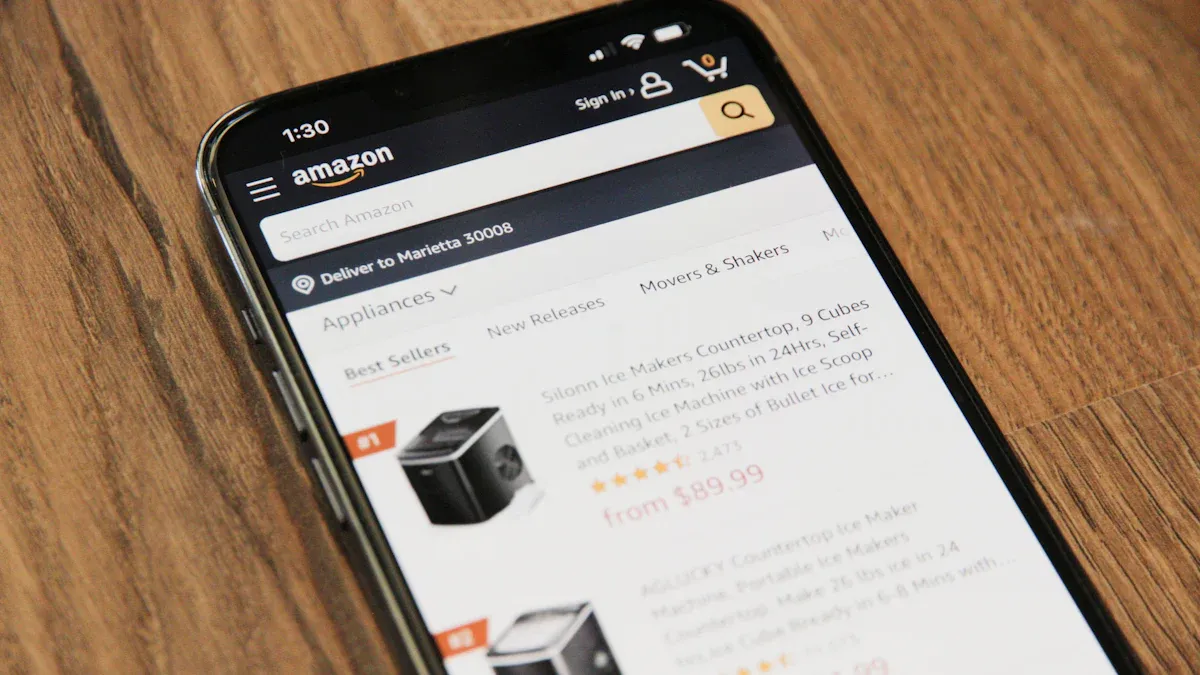
Image Source: unsplash
You can change language on Amazon with just a few clicks. If you shop on the website or use the app, switching languages helps you find what you need faster. Amazon supports many languages, so you can choose the one you like best. Shopping feels easier when you use Amazon in your own language.
Key Takeaways
- Changing the language on Amazon website or app is quick and easy, helping you shop in your preferred language for clearer menus and product details.
- If your language is not listed, switch your country or region in settings to unlock more language options and improve your shopping experience.
- Troubleshoot language issues by refreshing the page, clearing cache, checking device settings, or reinstalling the app to keep your language preferences saved.
Change Language on Amazon Website
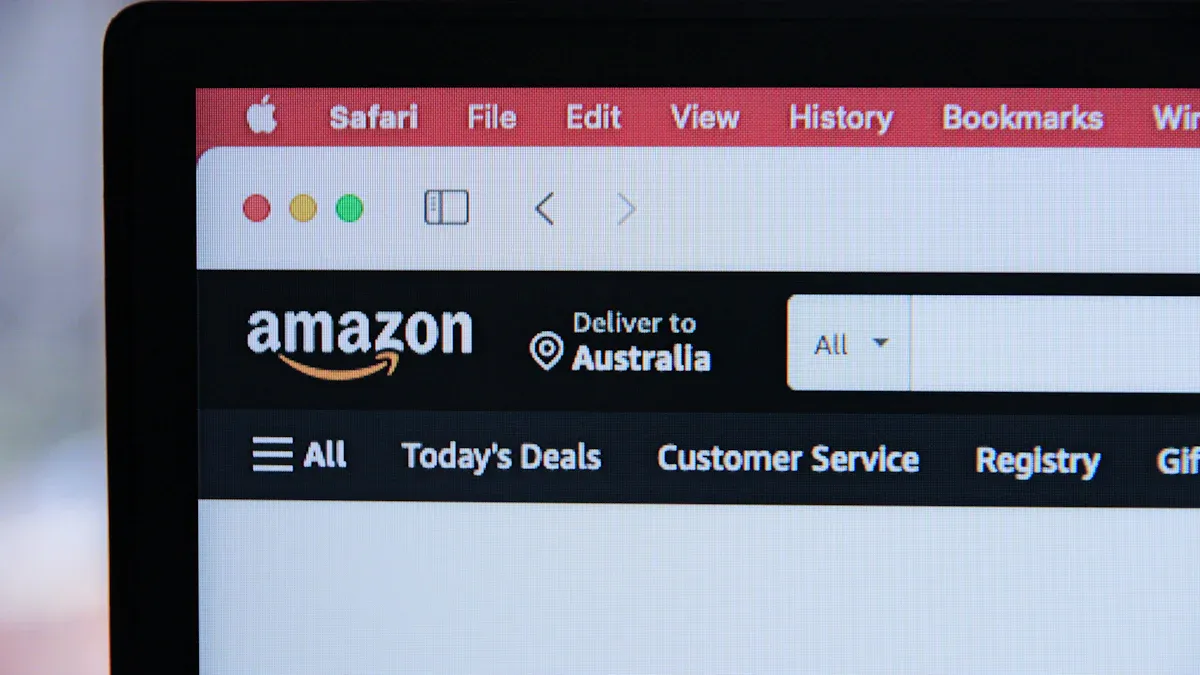
Image Source: unsplash
Changing the language on the Amazon website can make your shopping experience much smoother. You can find what you need faster and understand every detail. Let’s walk through the steps together.
Website Steps
You can change language on Amazon in just a few clicks. Here’s how you do it:
- Open the Amazon website in your browser and log in to your account.
- Look for the flag icon next to the search box at the top of the page. If you don’t see it, scroll to the bottom of the homepage to find region options.
- Hover over or click the flag icon. A language drop-down menu will appear.
- Pick your preferred language from the list. The website will update right away.
- If you want to change the default language back, just repeat these steps.
Tip: You can also find language settings under “Account & Lists” > “Your Account” > “Language preferences.” This gives you another way to reach the language drop-down menu.
Amazon supports many languages across different regions. Here are some of the most common ones you’ll see:
| Region | Common Languages Available |
|---|---|
| United States | English, Spanish |
| Canada | English, French |
| Germany | German, English |
| Japan | Japanese, English |
| Brazil | Portuguese (Brazilian), English |
| China | Chinese (Simplified & Traditional), English |
| France | French, English |
| Italy | Italian, English |
| Spain | Spanish, English |
| South Korea | Korean, English |
Amazon offers even more languages, including Bengali, Tamil, Amharic, and others, to serve shoppers worldwide.
Language Not Available
Sometimes, your preferred language might not show up in the language drop-down menu. Don’t worry—there’s a way around this:
- First, check if your language is available in your current region. Some languages only appear in certain countries.
- If you don’t see your language, click the “Change country/region” link in the language menu.
- Pick a different country or region where your language is supported.
- Click “Go to website” or “Done” to switch. The website will reload with new language options.
Note: When you change your region, Amazon updates your language settings and currency to match that country. For example, switching from the US to the UK changes the language to English (UK) and currency to GBP. Each Amazon website is tied to its own set of languages.
If you use Amazon on a Fire Tablet, you can download extra language packs in your device settings under Keyboard & Language.
Troubleshooting Website Issues
Sometimes, things don’t go as planned when you try to change the language on Amazon. Here are some common problems and how to fix them:
- The website suddenly switches to a language you don’t know, like Spanish or German.
- You can’t find your way back to English or your preferred language.
- The language change doesn’t save, or the website keeps switching back.
- The language drop-down menu is missing or not working.
Try these steps to solve the problem:
- Refresh the page after you change language settings.
- Clear your browser’s cookies and cache. Sometimes old data causes problems.
- Check your browser’s auto-translation feature. Turn it off if it keeps changing the website language.
- Make sure you’re on the right country-specific Amazon website. For example, Amazon.fr is for France and shows French by default.
- If you use a VPN, it might affect which Amazon website you see and which languages are available.
- Remember, language settings are device-specific. If you use Amazon on more than one device, you need to set your language on each one.
If you still can’t fix the issue, try using a different browser or device. You can also contact Amazon customer support for help, but they can’t always change the language for you directly.
Changing the language on Amazon is usually quick and easy. Most users find the process simple, and it helps make shopping more comfortable and clear.
Change Language on Amazon App
Image Source: pexels
Changing the language on the Amazon app can make shopping much easier. You get to see menus, product details, and deals in the language you know best. The process is quick, and you can do it right from your phone or tablet.
App Steps
You can change language on Amazon using just a few taps. Here’s how you do it:
- Open the Amazon app and log in if you need to.
- Tap the three-line menu (☰) at the bottom right (on iPhone) or top left (on Android).
- Scroll down and tap on Settings.
- Tap Country & Language.
- Tap Language and pick your preferred language from the list.
- If you don’t see your language, try changing the Country/Region first.
- Tap Done to save your changes.
Tip: The steps look almost the same on both Android and iPhone. On Android, you might see a three-dot menu instead of three lines, but the rest is similar.
When you change language in the app, you update the menus, buttons, and product info. You can always repeat these steps if you want to change the default language again.
Language Not Available
Sometimes, you might not find your language in the list. This happens because Amazon links languages to each country or region. If your language is missing, you can switch the country or region to unlock more options.
Here’s a quick look at how different countries offer different languages:
| Country/Region | Available Languages |
|---|---|
| United States | English, Spanish |
| Canada | English, French |
| Germany | German, English |
| Japan | Japanese, English, Chinese |
| Brazil | Portuguese |
| France | French |
| China | Standard Chinese |
| Spain | Spanish |
| Saudi Arabia | English, Arabic |
| UAE | English, Arabic |
To see more languages, go to Settings > Country & Language, then pick a new country. The app will show you the languages for that region. Sometimes, you need to restart the app or even reinstall it to see the new language settings.
Note: When you change the country, Amazon updates your shopping experience. You might see different products, prices in USD or other currencies, and new shipping options.
Troubleshooting App Issues
You might run into problems when you try to change language on Amazon. Here are some common issues and how you can fix them:
- The app suddenly switches to a language you don’t understand.
- You can’t find the language settings menu because everything is in another language.
- The app keeps going back to the old language after you change it.
- Your language isn’t listed, even after you change the country.
Try these steps to solve these problems:
- Close and reopen the app after you change language settings.
- If you get stuck in a language you don’t know, look for the three-line menu and the gear icon for Settings. The position of these icons stays the same, even if the language changes.
- If nothing works, uninstall and reinstall the app. This resets the language settings.
- Make sure your device’s language matches your choice in the app. Sometimes, the app uses your phone’s language by default.
If you still have trouble, you can visit Amazon’s help page or contact customer support for more help.
Note: Changing the language in the Amazon app only affects your shopping experience. If you use Amazon Prime Video, you need to set the language separately. For Prime Video, open the Prime Video app, start a show, and use the speech bubble icon to pick audio and subtitles. These settings only change the streaming content, not your main Amazon app.
Changing language on Amazon app helps you shop with confidence. You can always update your language settings whenever you want, so your shopping feels just right.
Switching your language on Amazon makes shopping easier and more personal. You get clear navigation, local brands, and order updates in your mother tongue.
- Enjoy customer service in your language
- Access millions of products
- Improve your Amazon experience anytime
If you need help, Amazon support is always there.
FAQ
How do I reset Amazon’s language if I can’t read the menu?
Look for the flag icon or the three-line menu. Tap or click it. Choose the first option under “Settings” to find language choices.
Will changing the language affect my orders or payment methods?
No, your orders and payment methods stay the same. You only change how Amazon shows menus, product info, and help pages.
Can I use Amazon in Chinese if I live outside China?
You can! Switch your region to China in settings. Amazon will show Chinese language options, but prices may display in USD based on the exchange rate.
Switching languages on Amazon, using the flag icon or Settings > Country & Language, enhances your shopping by making menus and product details clearer. For seamless international purchases in 2025, consider BiyaPay. BiyaPay offers transfer fees as low as 0.5%, far below traditional bank fees ($20-$50), with real-time exchange rate transparency across 30+ fiat currencies and 200+ cryptocurrencies in 100+ countries. Its Biya EasyCard, a virtual payment card with no annual fee, supports Amazon, eBay, and PayPal, perfect for global shopping or subscriptions. Whether buying from Amazon’s UK, Japan, or US sites, BiyaPay ensures same-day transfers and quick registration with simple ID verification. Secured by U.S. and New Zealand financial licenses, it guarantees safe transactions. Optimize your Amazon shopping with BiyaPay’s low-cost, flexible payments. Join BiyaPay today to elevate your international shopping experience in 2025!
*This article is provided for general information purposes and does not constitute legal, tax or other professional advice from BiyaPay or its subsidiaries and its affiliates, and it is not intended as a substitute for obtaining advice from a financial advisor or any other professional.
We make no representations, warranties or warranties, express or implied, as to the accuracy, completeness or timeliness of the contents of this publication.
Related Blogs of

What Is Tencent ADR (TCEHY)? A Complete Guide to the Differences with Tencent Hong Kong Stock (00700)


US Stock Market Hours During Daylight Saving Time: Beijing Time Pre-Market, Regular, and After-Hours Full Guide


How to Buy US Stocks? A Practical Guide from Zero to Your First Trade

Beyond Tech Giants: Which AI US Stocks Are Worth Holding Long-Term in 2026
Choose Country or Region to Read Local Blog
 Australia
 Austria
 Belgium
 Canada
 Cyprus
 Czech Republic
 Denmark
 Estonia
 Finland
 France
 Germany
 Greece
 Hong Kong
 India
India Indonesia
 Ireland
 Italy
Italy Japan
Japan Latvia
 Lithuania
 Luxembourg
 Malaysia
 Malta
Malta Morocco
 Nepal
Nepal Netherlands
 New Zealand
 Norway
 Pakistan
 Philippines
 Poland
 Portugal
 Romania
 Singapore
 Slovakia
 Slovenia
 South Africa
 South Korea
 Spain
Spain Sweden
 Thailand
 The United States
 Turkey
 United Arab Emirates
 United Kingdom
 Vietnam
Contact Us




BIYA GLOBAL LLC is a licensed entity registered with the U.S. Securities and Exchange Commission (SEC No.: 802-127417); a certified member of the Financial Industry Regulatory Authority (FINRA) (Central Registration Depository CRD No.: 325027); regulated by the Financial Industry Regulatory Authority (FINRA) and the U.S. Securities and Exchange Commission (SEC).
BIYA GLOBAL LLC is registered with the Financial Crimes Enforcement Network (FinCEN), an agency under the U.S. Department of the Treasury, as a Money Services Business (MSB), with registration number 31000218637349, and regulated by the Financial Crimes Enforcement Network (FinCEN).
BIYA GLOBAL LIMITED is a registered Financial Service Provider (FSP) in New Zealand, with registration number FSP1007221, and is also a registered member of the Financial Services Complaints Limited (FSCL), an independent dispute resolution scheme in New Zealand.