Getting Started with QuickBooks Your 2025 Guide




Image Source: pexels
QuickBooks helps you handle accounting with ease. As a top accounting software, QuickBooks lets you track income, manage expenses, and automate bookkeeping for your small to medium business. This tool simplifies accounting by giving you clear reports and easy ways to organize finances. Many small business owners choose QuickBooks because it balances powerful features with user-friendly design. You can start with a trial to see how QuickBooks fits your needs. Most users prefer QuickBooks Online for its flexibility and cloud access.
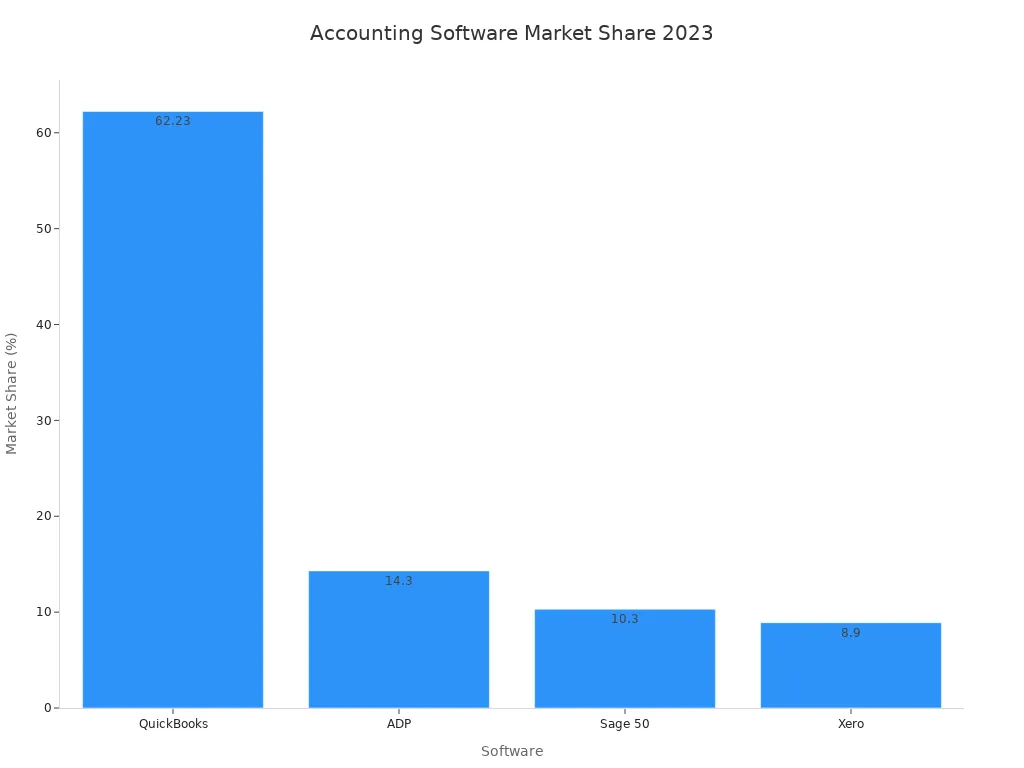
You can try QuickBooks without risk. The trial gives you full access, so you can explore features like automated bookkeeping and see why QuickBooks leads the U.S. small business market.
Key Takeaways
- QuickBooks simplifies business accounting by automating tasks like invoicing, expense tracking, and payroll, saving you time and reducing errors.
- You can access QuickBooks Online from anywhere, collaborate with your team in real time, and connect it with many popular business apps to streamline your workflow.
- Choose the QuickBooks version that fits your business size and needs, whether Online for flexibility, Desktop for advanced features, or Self-Employed for freelancers.
- Setting up QuickBooks is easy: gather your business info, link your bank accounts, import contacts, and customize your chart of accounts to start managing finances quickly.
- QuickBooks offers strong customer support and a helpful community, plus many learning resources to help you get the most out of the software.
QuickBooks Overview
What is QuickBooks?
You can think of QuickBooks as a powerful accounting software that helps you manage your business finances. This tool gives you everything you need to track income, record expenses, and organize your accounting tasks in one place. Many small and medium-sized businesses use QuickBooks because it makes financial management simple and clear.
QuickBooks works for many types of businesses. You can see how different industries use this accounting software in the table below:
| Industry Sector | Examples / Specialized Bookkeeping Categories |
|---|---|
| Core Industries | Accounting, Bookkeeping, Payroll |
| Specialized Industries | Medical/Dental, E-Commerce, Law Firms, Real Estate |
| Other Industries | Nonprofits, Franchises, Construction, Restaurants |
| Bookkeeping Categories | Churches, Cleaning Services, Dentists, Event Planners, Fitness Professionals, Healthcare Clinics, Lawyers, MSPs, Real Estate Investors, Tutors/EdTech Professionals, Veterinarians, Trucking |
QuickBooks stands out because it supports both general and specialized accounting needs. You can use it whether you run a restaurant, a law firm, or a construction company. Many well-known companies, such as SEO.com (digital marketing), Eisner Amper (accounting), and Moka (hospitality and retail), rely on QuickBooks for their daily operations.
You will find that QuickBooks offers a mature set of features. It has grown over many years to include tools for job costing, inventory management, and even multi-location operations. You can also choose industry-specific versions if your business has unique needs.
Core Benefits
QuickBooks gives you several key benefits that make it a top choice for accounting software. You can save time, reduce errors, and get a clear view of your business finances. Here are some of the main advantages you will notice:
- Time Savings and Automation
QuickBooks automates many accounting tasks. You can connect your bank accounts and credit cards, so transactions appear automatically. This reduces manual data entry by up to 75%. You can also set up recurring invoices and payments, which saves you over 12 hours each month on invoicing alone. - Accurate Financial Reporting
You can generate real-time financial reports, such as profit and loss statements and cash flow reports, with just a few clicks. These reports help you make better decisions about pricing, hiring, and inventory. - Easy Expense and Receipt Management
QuickBooks lets you upload receipts instantly and categorizes them for you. This makes expense tracking simple and helps you stay ready for tax time. - Payroll and Tax Compliance
You can manage payroll inside QuickBooks. The software automates payroll processing and helps you stay compliant with tax rules. This reduces errors by 85% and saves you money on corrections. - Integration with Other Tools
QuickBooks connects with over 750 third-party apps. You can link it to your sales, inventory, or customer management systems. This streamlines your workflow and keeps all your financial data in one place. - Cloud Access and Collaboration
You can access QuickBooks from anywhere with an internet connection. This makes it easy to work with your team or accountant in real time. - Scalability
As your business grows, QuickBooks grows with you. You can add advanced tools and more users as needed.
Tip: Many businesses report saving 15-20 hours per week on financial administration after switching to QuickBooks. This can add up to over $58,500 in productivity gains each year.
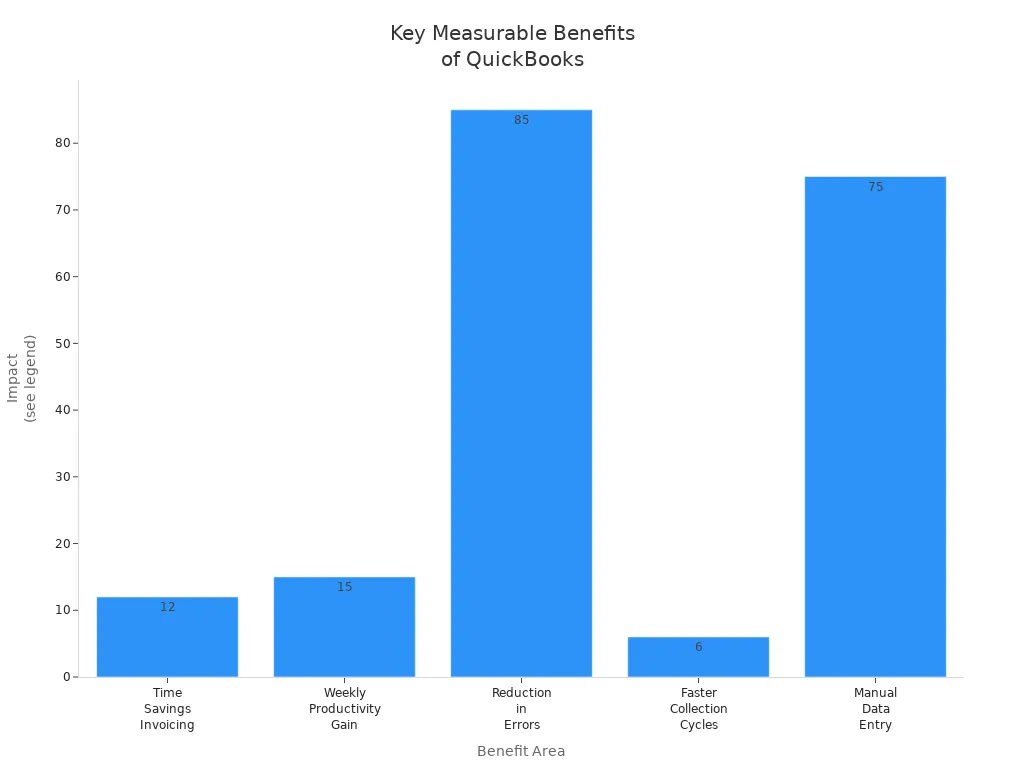
QuickBooks stands apart from other accounting software because it combines a user-friendly interface with powerful features. While some platforms offer more advanced controls or support for very large companies, QuickBooks remains the best fit for small to medium businesses that want reliable, easy-to-use accounting tools.
You will also find that many accountants and bookkeepers know how to use QuickBooks. This makes it easier to get help or hire support when you need it.
QuickBooks Features
Automation Tools
QuickBooks features many automation tools that help you save time and reduce errors in your daily accounting work. You can use payroll automation to handle pension payments without manual input. Real-time report generation lets you create financial reports instantly. Bank deposit matching helps you avoid manual reconciliation, making your bookkeeping more accurate. Tax calculations and cost of goods sold (COGS) tracking are also automated, so you do not have to worry about mistakes during tax season.
You can connect QuickBooks with third-party apps like Link My Books. This integration automates eCommerce bookkeeping tasks, such as syncing sales, refunds, fees, and tax data. These automation tools work together to save you time and money. They also help you avoid manual errors and improve your overall efficiency.
QuickBooks has earned the title of Best Accounting Automation Solution of 2025. Its advanced AI-powered workflows can manage complex tasks like transaction reconciliation, expense categorization, report generation, and cash flow forecasting. These tools reduce your manual workload and give you valuable insights into your business.
Integrations
QuickBooks features strong integration options with many popular business apps. You can connect QuickBooks to more than 15 third-party applications. These integrations help you manage customer relationships, payments, payroll, and more. Here is a table showing some of the most popular apps you can use with QuickBooks:
| App Name | Description / Key Features |
|---|---|
| Method CRM | Two-way sync with QuickBooks, custom reporting, payment portals |
| MessageDesk | Shared SMS inbox, automated messages, analytics |
| Salesforce | Customer management, sales, marketing automation |
| Square | Payment processing, POS, vendor management, inventory sync |
| Fundbox | Short-term credit lines, automatic syncing, faster funding |
| Synder | E-commerce reporting, invoicing, Shopify and Amazon integration |
| Expensify | Expense management, receipt scanning, mobile app |
| Gusto | Payroll software, accounting and payroll process simplification |
| Collbox | Accounts receivable, automated collections, payment processing |
| Zapier | Workflow automation, connects QuickBooks with hundreds of apps |
| Insightly | CRM, contact and project management, sales and payment info sync |
You can use these integrations to expand QuickBooks features and tailor the software to your business needs. For example, you can automate your payroll with Gusto or manage your sales pipeline with Salesforce. These connections make your accounting and bookkeeping tasks easier and more efficient.
Limitations
While QuickBooks features many strengths, you should know about its limitations. Some users report limited customer support and slow response times. You may find that QuickBooks Online lacks some features found in the desktop version, such as advanced reporting and inventory management. The software can crash or freeze, which may cause data loss or interrupt your workflow.
You might also face challenges with report customization and performance. Some users experience technical bugs and syncing problems with external tools. QuickBooks does not offer built-in user-initiated backup options, so you must rely on cloud services or third-party apps for data security.
- Limited number of users and file size capacity can slow down performance as your business grows.
- Adapting to new business requirements or compliance rules can be difficult.
- Manual data entry may increase if you cannot integrate all your business software.
- Audit trails are weak, making it hard to track changes and protect data integrity.
- Reporting features are basic and may not meet the needs of businesses that require advanced analysis.
- Integration and connectivity issues can cause frequent disconnections with banks or other tools.
- Scalability is limited, especially for complex operations like inventory management or job costing.
- Industry-specific features and global business functionalities are lacking, which can be a problem for specialized or international businesses.
Note: QuickBooks features work best for small to medium businesses. If your business needs advanced reporting, complex inventory management, or global operations, you may need to consider other accounting solutions.
QuickBooks Online
Cloud-Based Benefits
QuickBooks Online gives you the power to manage your business finances from anywhere. You can log in on any device with internet access. This cloud-based accounting software keeps your data safe with strong encryption and automatic backups. You do not need to worry about losing your information. QuickBooks Online updates itself, so you always use the latest features and stay compliant with tax rules.
You can work with your accountant or team at the same time, even if you are in different places. Real-time collaboration helps you solve problems faster and make better decisions. QuickBooks Online connects with many third-party apps, such as payroll and point-of-sale systems. This reduces manual data entry and saves you time.
Here are some key benefits you get with QuickBooks Online:
- Access your books from anywhere, anytime.
- Enjoy automatic updates and backups.
- Use customizable dashboards and reports.
- Collaborate with your accountant in real time.
- Connect to other business tools for more automation.
- Rely on strong security with multifactor authentication.
Tip: QuickBooks Online makes it easy to switch from desktop versions. You get professional support during the transition.
Who Should Use It
QuickBooks Online works well for many types of businesses. If you want flexibility and easy access, this cloud-based subscription service is a smart choice. You can use QuickBooks Online if you are a freelancer, run a small shop, or manage a growing company. The software fits many needs and business sizes.
| Business Type | Why QuickBooks Online Works for You |
|---|---|
| Freelancers & Sole Proprietors | Track income and expenses, send invoices, and manage cash flow easily. |
| E-commerce Businesses | Sync with online stores, manage inventory, and handle sales tax automatically. |
| Service-Based Businesses | Use time tracking, recurring invoices, and simple expense management. |
| Retail Businesses | Integrate with POS systems, control inventory, and get detailed sales reports. |
| Nonprofit Organizations | Track donations, manage funds, and create reports for donors and compliance. |
| Construction & Real Estate | Track jobs, manage costs, and invoice by project stage. |
QuickBooks Online suits you if you want to save time, reduce errors, and work from anywhere. Many small and medium businesses in China and around the world choose QuickBooks Online for its ease of use and strong features. You can start with a free trial to see how it fits your business.
Versions
Online vs Desktop
You can choose between quickbooks online and quickbooks desktop. Each version fits different business needs. Quickbooks online gives you cloud access. You can log in from any device with internet. This version supports real-time collaboration. Your team can work together, even if you are in different places. Quickbooks online updates automatically. You do not need to install new software or worry about losing data. You can also connect with over 750 third-party apps for more features.
Quickbooks desktop works best if you need advanced inventory tools or detailed reports. This version offers strong inventory management, including multi-location tracking and barcode scanning. You get more options for customizing templates and reports. Quickbooks desktop does not support easy remote access. You must install updates yourself. You also pay a higher upfront cost, especially if you add more users.
Here is a table to help you compare the main plans and prices:
| Platform | Plan Name | Pricing Model | Price (approx.) | User Limits | Payroll Add-on Cost |
|---|---|---|---|---|---|
| QuickBooks Online | Simple Start | Monthly subscription | $30/month ($360/year) | Single user | $45/month |
| Essentials | $55/month ($660/year) | Up to 3 users | |||
| Plus | $85/month ($1020/year) | Up to 5 users | |||
| Advanced | $200/month ($2400/year) | Up to 25 users | |||
| QuickBooks Desktop | Pro Plus | Annual subscription | $549/year | Up to 3 users | $50/month |
| Premiere Plus | $799/year | Up to 5 users | |||
| Enterprise | $1,340/year | Up to 40 users |
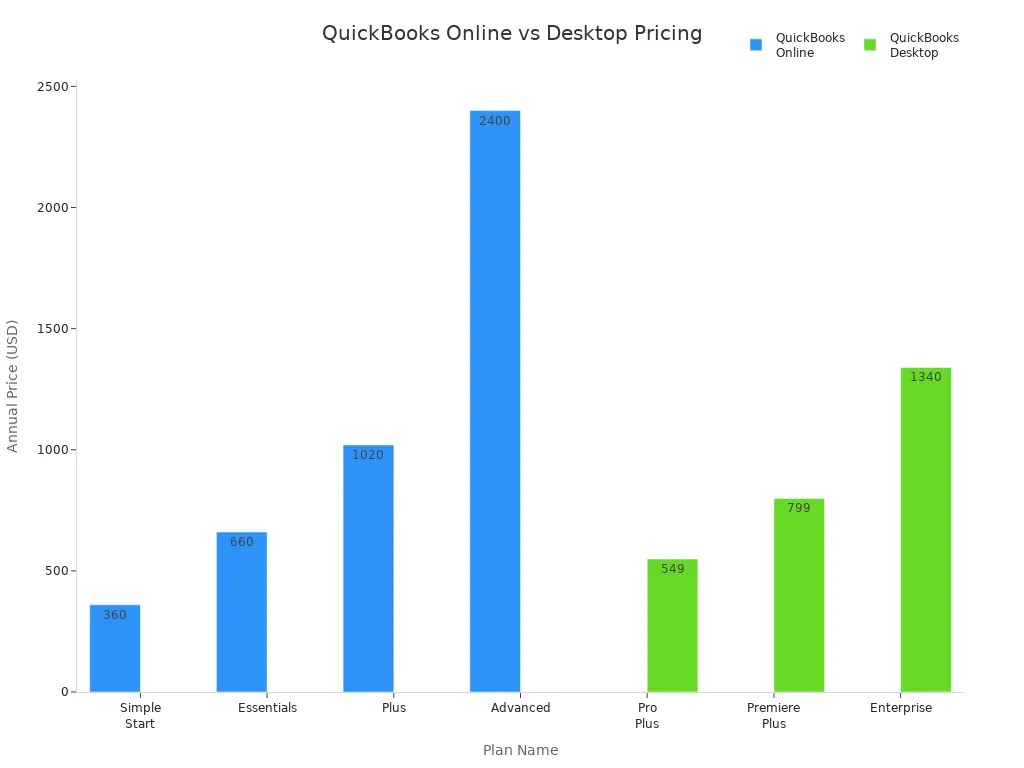
Quickbooks online uses a monthly subscription. You pay less at first, but costs add up over time. Quickbooks desktop needs a bigger payment at the start. You may pay more if you need many users. Choose quickbooks online if you want flexibility and easy access. Pick quickbooks desktop if you need advanced features and do not mind manual updates.
Tip: Quickbooks online is best for businesses that want to work from anywhere. Quickbooks desktop fits companies that need strong inventory tools and do not need remote access.
Self-Employed
Quickbooks self-employed is a special version for freelancers and independent workers. You can use it if you are a sole proprietor or contractor. This version focuses on simple tools and automation. You do not need to know complex accounting.
You get these unique features with quickbooks self-employed:
- Automatic sorting of business and personal expenses
- Mileage tracking with the mobile app
- Receipt capture using your phone camera
- Tax tools for Schedule C filers, including deduction tips
- Quarterly tax estimate reminders
- TurboTax integration for easy tax filing
- Simple setup and easy-to-use dashboard
Quickbooks self-employed helps you track income and expenses without extra steps. You can see your tax estimates and avoid surprises. This version does not support multiple users or advanced inventory. It works best for people who want to save time and keep finances organized.
Note: Quickbooks self-employed is not for larger businesses. If you need payroll or team features, quickbooks online or desktop versions are better choices.
Setup

Image Source: pexels
Account Creation
Getting started with quickbooks is simple. You can set up your account in just a few steps. Here is a clear path to follow:
- Choose the right quickbooks version for your business. You can select from Online, Desktop, or Self-Employed.
- Gather your business details. You will need your business name, address, tax ID, and bank account information.
- Sign up for quickbooks. You can do this online or by installing the software on your computer.
- Enter your business details carefully. Make sure all information is correct.
- Customize your chart of accounts. This helps you track income and expenses in the way that fits your business.
- Link your bank and credit card accounts. Quickbooks will import your transactions automatically.
- Import any existing data. You can bring in contacts, vendors, and past transactions.
- Set up your preferences. You can choose invoice templates, tax settings, and user permissions.
Tip: Most users finish the basic quickbooks setup in less than 30 days if they follow a clear plan and gather their information early.
Company Info
You need to enter your company information to get the most out of quickbooks. This step helps quickbooks organize your finances and create accurate reports. Here is what you should do:
- Enter your business name and address.
- Add your tax ID and choose your business structure.
- Set your fiscal year and currency.
- Review your chart of accounts and make changes if needed.
Quickbooks guides you through each step with easy prompts. You can update your company info at any time. The onboarding process is designed to be user-friendly, so you do not need to worry if you are new to accounting software.
Note: Progressive businesses often assign a dedicated person to manage onboarding. This helps you finish setup faster and avoid mistakes.
Data Import
Importing Contacts
You can bring your customer and vendor contacts into QuickBooks quickly. This saves you time and helps you avoid manual entry mistakes. QuickBooks supports several file formats for importing contacts. You can use files from many sources, such as Excel, Google Sheets, Outlook, or Gmail.
- QuickBooks Online lets you import contacts from CSV, XLS, and XLSX files.
- You can export your contact lists from Excel or Google Sheets and upload them directly.
- Make sure your spreadsheet has column headers in the first row.
- Do not include formulas, charts, or blank rows in your file.
- Each import can have up to 1,000 rows or a file size of 2MB.
- Only one email address per contact is allowed.
- All contacts must be on the first sheet, named “Sheet1.”
- Each contact name must be unique.
QuickBooks Desktop gives you even more options. You can import contacts using Excel files (XLS, XLSX), text files (TXT, CSV), and other formats like QIF or OFX for banking data. If you use a tool like Transaction Pro Importer, you can also connect to Access or SQL databases. For QuickBooks Desktop, header rows are optional, but you can specify this during import.
Tip: Clean your data before importing. Remove any errors or extra spaces to make sure your contacts import smoothly.
Chart of Accounts
You can import your chart of accounts to set up your accounting structure fast. This is helpful if you switch from another accounting system or want to save time.
- Prepare your chart of accounts in Excel or CSV format. Include columns for Account Name, Type, and Detail Type.
- Use the format “Main account: subaccount” in the Account Name column if you have subaccounts.
- Save your file as XLS, XLSX, or CSV.
- In QuickBooks Online, go to the Chart of Accounts section and select the import option.
- Upload your file and map each column to the correct QuickBooks field.
- Review the data preview and confirm the import.
For more complex imports or large account lists, you can use third-party tools like SaasAnt Transaction Pro Importer. These tools offer advanced mapping and validation features. If you need to update your chart of accounts often, you can use tools like Coefficient for real-time syncing between spreadsheets and QuickBooks.
Note: Always double-check your account types and names before importing. This helps you avoid errors and keeps your financial reports accurate.
Bank Connections

Image Source: pexels
Linking Accounts
You can link your bank accounts to QuickBooks to save time and reduce manual work. This feature lets you download transactions directly into your accounting system. Most major banks in the United States and Hong Kong support automatic syncing with QuickBooks. You only need to enter your online banking credentials once. QuickBooks then connects securely and pulls your recent transactions.
Here is a table showing some of the most commonly linked banks and their features:
| Bank Name | Key Features & Benefits | Fees & Pricing Highlights | Pros | Cons |
|---|---|---|---|---|
| Chase Bank | Automatic daily import, employee cards, fraud prevention, payment services, 4,700+ branches | $15/month base (waivable), higher tiers up to $95 | $5,000 free cash deposits, unlimited online transactions, $300 bonus | No interest, limited free paper transactions, high balance needed for waivers |
| U.S. Bank | Seamless integration, cash management, POS systems, overdraft protection | $0 for Silver, higher tiers with waivers | $800 signup bonus, free basic checking, fee-free withdrawals | Low interest rates, limited free cash deposits, high minimums for waivers |
| Bank of America | Direct feeds, cash flow tools, remote deposits, SBA loans, merchant solutions | $16/month base (waivable), up to $29.95 | Unlimited free transactions, ATM fee refunds, $400 bonus, no minimum balance | No APY on base tier, online-only access, no credit cards offered |
| Found | Tailored for self-employed, free invoicing, tax tools, receipt scanning, no credit check | $0 for basic, $19.99/month for Plus | Free bookkeeping, no minimum balance, expense tracking, receipt capture | No international wires, limited check support, no physical support |
You can choose a bank that fits your business needs. Many users in China and Hong Kong prefer banks with strong online features and easy QuickBooks integration.
Tip: Always select the correct account type from your Chart of Accounts when linking a bank. This helps you avoid errors and keeps your records accurate.
Automating Transactions
After you link your bank account, QuickBooks can automate your transaction downloads. This means you do not need to enter each transaction by hand. You can review, categorize, and match transactions to your invoices or bills. This process saves you hours each week and reduces mistakes.
Security is a top priority when you automate bank transactions. Banks use multi-factor authentication, such as two-factor codes, to protect your data. QuickBooks relies on your bank’s security protocols to keep your information safe. When you connect your account, you must complete your bank’s security steps. If the connection drops, you need to repeat the secure process.
Here is a simple process you will follow:
1. Go through your bank’s security steps when connecting to QuickBooks.
2. Choose the right account type in QuickBooks.
3. Review downloaded transactions and balances for accuracy.
4. If the connection fails, reconnect using secure authentication.
5. Manage your linked accounts regularly to maintain security.
Note: QuickBooks supports different authentication methods for each bank. Always keep your login details secure and update them if your bank changes its process.
Automating your bank transactions in QuickBooks helps you keep your books up to date. You can focus more on running your business and less on manual data entry.
Users & Permissions
Adding Users
You can add users to your QuickBooks account to help manage your business. Each QuickBooks plan allows a different number of users. For example, the Simple Start plan lets you add one user and two accountant users. The Essentials plan supports three users and two accountant users. The Plus plan allows five users and two accountant users, with the option to buy more seats up to twenty. The Advanced plan gives you up to twenty-five full access users with customizable permissions.
| QuickBooks Plan | Number of Users Allowed |
|---|---|
| Simple Start | 1 user + 2 accountant users |
| Essentials | 3 users + 2 accountant users |
| Plus | 5 users + 2 accountant users (up to 20 with extra seats) |
| Advanced | Up to 25 full access users with customizable permissions |
To add a user, you need to be an admin. You enter the user’s email and assign a role. The user receives an invitation to join. You can remove or change users at any time. Only admins can add or delete other admins.
Tip: Assign users based on their job duties. This keeps your data safe and organized.
Managing Roles
QuickBooks lets you assign different roles to control what each user can see and do. Each role has its own permissions and data access. You can use standard roles or create custom ones. Here is a table showing common roles and what they can do:
| User Role | Permissions and Capabilities | Data Access Impact |
|---|---|---|
| Primary Admin | Full access to all areas, manage users and roles | Complete access to all data and settings |
| Company Admin | Same as Primary Admin except cannot reassign Primary Admin | Full access except for admin reassignment |
| Standard All Access | Manage customers, sales, suppliers, accounts, reports, payroll, and more | Broad access to most financial and operational data |
| In House Accountant | Access bookkeeping and reports, no payroll or admin rights | Most accounting data except payroll and user management |
| Accounts Receivable Manager | Manage customers, sales, and receivables | Limited to customer and receivables data |
| Accounts Payable Manager | Manage expenses, suppliers, and payables | Limited to expenses and payable data |
| Sales Manager | Access only sales transactions and customer data | Restricted to sales-related data |
| Expense Manager | Access only expense transactions and supplier data | Restricted to expense-related data |
| Payroll Manager | Access payroll and related reports (Advanced plan only) | Restricted to payroll and related data |
| Custom User | Customizable permissions | Tailored access based on settings |
| View Company Reports | View most reports except payroll; no transactions or audit log | Read-only access to most reports |
| Track Time Only | Access timesheets and time reports | Limited to time tracking data only |
You can change a user’s role at any time. Some roles, like Payroll Manager, are only available in the Advanced plan. The mobile app supports only Admin and Standard All Access roles. Assigning the right roles helps protect your business data and keeps your team focused on their tasks.
Note: Review user roles often to make sure everyone has the right level of access as your business grows.
App Integrations
Popular Apps
You can connect QuickBooks with many popular business apps. These integrations help you manage your work in one place. For example, you can link QuickBooks to scheduling tools like Acuity and Calendly. These apps let you sync appointments and invoices, which helps service-based businesses save time.
E-commerce owners often use Shopify and WooCommerce. When you connect these platforms to QuickBooks, your sales data and inventory update automatically. This means you do not have to enter sales by hand. Payment processors such as PayPal, Stripe, and Square also work with QuickBooks. You can accept payments faster and see all your transactions in one dashboard.
Here is a table showing some popular QuickBooks integrations and their main benefits:
| App Name | Main Benefit |
|---|---|
| Shopify | Syncs sales and inventory |
| WooCommerce | Updates orders and stock levels |
| PayPal | Speeds up payment processing |
| Stripe | Handles online payments |
| Square | Connects POS sales to QuickBooks |
| Acuity | Syncs appointments and invoices |
| Calendly | Links scheduling with billing |
Tip: You can find hundreds of other apps in the QuickBooks App Store. Choose the ones that match your business needs.
Customization
QuickBooks gives you many ways to customize your integrations and workflows. You can set up custom fields in your inventory and reports. This lets you track the data that matters most to your business. For example, you might want to follow product categories or customer types.
You can also change your Chart of Accounts. This helps you organize your finances in a way that fits your business model. QuickBooks lets you design your own invoice templates. You can add your logo, choose colors, and pick the details you want to show.
- QuickBooks Online supports custom workflows for different industries.
- You can adjust reports to show the information you need.
- The platform works for many business types, from retail to services.
If you run a unique business, you can use these customization tools to make QuickBooks work for you. This flexibility helps you get clear insights and manage your finances with confidence.
Note: Customizing your QuickBooks setup can help you save time and reduce errors. Review your settings often to make sure they still fit your business as it grows.
Using QuickBooks
Invoicing
You can create and send invoices in QuickBooks with just a few clicks. Invoicing helps you get paid faster and keeps your records organized. QuickBooks Online lets you customize invoices with your logo, payment terms, and item details. You can set up recurring invoicing for regular customers. This feature saves you time and reduces mistakes. When a customer pays, QuickBooks matches the payment to the invoice automatically. You can track unpaid invoices and send reminders. Invoicing in QuickBooks supports multiple currencies, which is helpful if you do business outside the United States. You can also accept online payments, making it easier for your customers to pay you.
Expense Tracking
QuickBooks makes expense tracking simple and accurate. You can connect your bank accounts to QuickBooks Online to import transactions automatically. This process removes manual data entry and keeps your expense records up to date. You can set up rules in the Banking menu to categorize expenses based on details like amount or description. QuickBooks lets you automate recurring expenses by creating templates for regular bills. You can schedule expense reports to run automatically, giving you regular insights into your spending. To keep your records accurate, review transactions, use consistent categories, and reconcile your accounts each month.
Tip: Automating expense tracking in QuickBooks helps you spot spending trends and control costs.
Payroll
QuickBooks Payroll gives you a full-service payroll solution that works smoothly with your accounting. You can choose from different plans, such as Core, Premium, or Elite. Each plan offers features like automated tax calculations, direct deposit, and tax filing. The Premium and Elite plans add time tracking, HR support, and project tracking. QuickBooks Payroll stands out because it integrates with QuickBooks Online, so your payroll data flows directly into your accounting records. This integration saves you time and reduces errors compared to standalone payroll services.
| Feature | Core Plan | Premium Plan | Elite Plan |
|---|---|---|---|
| Payroll Processing | Automated, next-day pay | Same-day pay, time tracking | Project tracking, HR advisor |
| Tax Filing | Federal/state included | Adds local filing | Multistate, penalty protection |
| Employee Self-Service | Payslip viewing | Leave requests, mobile app | Enhanced portal |
Reporting
QuickBooks gives you powerful reporting tools for better financial management. You can generate reports like Profit and Loss, Balance Sheet, and Cash Flow Statement. These reports show your revenue, expenses, and net income. You can also run sales, inventory, and payroll reports. QuickBooks Online lets you customize reports with filters and date ranges. These financial reports help you track performance, manage risks, and plan for growth. They also support tax compliance and show your business’s stability to investors. With real-time insights, you can adjust pricing, control costs, and make smart decisions.
Note: Regularly reviewing your QuickBooks reports helps you stay on top of your business finances and meet your goals.
Ease of Use
Dashboard
You will find the QuickBooks dashboard simple and clear. The main screen shows your most important financial data in one place. You can see your bank balances, recent transactions, and outstanding invoices as soon as you log in. The dashboard uses charts and graphs to help you understand your cash flow and expenses quickly.
You can customize the dashboard to fit your needs. For example, you can add or remove widgets for sales, expenses, or profit and loss. This helps you focus on the numbers that matter most to your business. If you want to track payments from Hong Kong banks, you can add a widget for those accounts. QuickBooks updates your dashboard in real time, so you always see the latest information.
Tip: Use the dashboard filters to view data for different time periods, such as this week, this month, or this year. This makes it easy to spot trends and plan ahead.
Learning Resources
QuickBooks gives you many ways to learn how to use the software. You can start with the built-in tutorials that guide you through each feature step by step. These tutorials use simple language and clear examples, so you can follow along easily.
You can also visit the QuickBooks Learning Center online. There, you will find articles, video guides, and answers to common questions. If you prefer live help, you can join webinars or sign up for virtual training sessions. Many users in China find the QuickBooks Community Forum helpful. You can ask questions and get answers from other business owners and experts.
Here is a table of popular learning resources:
| Resource Type | Description |
|---|---|
| Tutorials | Step-by-step guides inside QuickBooks |
| Video Guides | Short videos on key features |
| Community Forum | Ask questions, share tips |
| Webinars | Live online training |
| Help Center | Searchable articles and FAQs |
Note: You can access most resources for free. Some advanced training may cost extra, usually in USD. Always check the current exchange rate if you pay from outside the United States.
Pricing
Plans
You can choose from several QuickBooks plans. Each plan fits different business needs and budgets. The table below shows the monthly cost, number of users, and main features for each plan. All prices are in USD. If you pay from outside the United States, check the latest exchange rate.
| Plan | Monthly Cost | Users Included | Key Features |
|---|---|---|---|
| Solopreneur | $20 | 1 | Basic accounting, fixed chart of accounts, invoicing, expense tracking, mileage tracking |
| Simple Start | $35 | 1 | Full double-entry accounting, 1 sales channel, invoicing, expense management, payroll (add-on), sales tax |
| Essentials | $65 | 3 | All Simple Start features, time tracking, bill management, recurring transactions, multicurrency, 3 sales channels |
| Plus | $99 | 5 | All Essentials features, inventory tracking, project tracking, budgets, class/location tracking, purchase orders |
| Advanced | $235 | 25 | All Plus features, batch invoicing, enhanced custom fields, fixed asset accounting, workflow automation, advanced reporting, 24/7 support |
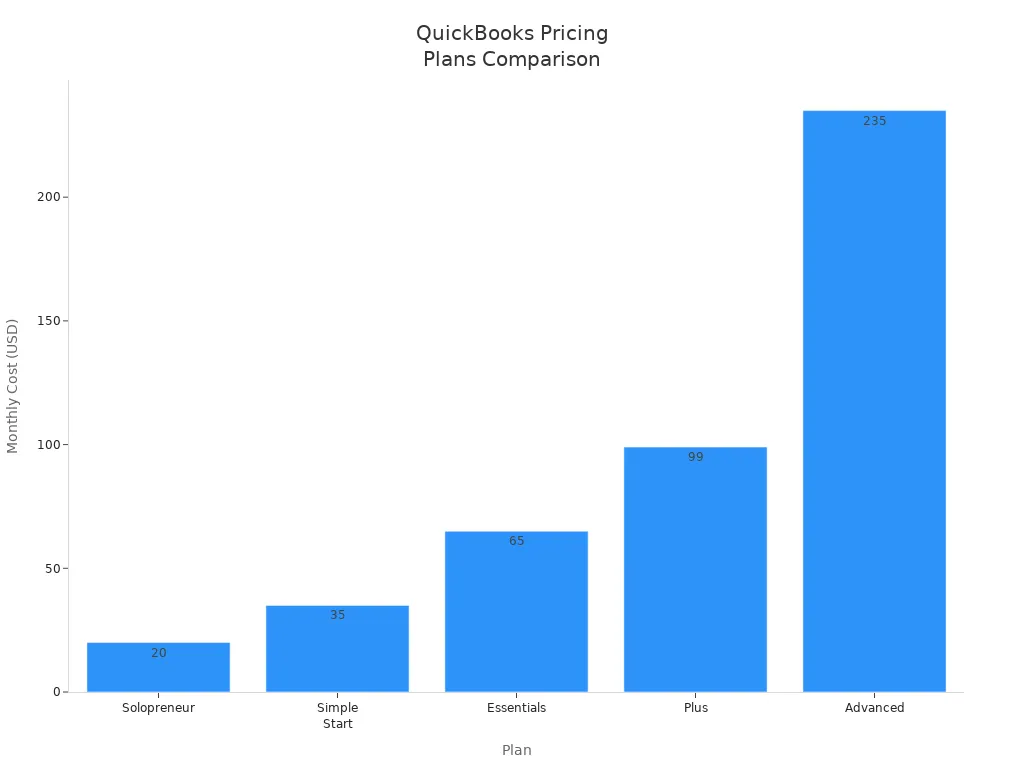
Note: Payroll is not included in the base price. You can add payroll starting at $50 per month plus $6 for each employee. This option is available from the Simple Start plan and above.
What’s Included
Each QuickBooks plan gives you a set of tools to help manage your business. The Solopreneur plan works best if you run your business alone. You get basic accounting, invoicing, and mileage tracking. The Simple Start plan adds full double-entry accounting and sales tax tracking. You can also pay contractors and add payroll as an extra service.
The Essentials plan lets you add more users. You can track time, manage bills, and use up to three sales channels. The Plus plan gives you inventory tracking, project management, and budgeting tools. You can also use class and location tracking to organize your finances.
The Advanced plan fits larger businesses. You get batch invoicing, custom fields, fixed asset tracking, and advanced reporting. You also receive 24/7 support and workflow automation. All plans let you send invoices, track expenses, and connect to your bank accounts, including many Hong Kong banks.
Tip: Start with the plan that matches your business size. You can upgrade as your business grows. Always review what each plan includes before you decide.
Support
Customer Help
You can get help from QuickBooks in several ways. QuickBooks offers a built-in help center that you can access from your dashboard. You can search for answers to common questions or follow step-by-step guides. If you need more support, you can contact QuickBooks customer service directly.
You have these main options for customer help:
- Live Chat: You can start a chat with a support agent. This works well if you need quick answers.
- Phone Support: You can call the QuickBooks support line. The team can help you solve technical problems or answer questions about your account.
- Email Support: You can send an email if your question is not urgent. The support team will reply with detailed instructions.
- In-Product Help: You can click the help icon in QuickBooks. This gives you tips and links to articles based on your current screen.
Tip: Support hours may change based on your location. If you use a Hong Kong bank or work in China, check the QuickBooks website for local support times.
QuickBooks also offers help in different languages. You can choose the language that fits you best. If you need help with pricing, you can ask about USD rates and current exchange rates.
Community
You can join the QuickBooks Community to learn from other users. The community is an online forum where you can ask questions and share tips. Many business owners and accountants use the forum to solve problems together.
Here is what you can do in the QuickBooks Community:
- Post questions about features or setup.
- Search for answers from other users.
- Share your own tips and best practices.
- Join discussions about updates and new tools.
| Community Feature | Benefit for You |
|---|---|
| Q&A Forum | Get answers from experts and peers |
| Product Announcements | Stay updated on new features |
| User Guides | Learn from step-by-step instructions |
| Local Groups | Connect with users in your region |
Note: The QuickBooks Community is free to join. You can access it anytime, even if you use QuickBooks in China or connect with Hong Kong banks. This support helps you solve problems faster and learn new ways to use QuickBooks.
QuickBooks gives you powerful tools to manage your small business finances. You can use QuickBooks to automate tasks, track expenses, and create reports. If you want to see how QuickBooks works, you can start with a trial. The 30-day free trial lets you explore every feature. You can test QuickBooks with no risk during the trial. Many small business owners choose QuickBooks after using the 30-day free trial. You can sign up for a trial today and see how QuickBooks fits your needs. Try the 30-day free trial and get started fast.
FAQ
How do you start a free trial with QuickBooks?
You visit the QuickBooks website. You click “Free Trial.” You enter your email and business details. You choose a plan. You get 30 days to explore all features. You do not need a credit card to begin.
Can you use QuickBooks with Hong Kong banks?
Yes, you can connect QuickBooks to many Hong Kong banks. You link your bank account in the Banking section. QuickBooks downloads your transactions automatically. This helps you track your business finances in USD or other currencies.
What happens if you need to upgrade your plan?
You can upgrade your plan anytime. You go to your account settings. You select a new plan. QuickBooks updates your features right away. You pay the new price in USD based on the current exchange rate.
Does QuickBooks support multiple currencies?
Yes, QuickBooks Online supports multiple currencies. You turn on this feature in your settings. You can send invoices and track expenses in different currencies. QuickBooks converts amounts to USD using the latest exchange rates.
Tip: Always check your settings before sending invoices in another currency.
QuickBooks simplifies accounting for small businesses with automated invoicing, expense tracking, and payroll, saving up to 15-20 hours weekly. Its integrations with 750+ apps, like Shopify and PayPal, streamline financial workflows. For seamless global payments in 2025, complement QuickBooks with BiyaPay. BiyaPay offers transfer fees as low as 0.5%, far below traditional bank fees ($20-$50), with real-time exchange rate transparency across 30+ fiat currencies and 200+ cryptocurrencies in 100+ countries. Its Biya EasyCard, a virtual card with no annual fee, supports Amazon, eBay, and PayPal, ideal for paying suppliers or managing business expenses in 190+ countries. Whether handling international invoices or vendor payments, BiyaPay ensures same-day transfers and easy setup with ID verification. Licensed in the U.S. and New Zealand, it guarantees secure transactions. Boost your QuickBooks efficiency with BiyaPay’s cost-effective global payments. Start with BiyaPay today to enhance your financial management in 2025!
*This article is provided for general information purposes and does not constitute legal, tax or other professional advice from BiyaPay or its subsidiaries and its affiliates, and it is not intended as a substitute for obtaining advice from a financial advisor or any other professional.
We make no representations, warranties or warranties, express or implied, as to the accuracy, completeness or timeliness of the contents of this publication.
Related Blogs of

Ultimate Guide to Applying for a Schengen Visa in the USA in 2025: Understand the Process, Documents, and Timeline in One Article


The Relationship Between Fed Rate Cuts and New York Stock Market Fluctuations Is No Longer a Simple Cause-and-Effect


After Over 100 Billion in Buybacks, Has Tencent's Long-Term Investment Logic Changed?


Say Goodbye to Bank Queues: Latest 2025 Bank of China App Guide for Converting Cash to Exchange

Choose Country or Region to Read Local Blog
 Australia
 Austria
 Belgium
 Canada
 Cyprus
 Czech Republic
 Denmark
 Estonia
 Finland
 France
 Germany
 Greece
 Hong Kong
 India
India Indonesia
 Ireland
 Italy
Italy Japan
Japan Latvia
 Lithuania
 Luxembourg
 Malaysia
 Malta
Malta Morocco
 Nepal
Nepal Netherlands
 New Zealand
 Norway
 Pakistan
 Philippines
 Poland
 Portugal
 Romania
 Singapore
 Slovakia
 Slovenia
 South Africa
 South Korea
 Spain
Spain Sweden
 Thailand
 The United States
 Turkey
 United Arab Emirates
 United Kingdom
 Vietnam
Contact Us




BIYA GLOBAL LLC is a licensed entity registered with the U.S. Securities and Exchange Commission (SEC No.: 802-127417); a certified member of the Financial Industry Regulatory Authority (FINRA) (Central Registration Depository CRD No.: 325027); regulated by the Financial Industry Regulatory Authority (FINRA) and the U.S. Securities and Exchange Commission (SEC).
BIYA GLOBAL LLC is registered with the Financial Crimes Enforcement Network (FinCEN), an agency under the U.S. Department of the Treasury, as a Money Services Business (MSB), with registration number 31000218637349, and regulated by the Financial Crimes Enforcement Network (FinCEN).
BIYA GLOBAL LIMITED is a registered Financial Service Provider (FSP) in New Zealand, with registration number FSP1007221, and is also a registered member of the Financial Services Complaints Limited (FSCL), an independent dispute resolution scheme in New Zealand.