How to Transfer Money from Apple Pay to Cash App? Complete Operation and Precautions



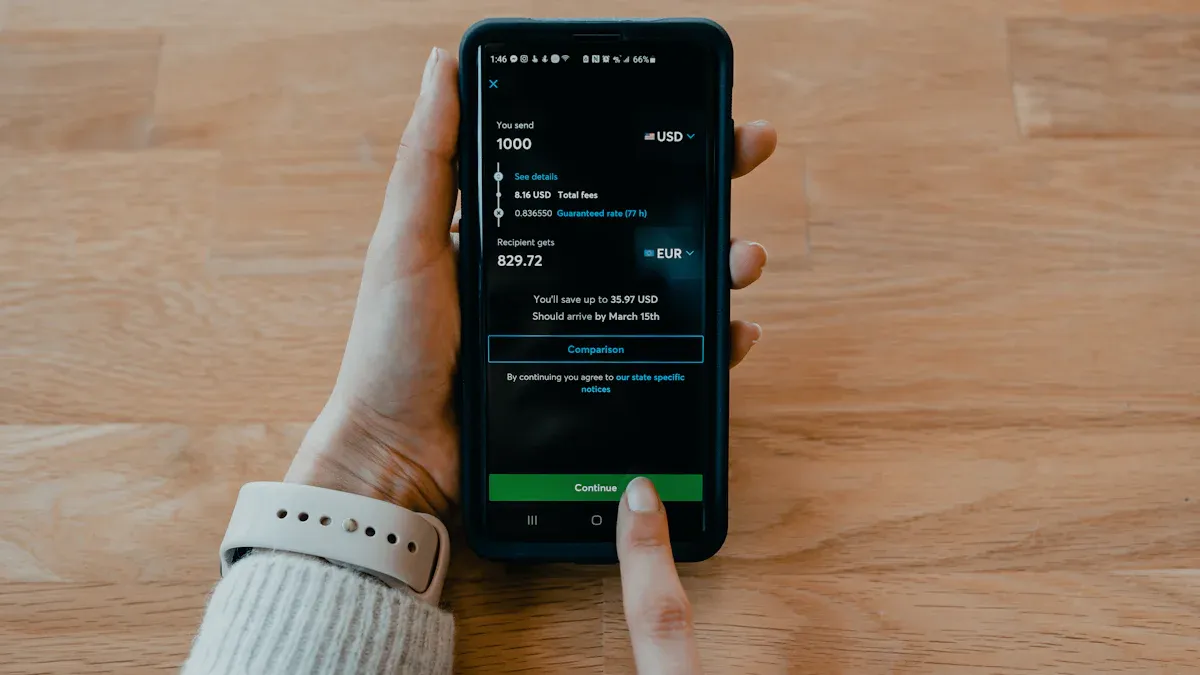
Image Source: unsplash
You cannot directly transfer money from Apple Pay to Cash App. However, you have two reliable workaround methods. Apple Pay has approximately 65.6 million users in the United States, while Cash App also has 57 million monthly active users, so transferring between them is a common need. This article will solve the problem of how to transfer money from Apple Pay to Cash App for you.
Did you know? Apple Pay dominates the U.S. mobile payment market, handling up to 92% of mobile wallet transactions.
You can choose to perform a standard intermediary transfer through a bank account, or use a Cash App card for near-instant quick transfers.
Key Points
- Apple Pay cannot directly transfer to Cash App; you need to complete it through a bank account or Cash App card.
- Transferring through a bank account is free but takes 1 to 3 business days to arrive.
- Using a Cash App card for transfer is fast, almost instant, but charges a 1.5% fee.
- Before transferring, be sure to understand the transfer limits of Apple Cash and Cash App, and enable two-factor authentication to protect account security.
How to Transfer Money from Apple Pay to Cash App: Two Core Methods
Image Source: pexels
Although you cannot complete the transfer with one click, there are two verified reliable methods to help you achieve fund transfers. Solving the problem of how to transfer money from Apple Pay to Cash App mainly involves two workaround solutions. Each method has its unique advantages and applicable scenarios. You can choose the most suitable one based on your needs.
These two methods are:
- Method One: Intermediary Transfer via Bank Account (Standard Method)
- This is a traditional and universally applicable method. You need to first withdraw funds from Apple Cash to your bank account. Then, you recharge your Cash App account from the same bank account. This process is very secure but usually takes 1-3 business days to complete.
- Method Two: Quick Transfer Using Cash App Card (Advanced Method)
- If you have a physical or virtual debit card from Cash App (Cash App Card), this method will be much faster. You can add this card to your Apple Wallet. Afterward, you can directly “withdraw” money from Apple Cash to this card. Funds arrive almost instantly.
Core Tip The core of both methods is to use an “intermediary”: the intermediary in Method One is your bank account, while in Method Two it is your Cash App card.
To help you understand their differences more intuitively, here is a comparison table below:
| Feature | Method One: Bank Account Intermediary | Method Two: Cash App Card Transfer |
|---|---|---|
| Speed | Slower (1-3 business days) | Extremely fast (near-instant) |
| Prerequisites | Have an associated bank account | Must have a Cash App card |
| Operation Complexity | Two-step operation, slightly cumbersome | Simple operation after setup |
Next, we will explain the operation processes of these two methods in detail step by step.
Method One: Intermediary Transfer via Bank Account (Standard Method)
This method is the most basic and universal solution. You don’t need any additional cards, just a bank account that you associate with both Apple Pay and Cash App. Although the speed is not the fastest, its advantages are stability and reliability, suitable for all users. This process is divided into two steps: first withdraw from Apple Cash, then recharge to Cash App.
Withdraw from Apple Cash to Bank
In the first step, you need to transfer the money from your Apple Cash balance to your bank account. This operation is completely done on your iPhone.
Please follow these steps:
- Open the “Wallet” app on your iPhone.
- Tap your Apple Cash card.
- Tap the “More” button in the upper right corner of the screen (icon with three dots).
- Select “Transfer to Bank” (Transfer to Bank).
- Enter the amount you wish to transfer, then tap “Next.”
- Choose your transfer method. At this point, you will see two options.
- Use Face ID or Touch ID to confirm the transfer.
Important Tip: Choose the Correct Transfer Method In step 6, you need to make a choice based on your needs for speed and cost. Apple provides two different withdrawal methods, and their differences are crucial.
To help you decide, here is a detailed comparison of the two methods:
| Transfer Type | Fee | Processing Time |
|---|---|---|
| Instant Transfer | 1.5% of the transfer amount (minimum $0.25, maximum $15) | Usually arrives within 30 minutes |
| 1-3 Business Days Transfer | Free | Usually takes 1-3 business days, sometimes up to 5 days |
If you’re not in a hurry for the money, choosing the free “1-3 business days transfer” is the most economical option. If you need the funds to arrive immediately, paying a small fee to use “Instant Transfer” will be more suitable for you.
Recharge from Bank to Cash App
Once your money has successfully transferred from Apple Cash to your bank account, you can proceed to the second step. Now, you need to add this money from your bank account to your Cash App balance.
Operation Key Be sure to ensure that the bank account you add to Cash App is the same one you used to withdraw from Apple Cash. Using a different account may cause the operation to fail or be delayed.
Here are the steps to recharge Cash App from your bank:
- Open Cash App on your phone.
- Tap the “Money” or “Banking” tab in the lower left corner of the home screen (usually showing your balance or a bank building icon).
- Tap “Add Cash.”
- Enter the amount you want to transfer from the bank.
- Tap the “Add” button.
- Confirm the operation using your PIN or fingerprint.
Usually, the funds will appear in your Cash App balance soon. However, sometimes you may encounter some issues.
- Transfer Failed
- Possible Reasons: Your bank account has insufficient balance, Cash App version is outdated, network connection is unstable, or the bank rejected the transaction for security reasons.
- Solutions: First, check your bank account to ensure sufficient funds. Then, try updating your Cash App to the latest version and connect to a stable Wi-Fi network to retry. If the problem persists, you may need to contact your bank to confirm the transaction was not blocked.
- Bank Rejected Transfer
- Possible Reasons: The bank’s risk control system may flag this operation as suspicious activity, especially if it’s your first time performing such an operation.
- Solutions: Contact your bank’s customer service directly, explain that you are performing a normal recharge operation, and request them to authorize the transaction.
After completing the above two steps, you have successfully solved the problem of how to transfer money from Apple Pay to Cash App via a bank account.
Method Two: Quick Transfer Using Cash App Card (Advanced Method)
Image Source: unsplash
If you prioritize speed and efficiency, this method is your best choice. It uses your Cash App card as a bridge to achieve near-instant fund transfers. The prerequisite for this method is that you must have a Cash App card (Cash App Card). Once set up, subsequent operations will be much simpler and faster than bank transfers.
This advanced method is also divided into two steps: first add your Cash App card to Apple Pay, then directly transfer from Apple Cash to this card.
Obtain and Add Cash App Card to Apple Pay
Before using this method, you first need a Cash App card. This is a customizable free Visa debit card linked to your Cash App balance.
Who Can Apply for a Cash App Card?
You can easily order this card through Cash App. The eligibility requirements are as follows:
- Users aged 18 and older can apply directly.
- Teenagers aged 13 to 17 can join with parental or guardian approval. The guardian needs to invite the teenager to use Cash App, and after the teenager accepts the invitation, they can create a sponsored account and order their own Cash App card through the app.
After obtaining the card, you have two ways to add it to your Apple Wallet. We recommend the first one as it is more direct.
Method A: Add via Cash App (Recommended)
- Open Cash App on your iPhone.
- Tap the “Cash Card” tab on the home screen (card-shaped icon).
- Tap your Cash App card image to enter the card details page.
- Select the “Add to Apple Pay” option.
- A confirmation window will pop up on the screen; tap your device name to start the addition process.
- Read and agree to the terms and conditions.
- Upon completion, you will see a notification with a blue checkmark indicating the card has been successfully added.
Method B: Add via Apple Wallet App
- Open the “Wallet” app on your iPhone.
- Tap the plus sign (+) button in the upper right corner of the screen.
- Select “Debit or Credit Card.”
- You can use the camera to scan your Cash App card, or tap “Enter Card Details Manually.”
- Follow the on-screen prompts to enter the card number, expiration date, and security code.
- You may need to verify via SMS or phone call to confirm you are the cardholder.
- After verification, your Cash App card will appear in Apple Wallet.
Transfer from Apple Cash to Cash App Card
Once you have successfully added the Cash App card to Apple Wallet, solving the problem of how to transfer money from Apple Pay to Cash App becomes very simple. The essence of this operation is to use your Cash App card (a debit card) as the “instant withdrawal” target for Apple Cash.
Please follow these steps:
- Open the “Wallet” app, then tap your Apple Cash card.
- Tap the “More” button in the upper right corner (icon with three dots), then select “Transfer to Bank.”
- Enter the amount you wish to transfer.
- On the page to select the transfer method, choose “Instant Transfer.”
- The system will automatically display the debit cards added to the wallet. Here, select the Cash App card you just added.
- Confirm the transfer information, including the 1.5% fee (minimum $0.25, maximum $15).
- Authorize the transfer using Face ID or Touch ID.
Funds usually appear in your Cash App balance within 30 minutes, very fast. Although Apple’s official description mentions that transfers may be delayed due to bank processing times, holidays, etc., in most cases, instant transfers using a debit card can be completed quickly.
Safety First: Protect Your Account
To ensure the security of your funds, be sure to follow these rules:
- Never add cards that do not belong to you: Never add someone else’s bank card or Cash App card to your Apple Wallet. This behavior violates the terms of service, will be flagged by the system as suspicious activity, and is highly likely to result in your account being restricted or permanently locked.
- Avoid frequent changes: Although there is no explicit rule, frequently adding and removing cards in Apple Wallet may be considered abnormal behavior by the risk control system. It is recommended to keep it stable after setup and not make changes easily.
Through this advanced method, you can efficiently complete fund transfers and enjoy near-instant convenience.
Key Precautions: Fees, Limits, and Security
Before performing transfer operations, it is crucial to understand the related fees, processing times, and security rules. This can help you make the wisest decisions and protect your fund security.
While moving money between two wallets, it can be practical to tidy up everyday small payments and multi-currency spending in one place. If you prefer a separate payment card for subscriptions or online merchants—and unified balance/alert management—consider BiyaPay’s virtual payment card. Within one account you can issue dedicated cards with per-card limits for clearer budgeting and risk isolation; when a currency conversion is involved, use the official Exchange Rate Checker & Comparator to estimate costs before topping up or converting.
BiyaPay is positioned as a multi-asset trading wallet spanning payments, investing, and treasury; for trust context, it operates under multiple licenses (e.g., U.S. MSB, New Zealand FSP) to reinforce account and fund safety. If you want centralized notifications and risk thresholds, complete a quick registration, then apply for a Virtual Card and review fees/usage scope on the official site. This tool-style addition complements—without altering—the two transfer paths and security guidance in this article.
(Related links: Virtual Card | Converter | Register | Official site)
Fee Comparison
Choosing different transfer methods results in completely different fees. You need to weigh the cost and speed based on your needs.
- Method One (Bank Intermediary): When withdrawing from Apple Cash to a bank account, choosing “1-3 business days transfer” is completely free.
- Method Two (Cash App Card): Using a Cash App card for “instant transfer” incurs a fee. Apple charges a 1.5% fee on the transfer amount, with a minimum of $0.25 and a maximum of $15.
- Cash App Receipt: No matter which method you use, depositing funds into your personal Cash App account is free. Cash App does not charge any fees for receiving money.
In simple terms If you want to save money, use the bank intermediary method and wait a few days. If you want fast arrival, use the Cash App card method and pay a small fee.
Processing Time
How long does it take for your funds to arrive? This completely depends on the method you choose.
| Transfer Method | Estimated Processing Time |
|---|---|
| Bank Account Intermediary | 1-3 business days |
| Cash App Card Transfer | Usually within 30 minutes |
Standard bank transfers (also known as ACH transfers) usually take 2-3 business days to process. Instant transfers using a debit card can greatly shorten the waiting time.
Account Limits
Both Apple Cash and Cash App have transfer limits. Understanding these restrictions can prevent your transfers from failing.
Apple Cash Withdrawal Limits:
- Single transfer amount: Minimum $1, maximum $10,000.
- Weekly transfer total: Maximum $20,000.
Cash App Account Limits: Cash App has different limits for unverified and verified accounts. We strongly recommend completing identity verification.
| Account Type | Sending Limit (Weekly) | Receiving Limit |
|---|---|---|
| Unverified Account | Maximum $250 | Maximum $1,000 every 30 days |
| Verified Account | Maximum $7,500 | Unlimited |
Security Tips
Protecting your account and funds is the top priority. Be sure to follow these security guidelines:
- Enable Two-Factor Authentication (2FA): Both Apple Cash and Cash App support this feature. It requires you to enter a one-time verification code when logging in, protecting your account even if your password is leaked.
- Beware of Scams: Be cautious of emails or text messages impersonating customer service, claiming there is an issue with your account and requesting card information. Also, do not scan QR codes from unknown sources, as they may lead you to phishing websites.
- Verify Recipients: Only send money to people you know and trust. If you receive unexpected payments from strangers, do not return them; report directly to Cash App.
- Never Share Sensitive Information: Your PIN or two-factor authentication code is the key to your account. Official customer service will never ask for this information via phone or text.
Now, you have mastered the two core methods to solve the problem of how to transfer money from Apple Pay to Cash App. If speed is your primary concern and you have a Cash App card, Method Two is undoubtedly the best choice. If you don’t mind waiting a few days to save on fees, the traditional bank account intermediary method is equally stable and reliable.
Finally, remember safety first All transfer operations should be completed within the official apps. Be wary of any third-party tools or scams claiming to enable “direct mutual transfers” and protect your fund security.
FAQ
Can I directly transfer from Apple Pay to Cash App?
No. You cannot perform direct transfers. You must use an intermediary step, either through your bank account or Cash App card, to transfer funds. This is currently the only feasible method.
Which transfer method should I choose?
It depends on your needs. If you want to save money and don’t mind waiting, use the free bank intermediary method. If you need funds to arrive quickly and have a Cash App card, the instant transfer method with a small fee is more suitable for you.
Are there hidden fees for transfers?
There are no hidden fees. Using a bank account intermediary is completely free. For instant transfers using a Cash App card, Apple charges a 1.5% fee, which is clearly displayed before you confirm. Cash App receiving funds is free.
Can I use a credit card to complete this operation?
No. You cannot use a credit card for such transfers. Apple Cash’s withdrawal function only supports withdrawals to bank accounts or associated debit cards (such as your Cash App card).
*This article is provided for general information purposes and does not constitute legal, tax or other professional advice from BiyaPay or its subsidiaries and its affiliates, and it is not intended as a substitute for obtaining advice from a financial advisor or any other professional.
We make no representations, warranties or warranties, express or implied, as to the accuracy, completeness or timeliness of the contents of this publication.
Related Blogs of

After Over 100 Billion in Buybacks, Has Tencent's Long-Term Investment Logic Changed?


Say Goodbye to Panic: Master the Winning Rules for Stock Investing in a Bear Market


2026 China Stock Market Investment Guide: Spotlight on 5 Must-Watch Leading Tech Stocks


Understand the Core Differences Between the Nasdaq Composite Index and Nasdaq 100 Index in One Article
Choose Country or Region to Read Local Blog
 Australia
 Austria
 Belgium
 Canada
 Cyprus
 Czech Republic
 Denmark
 Estonia
 Finland
 France
 Germany
 Greece
 Hong Kong
 India
India Indonesia
 Ireland
 Italy
Italy Japan
Japan Latvia
 Lithuania
 Luxembourg
 Malaysia
 Malta
Malta Morocco
 Nepal
Nepal Netherlands
 New Zealand
 Norway
 Pakistan
 Philippines
 Poland
 Portugal
 Romania
 Singapore
 Slovakia
 Slovenia
 South Africa
 South Korea
 Spain
Spain Sweden
 Thailand
 The United States
 Turkey
 United Arab Emirates
 United Kingdom
 Vietnam
Contact Us




BIYA GLOBAL LLC is a licensed entity registered with the U.S. Securities and Exchange Commission (SEC No.: 802-127417); a certified member of the Financial Industry Regulatory Authority (FINRA) (Central Registration Depository CRD No.: 325027); regulated by the Financial Industry Regulatory Authority (FINRA) and the U.S. Securities and Exchange Commission (SEC).
BIYA GLOBAL LLC is registered with the Financial Crimes Enforcement Network (FinCEN), an agency under the U.S. Department of the Treasury, as a Money Services Business (MSB), with registration number 31000218637349, and regulated by the Financial Crimes Enforcement Network (FinCEN).
BIYA GLOBAL LIMITED is a registered Financial Service Provider (FSP) in New Zealand, with registration number FSP1007221, and is also a registered member of the Financial Services Complaints Limited (FSCL), an independent dispute resolution scheme in New Zealand.